> ## Documentation Index
> Fetch the complete documentation index at: https://docs.kinetica.com/llms.txt
> Use this file to discover all available pages before exploring further.
# Changing the Administrator Password
To change the administration account password, follow these steps:
1. Log into [GAdmin](/content/admin/gadmin)
1. Enter **Username** (default is `admin`)
2. Enter **Password** (default is `admin`)
If the database was installed using [KAgent](/content/admin/kagent/kagent), the
password will be the **Admin Password** created during setup.
3. Click **Login**
2. Click **Admin** in the top right corner
3. Click **Change Password**
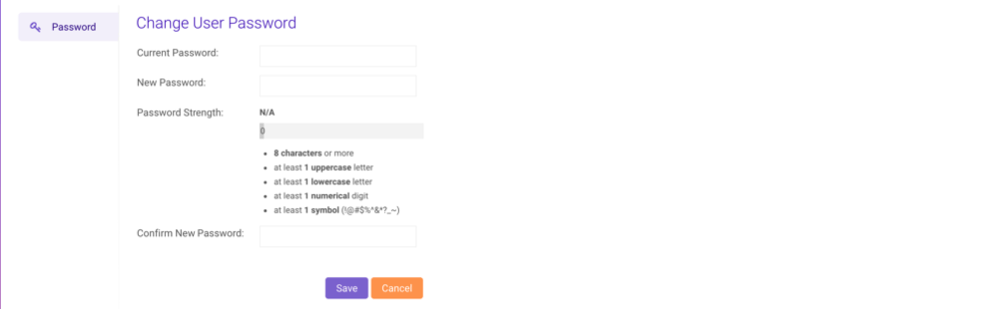 4. Enter the **Current Password**
5. Enter a **New Password** that meets the password strength
requirements (up to 1024 characters)
6. Enter the same new password in **Confirm New Password**
7. Click **Save** to save the new password
4. Enter the **Current Password**
5. Enter a **New Password** that meets the password strength
requirements (up to 1024 characters)
6. Enter the same new password in **Confirm New Password**
7. Click **Save** to save the new password