> ## Documentation Index
> Fetch the complete documentation index at: https://docs.kinetica.com/llms.txt
> Use this file to discover all available pages before exploring further.
# Cluster
The **Cluster** menu selection comprises several tabs that contain
information about all the machines in your cluster as well as configuration and
log file access. Summary data about your *Kinetica* cluster is pinned to the top
right of each tab within **Cluster**; it includes:
* The [status](/content/admin/services#statuses) of *Kinetica*
* How many users are connected to *Kinetica*
* How many requests per second are being made to *Kinetica*
* How many tables are present in this *Kinetica* cluster
* How many rows are present in this *Kinetica* cluster
* The uptime of this *Kinetica* cluster
* A refresh button to refresh the cluster information
 ## Dashboard
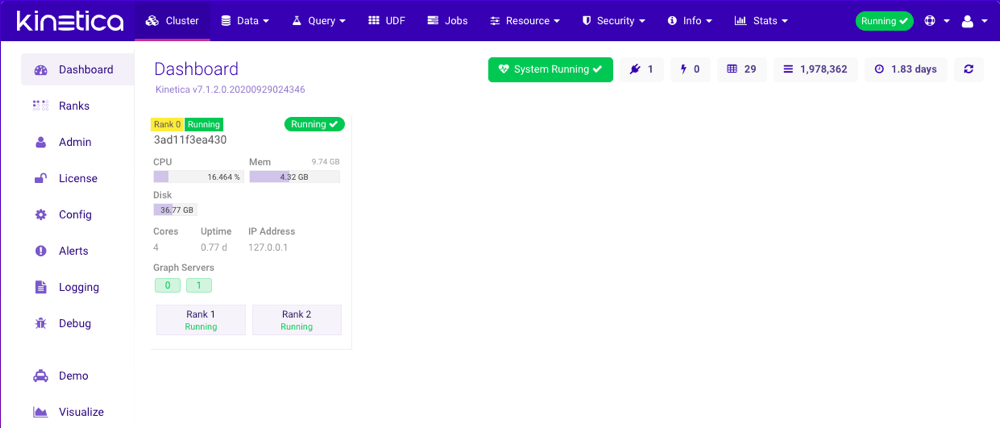
The **Dashboard** page is also the [GAdmin](/content/admin/gadmin) homepage. It
highlights the most important information about all the machines in your
cluster, including CPU, Memory, and Disk usage.
## Dashboard
The **Dashboard** page is also the [GAdmin](/content/admin/gadmin) homepage. It
highlights the most important information about all the machines in your
cluster, including CPU, Memory, and Disk usage.
 ## Ranks
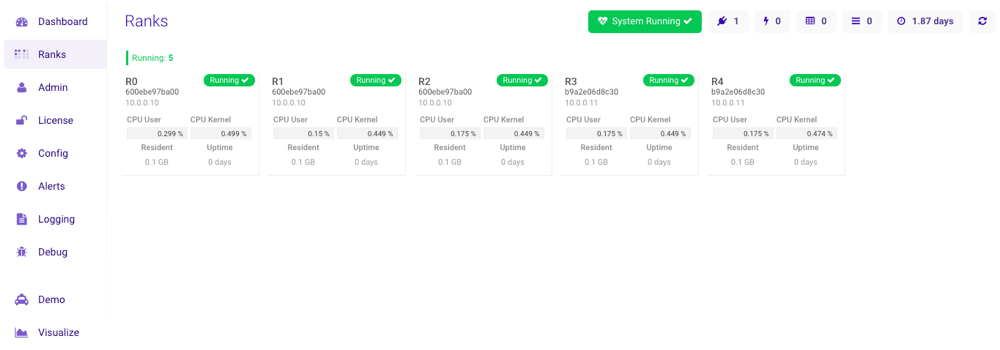
The **Ranks** page displays important information about all the GPU
ranks being used in your cluster.
## Ranks
The **Ranks** page displays important information about all the GPU
ranks being used in your cluster.
 ## Admin
The **Cluster --> Admin** section is only available to users
with the *System Admin* permission.
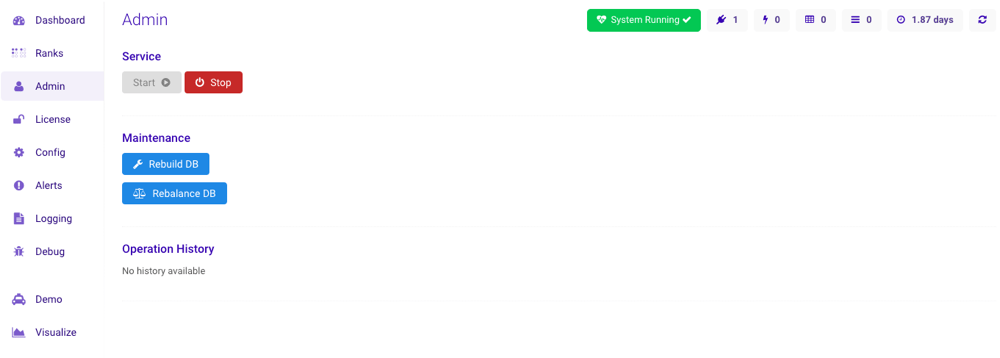
The **Admin** page allows you to stop or start the database, rebuild the
database, rebalance the database, or review operation history (add, remove, or
rebalance node operations) information.
Click **Rebuild DB** to rebuild the database should you experience
database errors or some *tables* and/or *schemas* are unable to be queried.
All tables can be rebuilt **or** just tables with disk optimized columns and/or
tables with text search columns can be rebuilt. For more information on
rebuilding individual *tables* or *schemas*, see
[Rebuilding](/content/admin/gadmin/data#gadmin-table-rebuild).
Click **Rebalance DB** to optionally shuffle around sharded and
unsharded data across your cluster so all nodes could have roughly the same
amount of sharded and unsharded data. If choosing to rebalance unsharded data,
optionally provide a whitelist **or** blacklist of unsharded tables' names.
## Admin
The **Cluster --> Admin** section is only available to users
with the *System Admin* permission.
The **Admin** page allows you to stop or start the database, rebuild the
database, rebalance the database, or review operation history (add, remove, or
rebalance node operations) information.
Click **Rebuild DB** to rebuild the database should you experience
database errors or some *tables* and/or *schemas* are unable to be queried.
All tables can be rebuilt **or** just tables with disk optimized columns and/or
tables with text search columns can be rebuilt. For more information on
rebuilding individual *tables* or *schemas*, see
[Rebuilding](/content/admin/gadmin/data#gadmin-table-rebuild).
Click **Rebalance DB** to optionally shuffle around sharded and
unsharded data across your cluster so all nodes could have roughly the same
amount of sharded and unsharded data. If choosing to rebalance unsharded data,
optionally provide a whitelist **or** blacklist of unsharded tables' names.
 ## License
The **Cluster --> License** section is only available to users
with the *System Admin* permission.
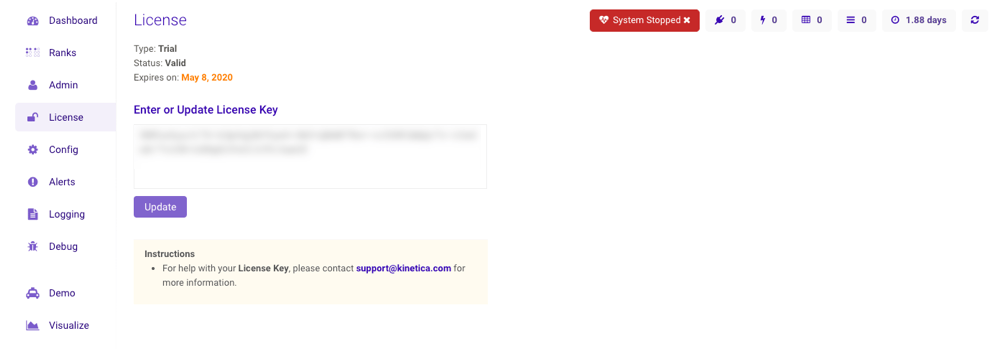
The **License** page provides management capability for the *Kinetica*
license used by the cluster. The page will list the type, status, and
expiration date of the active license.
The license can only be modified when *Kinetica* is not running.
## License
The **Cluster --> License** section is only available to users
with the *System Admin* permission.
The **License** page provides management capability for the *Kinetica*
license used by the cluster. The page will list the type, status, and
expiration date of the active license.
The license can only be modified when *Kinetica* is not running.
 ## Config
The **Cluster --> Config** section is only available to users
with the *System Admin* permission.
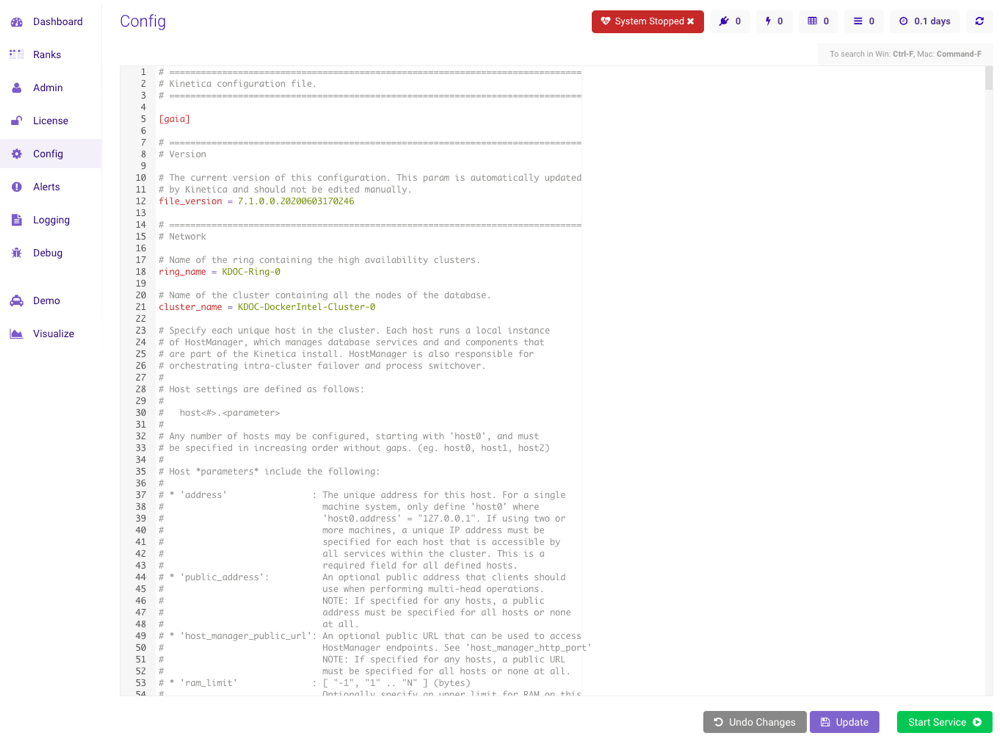
The **Config** page allows you to edit the core *Kinetica* configuration
file and save the changes directly in [GAdmin](/content/admin/gadmin); this file maps
to the /opt/gpudb/core/etc/gpudb.conf file. Detailed
information about configuration file settings can be found on
[Configuration Reference](/content/config).
This tab can only be edited when *Kinetica* is not running.
## Config
The **Cluster --> Config** section is only available to users
with the *System Admin* permission.
The **Config** page allows you to edit the core *Kinetica* configuration
file and save the changes directly in [GAdmin](/content/admin/gadmin); this file maps
to the /opt/gpudb/core/etc/gpudb.conf file. Detailed
information about configuration file settings can be found on
[Configuration Reference](/content/config).
This tab can only be edited when *Kinetica* is not running.
 ## Alerts
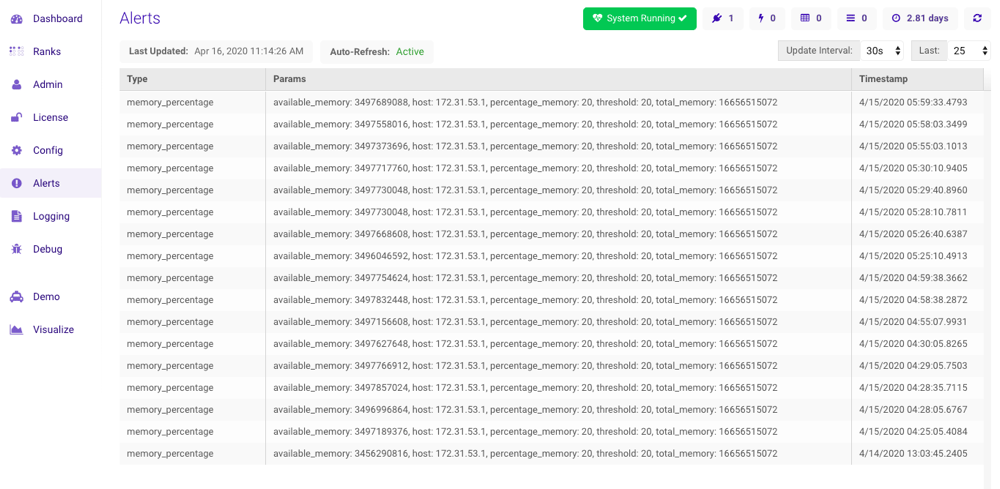
The **Alerts** displays the most recent triggered alerts. Detailed
information about alerts and how to set them can be found on
[Alerting](/content/admin/alerting).
## Alerts
The **Alerts** displays the most recent triggered alerts. Detailed
information about alerts and how to set them can be found on
[Alerting](/content/admin/alerting).
 ## Logging
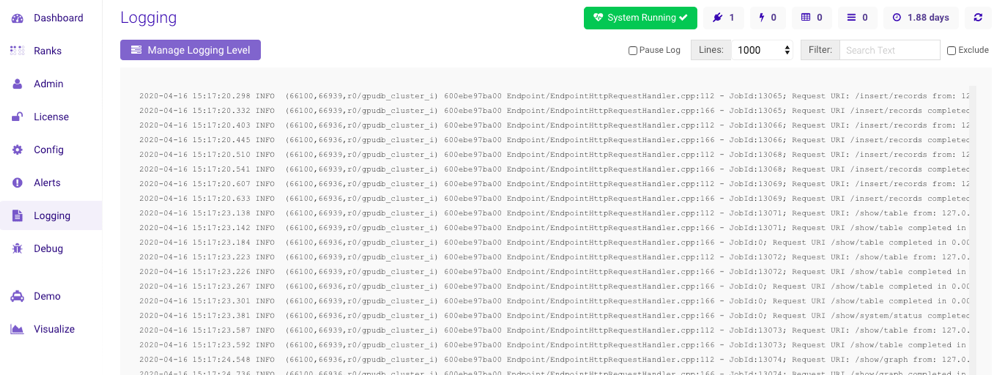
The **Logging** page displays the running system log file, updating
every two seconds. This file is *Kinetica's* main diagnostic tool and it is
located at
/opt/gpudb/core/logs/host-manager-\-\.log.
If the cluster uses a shared persist directory, each nodes' database log will
be located in this directory as well.
Select the **Pause Log** checkbox to pause the file updates. The number
of displayed lines can be selected from **Lines**, and the displayed
lines can be filtered using **Filter** (select the **Exclude**
checkbox to instead exclude the filtered word or phrase).
## Logging
The **Logging** page displays the running system log file, updating
every two seconds. This file is *Kinetica's* main diagnostic tool and it is
located at
/opt/gpudb/core/logs/host-manager-\-\.log.
If the cluster uses a shared persist directory, each nodes' database log will
be located in this directory as well.
Select the **Pause Log** checkbox to pause the file updates. The number
of displayed lines can be selected from **Lines**, and the displayed
lines can be filtered using **Filter** (select the **Exclude**
checkbox to instead exclude the filtered word or phrase).
 ### Setting Loggers
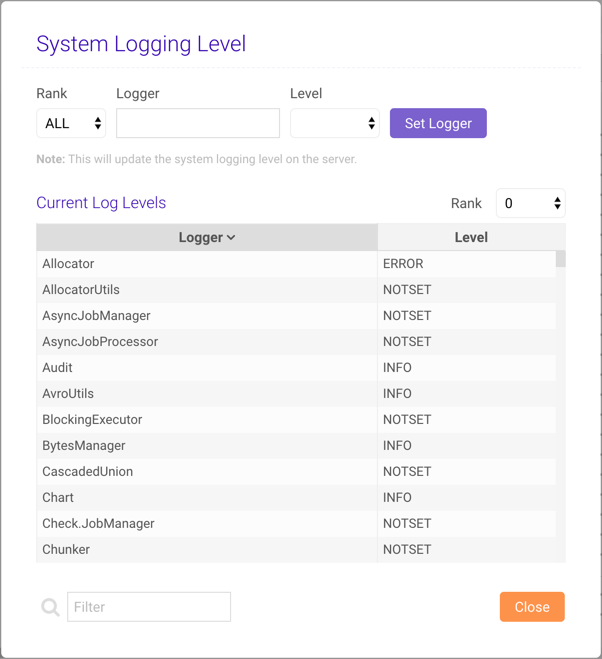
Click **Manage Logging Level** to open the
**Manage System Logging Level** window, where the per-rank logging level
for any system logger can be modified.
To view the active loggers and corresponding levels for each rank, select the
rank from the **Rank** drop-down menu above the
**Current Log Levels** list. Use the **Filter** below the list
to find a particular logger in the list.
To update a logger:
1. At the top of the window, select a rank or *ALL* from the **Rank**
drop-down window.
2. Provide a logger name for the **Logger** field.
3. Select a logger level from the **Level** drop-down menu.
4. Click **Set Logger**.
Instructions for manually changing the logging level via the
`/opt/gpudb/core/etc/gpudb_logger.conf` file are located on the
[Custom Logging](/content/admin/logging) documentation.
Any change will take effect immediately and be in effect until a subsequent
change is made to the same logger or the database is restarted. A database
restart will reset all loggers to their default levels, system-wide.
### Setting Loggers
Click **Manage Logging Level** to open the
**Manage System Logging Level** window, where the per-rank logging level
for any system logger can be modified.
To view the active loggers and corresponding levels for each rank, select the
rank from the **Rank** drop-down menu above the
**Current Log Levels** list. Use the **Filter** below the list
to find a particular logger in the list.
To update a logger:
1. At the top of the window, select a rank or *ALL* from the **Rank**
drop-down window.
2. Provide a logger name for the **Logger** field.
3. Select a logger level from the **Level** drop-down menu.
4. Click **Set Logger**.
Instructions for manually changing the logging level via the
`/opt/gpudb/core/etc/gpudb_logger.conf` file are located on the
[Custom Logging](/content/admin/logging) documentation.
Any change will take effect immediately and be in effect until a subsequent
change is made to the same logger or the database is restarted. A database
restart will reset all loggers to their default levels, system-wide.
 ## Debug
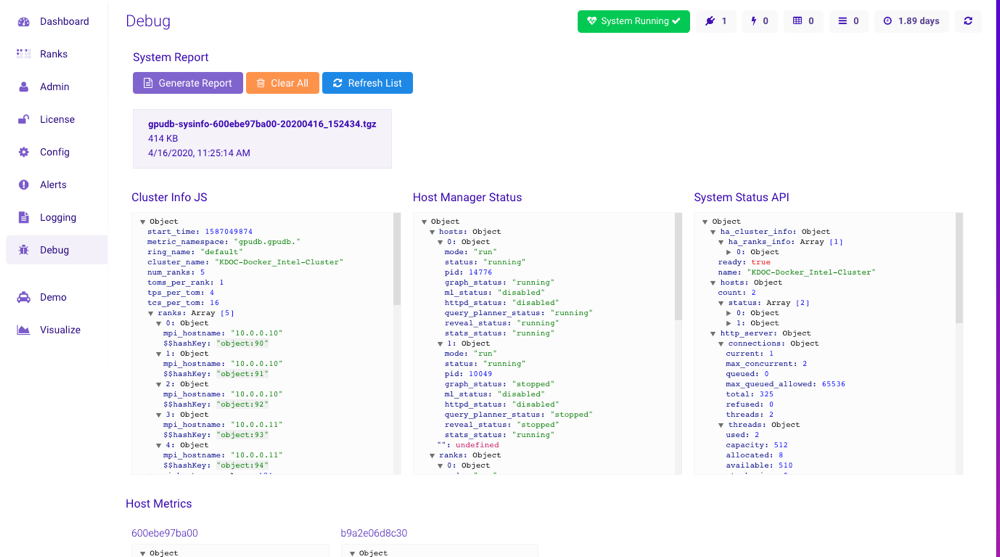
The **Debug** page displays debugging and metric information about your
cluster. Note that each section has nested information, so it's possible
to drill in for more details. From this page, you can also generate system
reports and access previous reports. A system report includes important logs
and files that can be sent to support ([support@kinetica.com](mailto:support@kinetica.com)) to help diagnose
any issues at hand.
## Debug
The **Debug** page displays debugging and metric information about your
cluster. Note that each section has nested information, so it's possible
to drill in for more details. From this page, you can also generate system
reports and access previous reports. A system report includes important logs
and files that can be sent to support ([support@kinetica.com](mailto:support@kinetica.com)) to help diagnose
any issues at hand.
 ## Demo
The **Cluster --> Demo** section is only available to users
with the *System Admin* permission.
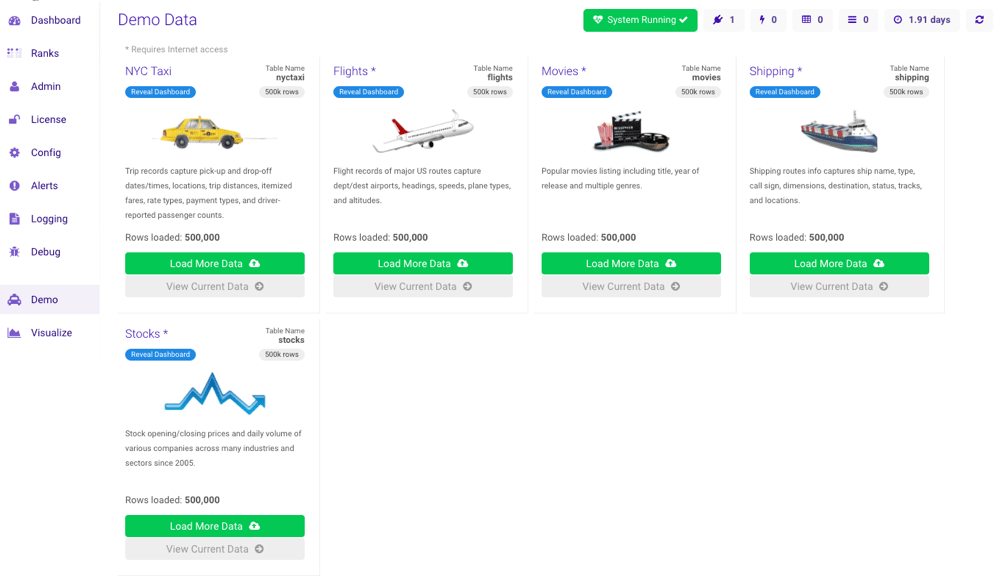
The **Demo** page contains various data that you can load into
*Kinetica*. This data will help get you started using *Kinetica* as well as
demonstrate some key capabilities of the system. Each demo dataset contains
500,000 records; after loading the data into *Kinetica*, you have the option of
loading the same data again. The datasets with a
[Reveal Dashboard](/content/bi/reveal) button have a corresponding
Reveal dashboard that will be automatically setup in Reveal after ingesting the
data.
## Demo
The **Cluster --> Demo** section is only available to users
with the *System Admin* permission.
The **Demo** page contains various data that you can load into
*Kinetica*. This data will help get you started using *Kinetica* as well as
demonstrate some key capabilities of the system. Each demo dataset contains
500,000 records; after loading the data into *Kinetica*, you have the option of
loading the same data again. The datasets with a
[Reveal Dashboard](/content/bi/reveal) button have a corresponding
Reveal dashboard that will be automatically setup in Reveal after ingesting the
data.
 ## Visualize
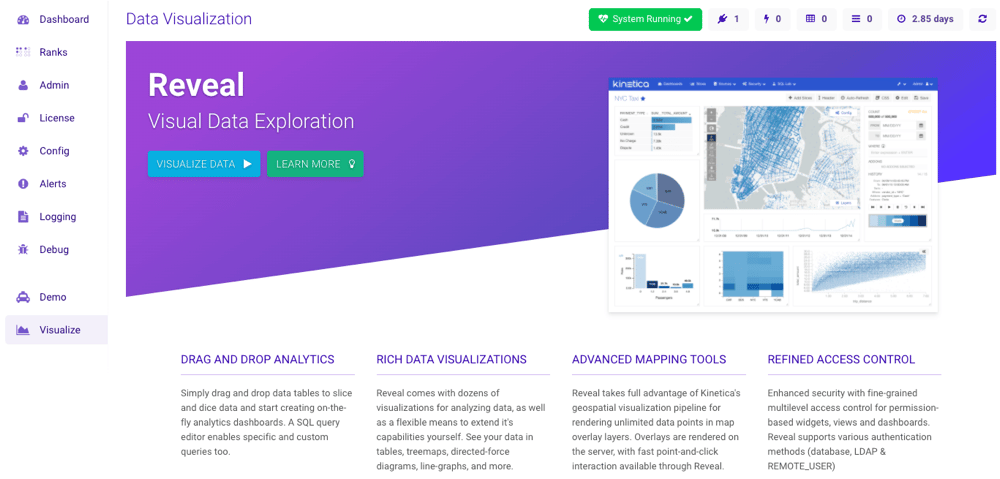
The **Visualize** page contains an overview of
[Reveal](/content/bi/reveal) as well as a quick link to Reveal.
## Visualize
The **Visualize** page contains an overview of
[Reveal](/content/bi/reveal) as well as a quick link to Reveal.