> ## Documentation Index
> Fetch the complete documentation index at: https://docs.kinetica.com/llms.txt
> Use this file to discover all available pages before exploring further.
# Data
All the data in the database can be viewed through
[GAdmin's](/content/admin/gadmin#gadmin) **Data** menu
selection. From here, you can manage each [schema](/content/concepts/schemas) in
the database and every [table](/content/concepts/tables) and
[view](/content/concepts/views) it contains;
use WMS to generate a heatmap of a *table* or *view* with geocoordinates; and
manage [graphs](/content/graph_solver/network_graph_solver).
## Tables
The **Tables** page provides information about all *schemas* and
contained *tables* & *views* in the database in a grid layout.
### Schema List
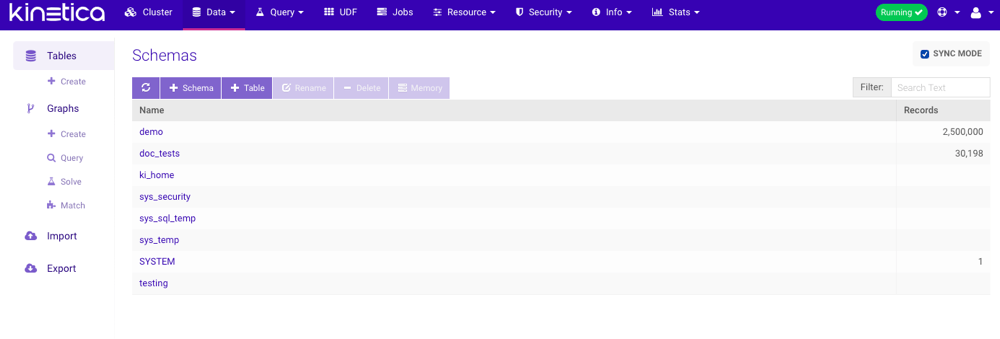
The initial grid lists the *schemas* accessible to the user. Each *schema* is
displayed along with the total number of records across all the *tables* &
*views* it contains.
From this view, the following functionality is available:
*  (**Refresh**) -- refresh the list of *schemas*
* **+ Schema** -- create a new [schema](/content/concepts/schemas)
* **+ Table** -- [create](/content/admin/gadmin/data#gadmin-table-create) a new
[table](/content/concepts/tables)
* **Rename** -- rename the selected *schema*
* **Delete** -- delete the selected *schema(s)*
* **Memory** -- display the current amount of used memory by the
*tables* and *views* in the selected *schema(s)*
* **Filter** -- only display *schemas* matching the given search text
and *schemas* containing *tables* and/or *views* matching the given search
text
* **Sync Mode** -- if enabled, record counts will be accurate but
potentially slower to update
(**Refresh**) -- refresh the list of *schemas*
* **+ Schema** -- create a new [schema](/content/concepts/schemas)
* **+ Table** -- [create](/content/admin/gadmin/data#gadmin-table-create) a new
[table](/content/concepts/tables)
* **Rename** -- rename the selected *schema*
* **Delete** -- delete the selected *schema(s)*
* **Memory** -- display the current amount of used memory by the
*tables* and *views* in the selected *schema(s)*
* **Filter** -- only display *schemas* matching the given search text
and *schemas* containing *tables* and/or *views* matching the given search
text
* **Sync Mode** -- if enabled, record counts will be accurate but
potentially slower to update
 ### Table/View List
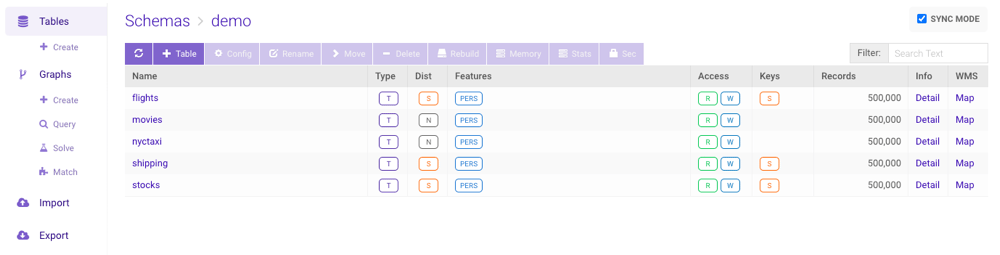
Clicking on a *schema* will show a grid view of all the *tables* & *views* that
*schema* contains, with details about each. Available are the object type,
type of distribution ([replicated](/content/concepts/tables#replicated),
[sharded](/content/concepts/tables#sharding), or [neither](/content/concepts/tables#random-sharding)), feature set
(see list below), global access rights (read/write), keys
([primary](/content/concepts/tables#primary-key), [shard](/content/concepts/tables#shard-key), and
[foreign](/content/concepts/tables#foreign-key)) and associated columns, and the record count.
The types of objects are as follows:
* **T** -- [table](/content/concepts/tables)
* **MV** -- [materialized view](/content/concepts/materialized_views)
* **LV** -- [logical view](/content/sql/ddl#sql-create-view)
* **ME** -- *materialized*
[external table](/content/concepts/external_tables)
The types of features are as follows:
* **PERS** *(PERSISTED)* -- the *table* exists on disk & in memory
(i.e., not [memory-only](/content/concepts/tables_memory_only)) and will exist
across database restarts
* **JOIN** -- a [join view](/content/concepts/joins) or
*materialized view* that ends in a *join view*
* **RESU** *(RESULT\_TABLE)* -- results from endpoint operations like
[Create Projection](/content/api/rest/create_projection_rest) and
[Create Union](/content/api/rest/create_union_rest)
* **VIEW** -- a *filtered* [view](/content/concepts/views), a *join view*,
or a *materialized view* that ends in a *filtered* or *join view*
From this view, the following functionality is available:
* (**Refresh**) -- refresh the list of *tables* & *views*
* **+ Table** -- [create](/content/admin/gadmin/data#gadmin-table-create) a new *table*
* **Config** -- [modify](/content/admin/gadmin/data#gadmin-table-config) the selected *table*
* **Rename** -- rename the selected *table*
* **Move** -- [move](/content/admin/gadmin/data#gadmin-table-move) the selected *table(s)*
and/or *view(s)* to a different *schema*
* **Delete** -- [delete](/content/admin/gadmin/data#gadmin-table-delete) the selected
*table(s)* and/or *view(s)*
* **Rebuild** -- [rebuild](/content/admin/gadmin/data#gadmin-table-rebuild) the selected
*table(s)* and/or *view(s)*
* **Memory** -- display the current amount of used memory for the
selected *table(s)* and/or *view(s)*
* **Stats** -- display statistics regarding a selected column or all
columns in the selected *table* or *view*, e.g., estimated cardinality, mean
value, standard deviation, etc.; and recommendations for improving the
structure of the table, e.g., dictionary encoding, smaller column type, etc.
* **Sec** -- manage row- and column-
[security](/content/admin/gadmin/data#gadmin-row-col-security) for the selected *table* or
*view*
* **Filter** -- only display *tables* and *views* matching the given
search text
* **Sync Mode** -- if enabled, record counts will be accurate but
potentially slow
### Table/View List
Clicking on a *schema* will show a grid view of all the *tables* & *views* that
*schema* contains, with details about each. Available are the object type,
type of distribution ([replicated](/content/concepts/tables#replicated),
[sharded](/content/concepts/tables#sharding), or [neither](/content/concepts/tables#random-sharding)), feature set
(see list below), global access rights (read/write), keys
([primary](/content/concepts/tables#primary-key), [shard](/content/concepts/tables#shard-key), and
[foreign](/content/concepts/tables#foreign-key)) and associated columns, and the record count.
The types of objects are as follows:
* **T** -- [table](/content/concepts/tables)
* **MV** -- [materialized view](/content/concepts/materialized_views)
* **LV** -- [logical view](/content/sql/ddl#sql-create-view)
* **ME** -- *materialized*
[external table](/content/concepts/external_tables)
The types of features are as follows:
* **PERS** *(PERSISTED)* -- the *table* exists on disk & in memory
(i.e., not [memory-only](/content/concepts/tables_memory_only)) and will exist
across database restarts
* **JOIN** -- a [join view](/content/concepts/joins) or
*materialized view* that ends in a *join view*
* **RESU** *(RESULT\_TABLE)* -- results from endpoint operations like
[Create Projection](/content/api/rest/create_projection_rest) and
[Create Union](/content/api/rest/create_union_rest)
* **VIEW** -- a *filtered* [view](/content/concepts/views), a *join view*,
or a *materialized view* that ends in a *filtered* or *join view*
From this view, the following functionality is available:
* (**Refresh**) -- refresh the list of *tables* & *views*
* **+ Table** -- [create](/content/admin/gadmin/data#gadmin-table-create) a new *table*
* **Config** -- [modify](/content/admin/gadmin/data#gadmin-table-config) the selected *table*
* **Rename** -- rename the selected *table*
* **Move** -- [move](/content/admin/gadmin/data#gadmin-table-move) the selected *table(s)*
and/or *view(s)* to a different *schema*
* **Delete** -- [delete](/content/admin/gadmin/data#gadmin-table-delete) the selected
*table(s)* and/or *view(s)*
* **Rebuild** -- [rebuild](/content/admin/gadmin/data#gadmin-table-rebuild) the selected
*table(s)* and/or *view(s)*
* **Memory** -- display the current amount of used memory for the
selected *table(s)* and/or *view(s)*
* **Stats** -- display statistics regarding a selected column or all
columns in the selected *table* or *view*, e.g., estimated cardinality, mean
value, standard deviation, etc.; and recommendations for improving the
structure of the table, e.g., dictionary encoding, smaller column type, etc.
* **Sec** -- manage row- and column-
[security](/content/admin/gadmin/data#gadmin-row-col-security) for the selected *table* or
*view*
* **Filter** -- only display *tables* and *views* matching the given
search text
* **Sync Mode** -- if enabled, record counts will be accurate but
potentially slow
 ### Creating
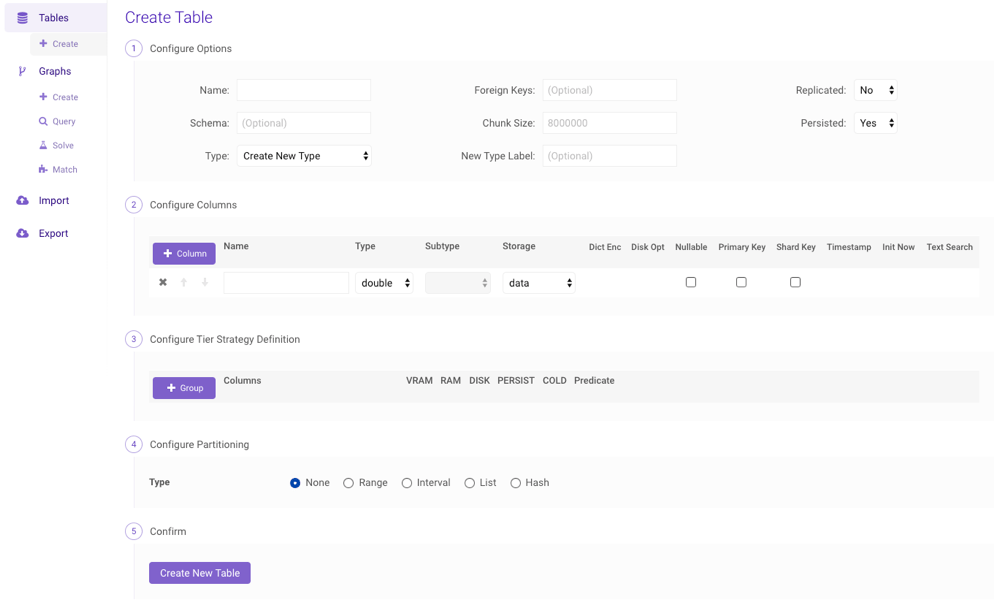
A table can be created by clicking **Create** (underneath
**Tables**) on the left menu to navigate to the **Create Table**
page. After configuring the name, containing *schema* name, distribution
scheme, keys, column set,
[tier strategy definition](/content/rm/concepts#rm-concepts-tier-strategy), and
[partitioning](/content/concepts/tables#partitioning), click **Create New Table**.
### Creating
A table can be created by clicking **Create** (underneath
**Tables**) on the left menu to navigate to the **Create Table**
page. After configuring the name, containing *schema* name, distribution
scheme, keys, column set,
[tier strategy definition](/content/rm/concepts#rm-concepts-tier-strategy), and
[partitioning](/content/concepts/tables#partitioning), click **Create New Table**.
 #### Defining a Tier Strategy
From the **Edit Table** page:
* Click **+ Group** to append additional column strategy groupings to
the table
* Click **+ Chain** to append additional priority definitions to a
group
* Provide a comma-separated list of columns, an
[eviction priority](/content/rm/concepts#rm-concepts-eviction-priority) for each
available [tier](/content/rm/concepts#rm-concepts-tiers) (tiers are defined in
/opt/gpudb/core/etc/gpudb.conf), and an optional predicate
Omit **Columns** to apply the strategy to the entire table
#### Defining a Tier Strategy
From the **Edit Table** page:
* Click **+ Group** to append additional column strategy groupings to
the table
* Click **+ Chain** to append additional priority definitions to a
group
* Provide a comma-separated list of columns, an
[eviction priority](/content/rm/concepts#rm-concepts-eviction-priority) for each
available [tier](/content/rm/concepts#rm-concepts-tiers) (tiers are defined in
/opt/gpudb/core/etc/gpudb.conf), and an optional predicate
Omit **Columns** to apply the strategy to the entire table
Example
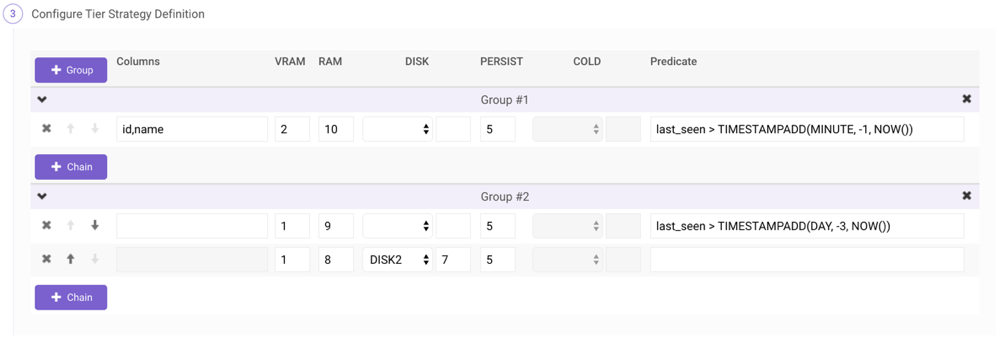
For instance, consider the following *tier strategy*, applied to a table with a
timestamp column named `last_seen`, a positive integer `id` column, and a
string `name` column:
```sql theme={null}
(
(VRAM 1, RAM 9) WHERE last_seen > TIMESTAMPADD(DAY, -3, NOW()),
(VRAM 1, RAM 8, DISK2 7)
),
(
COLUMNS id, name
(VRAM 2, RAM 10) WHERE last_seen > TIMESTAMPADD(MINUTE, -1, NOW())
)
```
To recreate this strategy in the *table* configuration interface:
 #### Partitioning
From the **Edit Table** page:
1. Select a [partition](/content/concepts/tables#partitioning) type.
2. Provide as many **Key(s)** as necessary. Click **+**
to add key expressions.
3. Provide as many **Definition(s)** as necessary. Click **+**
to add definitions.
#### Partitioning
From the **Edit Table** page:
1. Select a [partition](/content/concepts/tables#partitioning) type.
2. Provide as many **Key(s)** as necessary. Click **+**
to add key expressions.
3. Provide as many **Definition(s)** as necessary. Click **+**
to add definitions.
Example
To create a *range-partitioned* table with the following criteria:
* partitioned by the date/time of the order
* partitions for years *2016*, *2017*, *2018*, & *2019*
* records not in that range go to the *default partition*
 ### Configuring
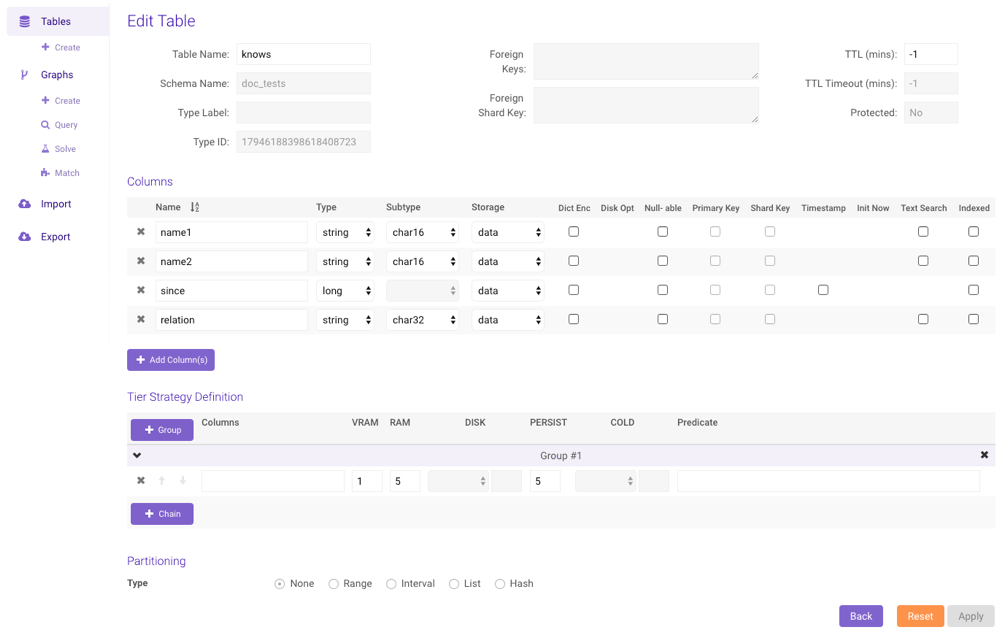
To configure an existing *table*, click **Config**, update the
*table* configuration as necessary, and click **Apply**. Click
**Reset** to discard any pending modifications.
Allowed modifications include:
* Renaming the *table*
* Modifying the [TTL](/content/concepts/ttl)
* Renaming the non-[primary](/content/concepts/tables#primary-key)/[shard](/content/concepts/tables#shard-key) key
columns
* Modifying the type, subtype, storage, and properties of a
non-*primary*/*shard key* column
* Removing any non-*primary*/*shard key* columns
* Adding new columns
* Adjusting the [tier strategy definition](/content/rm/concepts#rm-concepts-tier-strategy); see
[Defining a Tier Strategy](/content/admin/gadmin/data#gadmin-table-tier-strat-define) for assistance.
* Adjusting the [table partitioning](/content/concepts/tables#partitioning); note that only
existing range or list partitions can be adjusted
### Configuring
To configure an existing *table*, click **Config**, update the
*table* configuration as necessary, and click **Apply**. Click
**Reset** to discard any pending modifications.
Allowed modifications include:
* Renaming the *table*
* Modifying the [TTL](/content/concepts/ttl)
* Renaming the non-[primary](/content/concepts/tables#primary-key)/[shard](/content/concepts/tables#shard-key) key
columns
* Modifying the type, subtype, storage, and properties of a
non-*primary*/*shard key* column
* Removing any non-*primary*/*shard key* columns
* Adding new columns
* Adjusting the [tier strategy definition](/content/rm/concepts#rm-concepts-tier-strategy); see
[Defining a Tier Strategy](/content/admin/gadmin/data#gadmin-table-tier-strat-define) for assistance.
* Adjusting the [table partitioning](/content/concepts/tables#partitioning); note that only
existing range or list partitions can be adjusted
 ### Moving
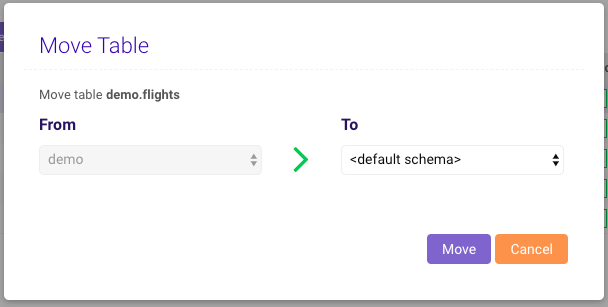
To move one or more *tables* and/or *views* to another *schema*, select the
*table(s)*/*view(s)* (avoid clicking any *table*/*view* name, as that will open
the [Data Grid](/content/admin/gadmin/data#gadmin-data-grid) page) and then click **Move**. In the
pop-up, select which *schema* to move them to and click **Move**.
### Moving
To move one or more *tables* and/or *views* to another *schema*, select the
*table(s)*/*view(s)* (avoid clicking any *table*/*view* name, as that will open
the [Data Grid](/content/admin/gadmin/data#gadmin-data-grid) page) and then click **Move**. In the
pop-up, select which *schema* to move them to and click **Move**.
 ### Deleting
To delete one or more *tables* and/or *views*, select the *table(s)*/*view(s)*
(avoid clicking any *table*/*view* name, as that will open the
[Data Grid](/content/admin/gadmin/data#gadmin-data-grid) page) and then click **Delete**. In the pop-up,
confirm the deletion.
### Rebuilding
To rebuild one or more *tables* and/or *views* if you are unable to query them,
select the *table(s)*/*view(s)* (avoid clicking any *table*/*view* name, as that
will open the [Data Grid](/content/admin/gadmin/data#gadmin-data-grid) page) and then click **Rebuild**.
In the pop-up, confirm the rebuild. Acknowledge the warning, then the selected
objects will be rebuilt. For more information on rebuilding the entire database,
see [Admin](/content/admin/gadmin/cluster#gadmin-db-rebuild).
### Detailed Table Information
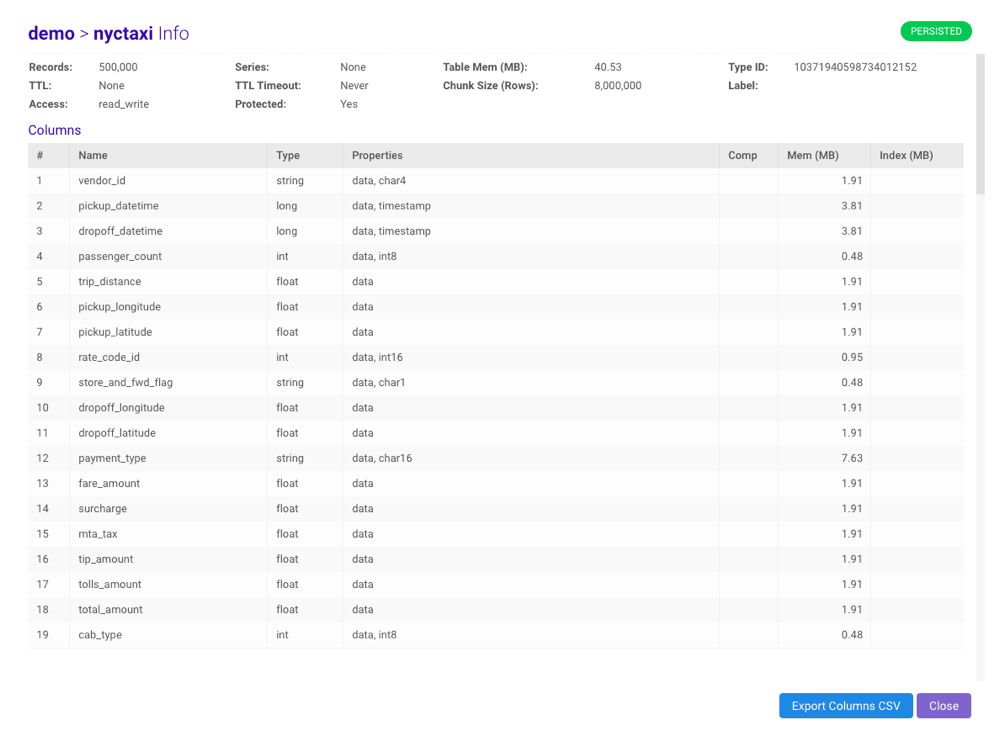
To view *table*/*view* detail, structure, memory usage, and
[tier strategy](/content/rm/concepts#rm-concepts-tier-strategy) information, click
**Detail** in the **Info** column. The column grid can be
exported to CSV by clicking **Export CSV**.
### Deleting
To delete one or more *tables* and/or *views*, select the *table(s)*/*view(s)*
(avoid clicking any *table*/*view* name, as that will open the
[Data Grid](/content/admin/gadmin/data#gadmin-data-grid) page) and then click **Delete**. In the pop-up,
confirm the deletion.
### Rebuilding
To rebuild one or more *tables* and/or *views* if you are unable to query them,
select the *table(s)*/*view(s)* (avoid clicking any *table*/*view* name, as that
will open the [Data Grid](/content/admin/gadmin/data#gadmin-data-grid) page) and then click **Rebuild**.
In the pop-up, confirm the rebuild. Acknowledge the warning, then the selected
objects will be rebuilt. For more information on rebuilding the entire database,
see [Admin](/content/admin/gadmin/cluster#gadmin-db-rebuild).
### Detailed Table Information
To view *table*/*view* detail, structure, memory usage, and
[tier strategy](/content/rm/concepts#rm-concepts-tier-strategy) information, click
**Detail** in the **Info** column. The column grid can be
exported to CSV by clicking **Export CSV**.
 ### WMS
If your data contains coordinates and/or geometry data, you can:
* When viewing the list of [tables](/content/concepts/tables)
(**Data --> Tables**), click the **Map** link in the
**WMS** column
* When browsing a *table's* [datagrid](/content/admin/gadmin/data#gadmin-data-grid), click the
**WMS** button in the top bar
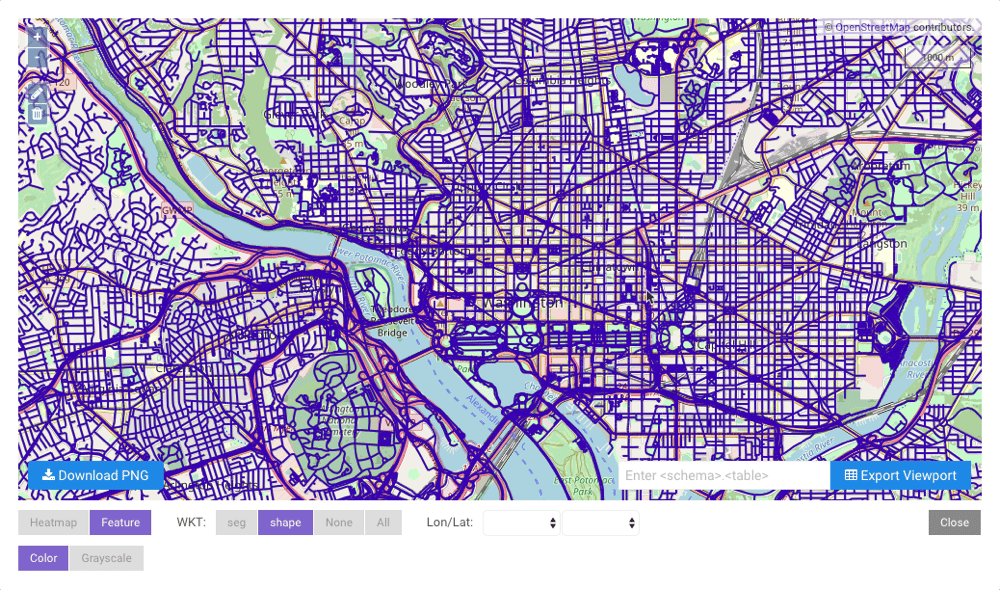
You can use the **+** / **-** on the left or the scroll wheel
of your mouse to zoom in and out of an area. Click
### WMS
If your data contains coordinates and/or geometry data, you can:
* When viewing the list of [tables](/content/concepts/tables)
(**Data --> Tables**), click the **Map** link in the
**WMS** column
* When browsing a *table's* [datagrid](/content/admin/gadmin/data#gadmin-data-grid), click the
**WMS** button in the top bar
You can use the **+** / **-** on the left or the scroll wheel
of your mouse to zoom in and out of an area. Click  to draw a polygon on
top of the map; this will act as a filter for the viewport. Click
to draw a polygon on
top of the map; this will act as a filter for the viewport. Click  to
remove any polygons on the map. Click **Download PNG** to download a
`.png` file of the **current** viewport. Provide a table name and click
**Export Viewport** to export the points in the **current** viewport to
a separate table; note that if any polygon(s) were drawn on the
map, only the points inside those polygons will be exported to the new table.
The map will default to **Heatmap** mode. To render full WKT
geometry, click **Feature**. Whilst rendering features, click a
feature on the map to display additional information about the feature.
The following column [types](/content/concepts/types) can be used to populate the
map with latitude/longitude points (assuming the columns being used to render
the points are of the same type):
* `double`
* `float`
* `int`
* `int16`
* `int8`
* `long`
* `timestamp` (the raw epoch value will be used to render the point)
* `decimal`
The following column *types* can be used to populate the map with WKT objects:
* `wkt`
* `wkb`
If there are multiple WKT/WKB columns, select the desired column to display,
select **None** to not display any compatible column(s), or select **All** to
display all compatible column(s) next to **WKT**; if there are multiple
longitude / latitude columns, select the desired columns from the
**Lon/Lat** drop-down menus. If there are both WKT objects **and**
longitude / latitude points present in a table, select the WKT column to display
WKT or select **None** and the desired columns from the
**Lon/Lat** drop-down menus to display longitude / latitude points.
to
remove any polygons on the map. Click **Download PNG** to download a
`.png` file of the **current** viewport. Provide a table name and click
**Export Viewport** to export the points in the **current** viewport to
a separate table; note that if any polygon(s) were drawn on the
map, only the points inside those polygons will be exported to the new table.
The map will default to **Heatmap** mode. To render full WKT
geometry, click **Feature**. Whilst rendering features, click a
feature on the map to display additional information about the feature.
The following column [types](/content/concepts/types) can be used to populate the
map with latitude/longitude points (assuming the columns being used to render
the points are of the same type):
* `double`
* `float`
* `int`
* `int16`
* `int8`
* `long`
* `timestamp` (the raw epoch value will be used to render the point)
* `decimal`
The following column *types* can be used to populate the map with WKT objects:
* `wkt`
* `wkb`
If there are multiple WKT/WKB columns, select the desired column to display,
select **None** to not display any compatible column(s), or select **All** to
display all compatible column(s) next to **WKT**; if there are multiple
longitude / latitude columns, select the desired columns from the
**Lon/Lat** drop-down menus. If there are both WKT objects **and**
longitude / latitude points present in a table, select the WKT column to display
WKT or select **None** and the desired columns from the
**Lon/Lat** drop-down menus to display longitude / latitude points.
 ### Data Grid
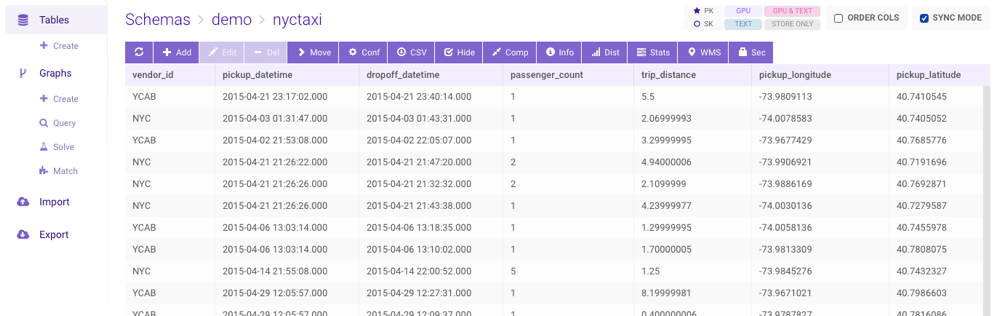
To view the individual records in a *table*, click the *table* name. This
will display the **data grid** page. From here, the following
functionality is available:
* (**Refresh**) -- refresh the table
* **Add** -- insert a new record
* **Edit** -- modify the selected record
* **Delete** -- delete the selected record
* **Move** -- [move](/content/admin/gadmin/data#gadmin-table-move) the *table* or *view* to a
different *schema*
* **Conf** -- [modify](/content/admin/gadmin/data#gadmin-table-config) the *table* or
*view*
* **CSV** -- [export](/content/admin/gadmin/data#gadmin-data-export) data to CSV
* **Hide** -- hide displayed columns within the grid
* **Info** -- display table [detail](/content/admin/gadmin/data#gadmin-table-info)
* **Dist** -- display cross-node data distribution graph
* **Stats** -- display statistics regarding a selected column or all
columns in the table, e.g., estimated cardinality, mean value,
standard deviation, etc., and recommendations for improving the structure of
the table, e.g., dictionary encoding, smaller column type, etc.
* **WMS** -- [plot](/content/admin/gadmin/data#gadmin-table-wms) data from *tables* with
[geospatial data](/content/location_intelligence/geo_objects) on a map
* **Sec** -- manage row- and column-
[security](/content/admin/gadmin/data#gadmin-row-col-security) for the table
* **Order Cols** -- If enabled, the columns will be displayed
alphabetically
* **Sync Mode** -- if enabled, table row counts will be accurate but
potentially slow
### Data Grid
To view the individual records in a *table*, click the *table* name. This
will display the **data grid** page. From here, the following
functionality is available:
* (**Refresh**) -- refresh the table
* **Add** -- insert a new record
* **Edit** -- modify the selected record
* **Delete** -- delete the selected record
* **Move** -- [move](/content/admin/gadmin/data#gadmin-table-move) the *table* or *view* to a
different *schema*
* **Conf** -- [modify](/content/admin/gadmin/data#gadmin-table-config) the *table* or
*view*
* **CSV** -- [export](/content/admin/gadmin/data#gadmin-data-export) data to CSV
* **Hide** -- hide displayed columns within the grid
* **Info** -- display table [detail](/content/admin/gadmin/data#gadmin-table-info)
* **Dist** -- display cross-node data distribution graph
* **Stats** -- display statistics regarding a selected column or all
columns in the table, e.g., estimated cardinality, mean value,
standard deviation, etc., and recommendations for improving the structure of
the table, e.g., dictionary encoding, smaller column type, etc.
* **WMS** -- [plot](/content/admin/gadmin/data#gadmin-table-wms) data from *tables* with
[geospatial data](/content/location_intelligence/geo_objects) on a map
* **Sec** -- manage row- and column-
[security](/content/admin/gadmin/data#gadmin-row-col-security) for the table
* **Order Cols** -- If enabled, the columns will be displayed
alphabetically
* **Sync Mode** -- if enabled, table row counts will be accurate but
potentially slow
 #### Export Data
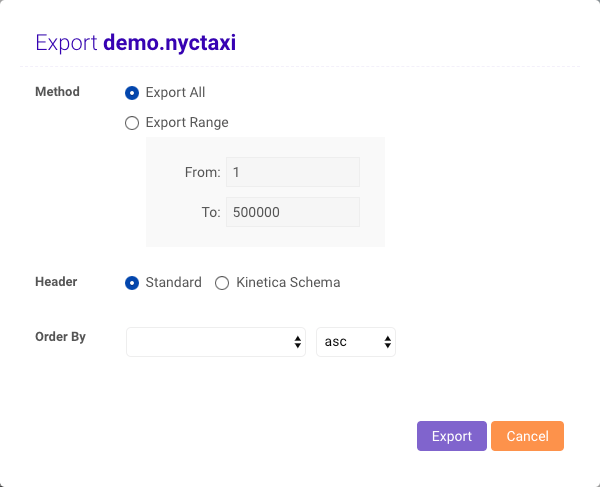
From the **data grid** page, select **CSV**. You will have
the option to export all of the data or records within a range, specify the type
of header, and how to order the data on export.
#### Export Data
From the **data grid** page, select **CSV**. You will have
the option to export all of the data or records within a range, specify the type
of header, and how to order the data on export.
 Once you click the **Export** button, the data will be downloaded to
your computer as a CSV file using the format
`.
Once you click the **Export** button, the data will be downloaded to
your computer as a CSV file using the format
`..csv`. The standard header is just a comma-delimited list of
column header names:
 The **Kinetica Schema** is a comma-delimited list of column headers with
pipe-delimited column properties:
The **Kinetica Schema** is a comma-delimited list of column headers with
pipe-delimited column properties:
 Null values are represented as `\N`. This can be changed by
modifying the `data_file_string_null_value` parameter in
/opt/gpudb/tomcat/webapps/gadmin/WEB-INF/classes/gaia.properties.
### Advanced Table Security
Advanced table security (e.g., row- and column-level) can be enabled on a
per-table basis for select users and roles by:
* When viewing the list of [tables](/content/concepts/tables)
(**Data --> Tables**), select a table then click the
**Sec** button in the top bar
* When browsing a *table's* [datagrid](/content/admin/gadmin/data#gadmin-data-grid), click the
**Sec** button in the top bar
A user or role must have the `table_read` permission on a selected table for
the row- and/or column-level security to apply. Review
[Row-Level Security](/content/security/sec_concepts#sec-concepts-perm-table-row) and [Column-Level Security](/content/security/sec_concepts#sec-concepts-perm-table-col) for
more information.
Advanced Table Security can only be accessed by users with the
`system_admin` permission.
Null values are represented as `\N`. This can be changed by
modifying the `data_file_string_null_value` parameter in
/opt/gpudb/tomcat/webapps/gadmin/WEB-INF/classes/gaia.properties.
### Advanced Table Security
Advanced table security (e.g., row- and column-level) can be enabled on a
per-table basis for select users and roles by:
* When viewing the list of [tables](/content/concepts/tables)
(**Data --> Tables**), select a table then click the
**Sec** button in the top bar
* When browsing a *table's* [datagrid](/content/admin/gadmin/data#gadmin-data-grid), click the
**Sec** button in the top bar
A user or role must have the `table_read` permission on a selected table for
the row- and/or column-level security to apply. Review
[Row-Level Security](/content/security/sec_concepts#sec-concepts-perm-table-row) and [Column-Level Security](/content/security/sec_concepts#sec-concepts-perm-table-col) for
more information.
Advanced Table Security can only be accessed by users with the
`system_admin` permission.
 #### Users
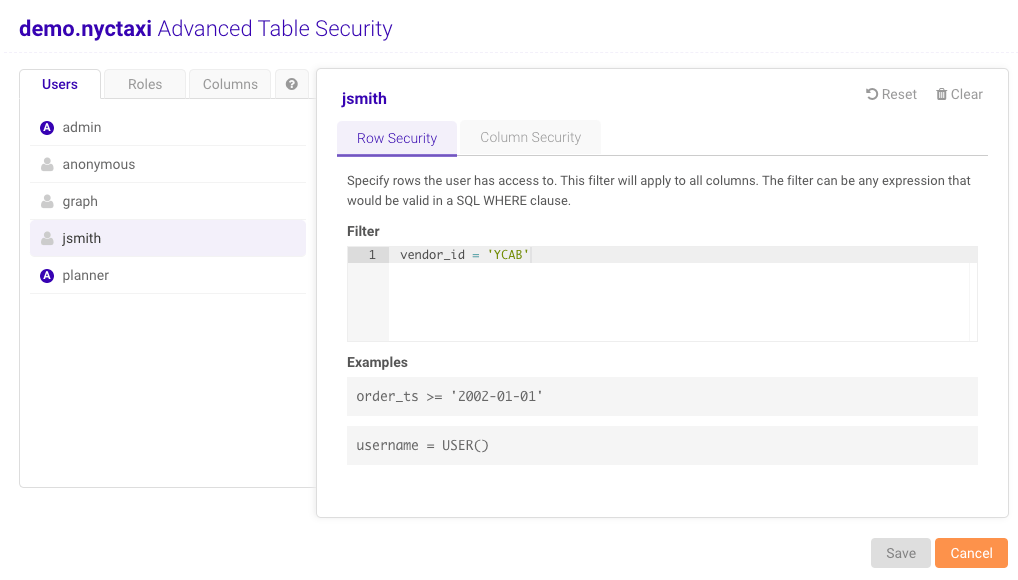
Individual users can have row- and column-level security imposed on them,
restricting or granting access to particular data. To apply security to a user:
1. Navigate to the **Advanced Table Security** window and display the
**Users** tab.
2. Select a user from the list.
Row- and column-level security cannot be configured for users with
the `system_admin` permission.
3. Apply **Row Security** and **Column Security** as necessary.
* To apply **Row Security**:
1. Click the **Row Security** tab.
#### Users
Individual users can have row- and column-level security imposed on them,
restricting or granting access to particular data. To apply security to a user:
1. Navigate to the **Advanced Table Security** window and display the
**Users** tab.
2. Select a user from the list.
Row- and column-level security cannot be configured for users with
the `system_admin` permission.
3. Apply **Row Security** and **Column Security** as necessary.
* To apply **Row Security**:
1. Click the **Row Security** tab.
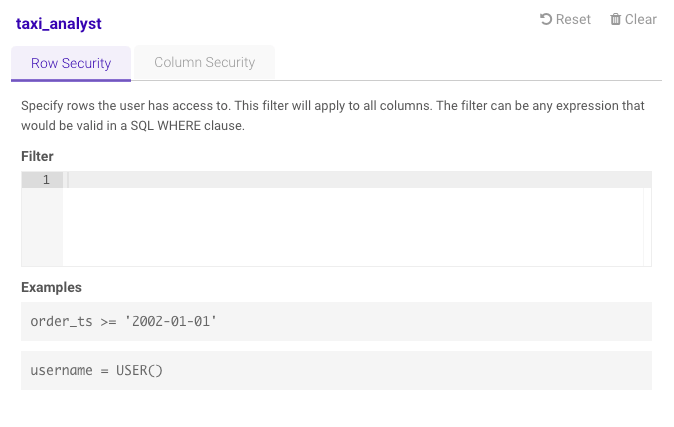 2. Provide a valid SQL `WHERE`-like expression in the **Filter**
text field to specify entire rows the user has access to that meet the
given filter condition.
* To apply **Column Security**:
1. Click the **Column Security** tab.
2. Provide a valid SQL `WHERE`-like expression in the **Filter**
text field to specify entire rows the user has access to that meet the
given filter condition.
* To apply **Column Security**:
1. Click the **Column Security** tab.
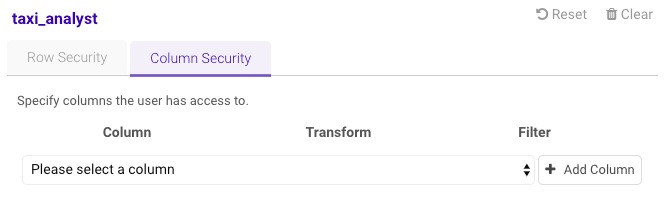 2. Select a column from the drop-down menu.
3. Click **Add Column**.
4. Optionally, if the column is a `string` column, select a
**Transform** option:
* **Mask** -- the column value will be masked after some length,
for some width of characters, with a select character. If no mask
exists for the column currently, one must be defined. Click
2. Select a column from the drop-down menu.
3. Click **Add Column**.
4. Optionally, if the column is a `string` column, select a
**Transform** option:
* **Mask** -- the column value will be masked after some length,
for some width of characters, with a select character. If no mask
exists for the column currently, one must be defined. Click  to
jump to the **Columns** table and define one. See
[Columns](/content/admin/gadmin/data#col-mask) for more information.
* **Obfuscate** -- each unique original column value will be
exchanged for a unique non-negative number
Review [Column-Level Security](/content/security/sec_concepts#sec-concepts-perm-table-col) for more
information on masking and obfuscation.
5. Optionally, apply a valid SQL `WHERE`-like expression in the
**Filter** text field.
6. Repeat the previous steps for as many columns as necessary.
4. Click **Save** and confirm the update for the selected user.
Click **Reset** to reset the modified security settings to
the previously saved settings. Click **Clear** to remove
any saved settings.
#### Roles
Individual roles can have row- and column-level security imposed on them,
restricting or granting access to particular data. To apply security to a role:
1. Navigate to the **Advanced Table Security** window and display the
**Roles** tab.
2. Select a role from the list.
Row- and column-level security cannot be configured for roles with
the `system_admin` permission.
3. Apply **Row Security** and **Column Security** as necessary.
* To apply **Row Security**:
1. Click the **Row Security** tab.
2. Provide a valid SQL `WHERE`-like expression in the **Filter**
text field to specify entire rows the user has access to that meet the
given filter condition.
* To apply **Column Security**:
1. Click the **Column Security** tab.
2. Select a column from the drop-down menu.
3. Click **Add Column**.
4. Optionally, if the column is a `string` column, select a
**Transform** option:
* **Mask** -- the column value will be masked after some length,
for some width of characters, with a select character. If no mask
exists for the column currently, one must be defined. Click to
jump to the **Columns** table and define one. See
[Columns](/content/admin/gadmin/data#col-mask) for more information.
* **Obfuscate** -- each unique original column value will be
exchanged for a unique non-negative number
Review [Column-Level Security](/content/security/sec_concepts#sec-concepts-perm-table-col) for more
information on masking and obfuscation.
5. Optionally, apply a valid SQL `WHERE`-like expression in the
**Filter** text field.
6. Repeat the previous steps for as many columns as necessary.
4. Click **Save** and confirm the update for the selected role.
Click **Reset** to reset the modified security settings to
the previously saved settings. Click **Clear** to remove
any saved settings.
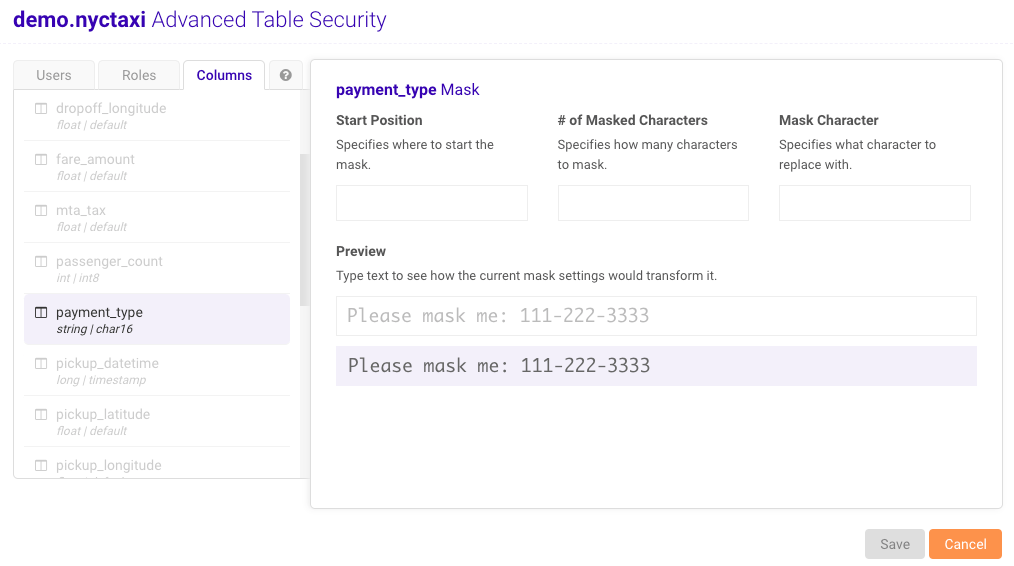
#### Columns
Any `string` columns in the selected table can have pre-configured masks
applied when setting column-level security for a user or role. To create a mask
for a column:
1. Navigate to the **Advanced Table Security** window and display the
**Columns** tab.
2. Select a valid column from the list.
3. Specify a **Start Position** for the mask.
4. Specify the **# of Masked Characters**.
5. Specify the **Mask Character**.
6. Optionally, type into the **Preview** field to preview the mask
before saving.
7. Click **Save** and confirm the column mask.
to
jump to the **Columns** table and define one. See
[Columns](/content/admin/gadmin/data#col-mask) for more information.
* **Obfuscate** -- each unique original column value will be
exchanged for a unique non-negative number
Review [Column-Level Security](/content/security/sec_concepts#sec-concepts-perm-table-col) for more
information on masking and obfuscation.
5. Optionally, apply a valid SQL `WHERE`-like expression in the
**Filter** text field.
6. Repeat the previous steps for as many columns as necessary.
4. Click **Save** and confirm the update for the selected user.
Click **Reset** to reset the modified security settings to
the previously saved settings. Click **Clear** to remove
any saved settings.
#### Roles
Individual roles can have row- and column-level security imposed on them,
restricting or granting access to particular data. To apply security to a role:
1. Navigate to the **Advanced Table Security** window and display the
**Roles** tab.
2. Select a role from the list.
Row- and column-level security cannot be configured for roles with
the `system_admin` permission.
3. Apply **Row Security** and **Column Security** as necessary.
* To apply **Row Security**:
1. Click the **Row Security** tab.
2. Provide a valid SQL `WHERE`-like expression in the **Filter**
text field to specify entire rows the user has access to that meet the
given filter condition.
* To apply **Column Security**:
1. Click the **Column Security** tab.
2. Select a column from the drop-down menu.
3. Click **Add Column**.
4. Optionally, if the column is a `string` column, select a
**Transform** option:
* **Mask** -- the column value will be masked after some length,
for some width of characters, with a select character. If no mask
exists for the column currently, one must be defined. Click to
jump to the **Columns** table and define one. See
[Columns](/content/admin/gadmin/data#col-mask) for more information.
* **Obfuscate** -- each unique original column value will be
exchanged for a unique non-negative number
Review [Column-Level Security](/content/security/sec_concepts#sec-concepts-perm-table-col) for more
information on masking and obfuscation.
5. Optionally, apply a valid SQL `WHERE`-like expression in the
**Filter** text field.
6. Repeat the previous steps for as many columns as necessary.
4. Click **Save** and confirm the update for the selected role.
Click **Reset** to reset the modified security settings to
the previously saved settings. Click **Clear** to remove
any saved settings.
#### Columns
Any `string` columns in the selected table can have pre-configured masks
applied when setting column-level security for a user or role. To create a mask
for a column:
1. Navigate to the **Advanced Table Security** window and display the
**Columns** tab.
2. Select a valid column from the list.
3. Specify a **Start Position** for the mask.
4. Specify the **# of Masked Characters**.
5. Specify the **Mask Character**.
6. Optionally, type into the **Preview** field to preview the mask
before saving.
7. Click **Save** and confirm the column mask.
 #### Example
User `jsmith` is a human resources liaison for the engineering department
with access to employee information. The security for the `employees` table
that contains said information is configured in such a way that user `jsmith`:
* Can see full information for their own username
* Can only see the last 4 of an SSN and an obfuscated salary for employees
outside of their assigned department
To configure the **Advanced Table Security** window for the above
scenario:
1. From the `employees` table, click **Sec** along the top, and then
select `jsmith` from the **Users** list.
2. On the right side of the window, under **Row Security**, input the
filter for the engineering department:
#### Example
User `jsmith` is a human resources liaison for the engineering department
with access to employee information. The security for the `employees` table
that contains said information is configured in such a way that user `jsmith`:
* Can see full information for their own username
* Can only see the last 4 of an SSN and an obfuscated salary for employees
outside of their assigned department
To configure the **Advanced Table Security** window for the above
scenario:
1. From the `employees` table, click **Sec** along the top, and then
select `jsmith` from the **Users** list.
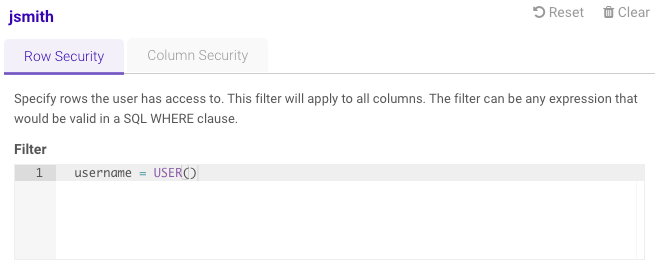
2. On the right side of the window, under **Row Security**, input the
filter for the engineering department:
 3. Click **Column Security** and input the obfuscated `salary` column
& the masked `ssn` column:
3. Click **Column Security** and input the obfuscated `salary` column
& the masked `ssn` column:
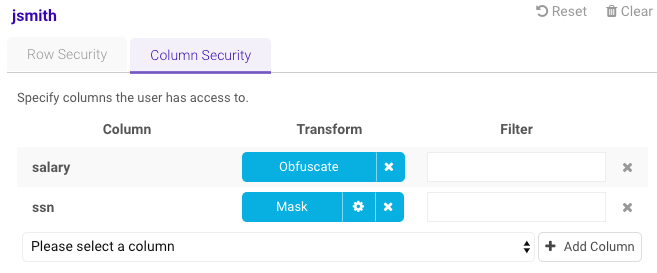 4. Click the icon next to **Mask** to configure the masking
values:
4. Click the icon next to **Mask** to configure the masking
values:
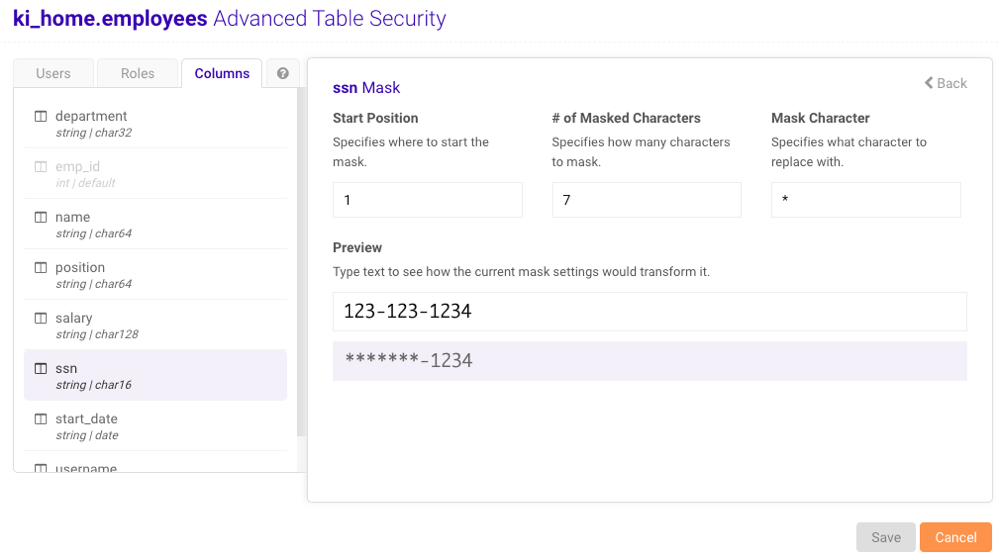 5. Click **Save.**
## Graphs
The **Graphs** section provides the ability to manage and execute
operations against [graphs](/content/graph_solver/network_graph_solver). The
following sections are available under **Graphs**:
* **Create** -- [create](/content/admin/gadmin/data#gadmin-graphs-create) a new graph
* **Query** -- [run a query](/content/admin/gadmin/data#gadmin-graphs-query) against an
existing graph
* **Solve** -- [run a solver algorithm](/content/admin/gadmin/data#gadmin-graphs-solve)
against an existing graph
* **Match** -- [run a matching algorithm](/content/admin/gadmin/data#gadmin-graphs-match)
against an existing graph
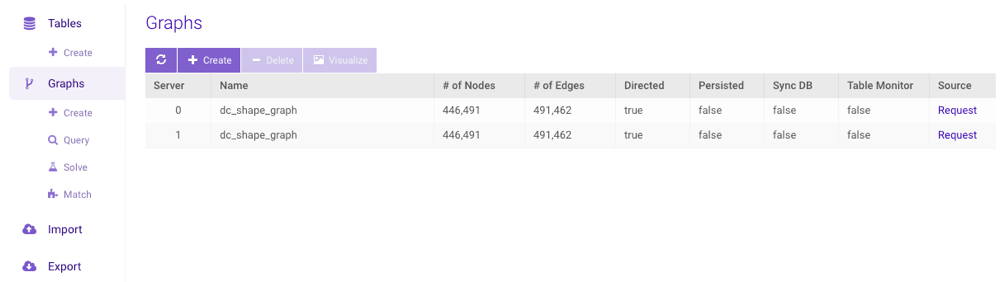
The **Graphs** page displays any created graphs as well as various
information and statistics about each graph. Click **Request** under
**Source** to see the JSON used to create the graph as it is. Click
**+ Create** to open the
[Create Graph interface](/content/admin/gadmin/data#gadmin-graphs-create).
Click a graph then click **Delete** to delete the graph. Click
**Visualize** to use WMS to display the graph. Consult
[Graphs & Solvers Concepts](/content/graph_solver/network_graph_solver) for more information on graphs.
Consult [Distributed Graph Servers](/content/graph_solver/distributed_graph_server) for more information on
distributed graph servers.
On any of the interfaces described below, click **History** to
view previous requests made to that particular interface, view details
about each request, reload a request, or view WMS for the request (if
**Enable Graph Draw** was set to `True`)
5. Click **Save.**
## Graphs
The **Graphs** section provides the ability to manage and execute
operations against [graphs](/content/graph_solver/network_graph_solver). The
following sections are available under **Graphs**:
* **Create** -- [create](/content/admin/gadmin/data#gadmin-graphs-create) a new graph
* **Query** -- [run a query](/content/admin/gadmin/data#gadmin-graphs-query) against an
existing graph
* **Solve** -- [run a solver algorithm](/content/admin/gadmin/data#gadmin-graphs-solve)
against an existing graph
* **Match** -- [run a matching algorithm](/content/admin/gadmin/data#gadmin-graphs-match)
against an existing graph
The **Graphs** page displays any created graphs as well as various
information and statistics about each graph. Click **Request** under
**Source** to see the JSON used to create the graph as it is. Click
**+ Create** to open the
[Create Graph interface](/content/admin/gadmin/data#gadmin-graphs-create).
Click a graph then click **Delete** to delete the graph. Click
**Visualize** to use WMS to display the graph. Consult
[Graphs & Solvers Concepts](/content/graph_solver/network_graph_solver) for more information on graphs.
Consult [Distributed Graph Servers](/content/graph_solver/distributed_graph_server) for more information on
distributed graph servers.
On any of the interfaces described below, click **History** to
view previous requests made to that particular interface, view details
about each request, reload a request, or view WMS for the request (if
**Enable Graph Draw** was set to `True`)

 ### Create
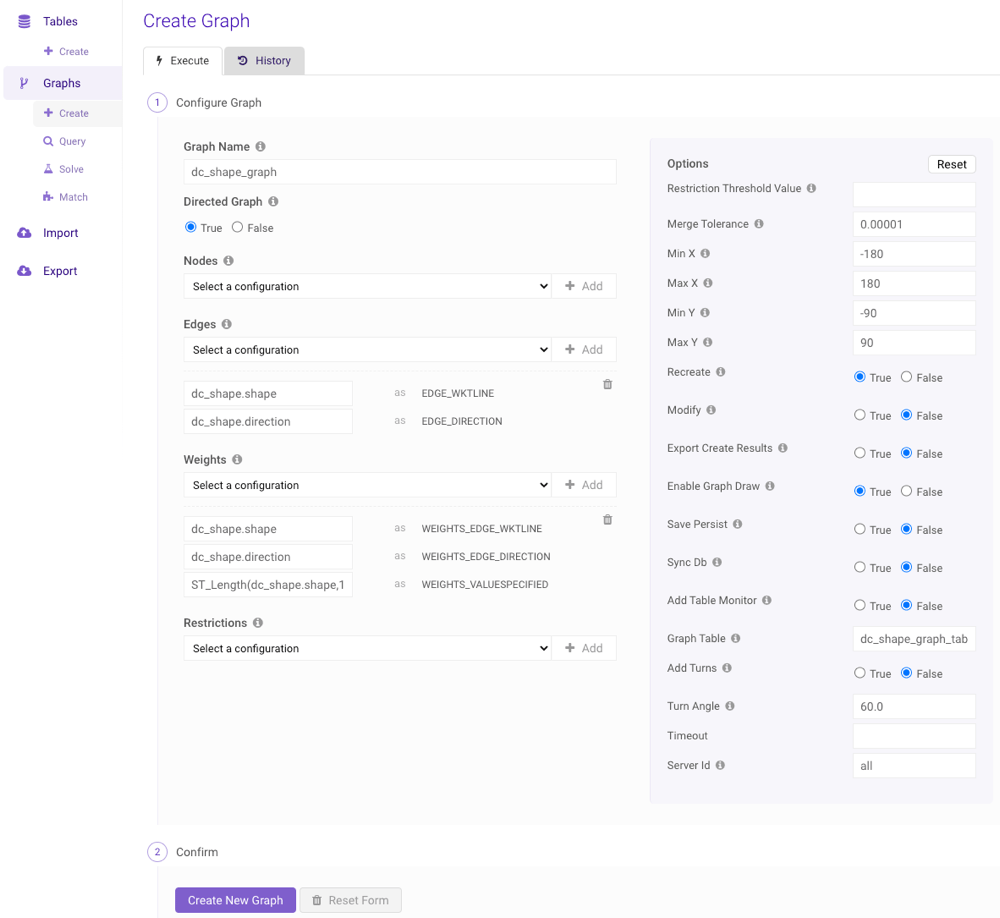
A graph can be created by clicking **Create** (underneath
**Graphs**) on the left menu to navigate to the **Create Graph**
page. Follow the steps below to create a graph using the interface:
It's highly recommended you consult
[Graphs & Solvers Concepts](/content/graph_solver/network_graph_solver) and
[/create/graph](/content/api/rest/create_graph_rest) for information on identifiers,
valid configurations, combinations, and graph options before
creating a graph with *GAdmin*. If multiple graph servers are
available, it's also recommended you consult the
[Distributed Graph Servers](/content/graph_solver/distributed_graph_server) documentation.
1. Provide a name for the graph.
2. Choose whether the graph should be [directed](/content/graph_solver/network_graph_solver#directed-graphs)
3. Optionally, select a desired *node* [configuration](/content/graph_solver/network_graph_solver#id-combos) from the
**Nodes** drop-down menu and click **Add +**. For each
[identifier](/content/graph_solver/network_graph_solver#identifiers) that appears after adding the configuration
to the graph, provide a column name, expression, or raw value (as outlined
in [Components and Identifiers](/content/graph_solver/network_graph_solver#identifiers)) to use with the identifier. Repeat as necessary.
4. Select a desired *edge* [configuration](/content/graph_solver/network_graph_solver#id-combos) from the
**Edges** drop-down menu and click **Add +**. For each
[identifier](/content/graph_solver/network_graph_solver#identifiers) that appears after adding the configuration
to the graph, provide a column name, expression, or raw value (as outlined
in [Components and Identifiers](/content/graph_solver/network_graph_solver#identifiers)) to use with the identifier. Repeat as necessary.
5. Select a desired *weight* [configuration](/content/graph_solver/network_graph_solver#id-combos) from the
**Weights** drop-down menu and click **Add +**. For each
[identifier](/content/graph_solver/network_graph_solver#identifiers) that appears after adding the configuration
to the graph, provide a column name, expression, or raw value (as outlined
in [Components and Identifiers](/content/graph_solver/network_graph_solver#identifiers)) to use with the identifier. Repeat as necessary.
6. Optionally, select a desired *restriction* [configuration](/content/graph_solver/network_graph_solver#id-combos)
from the **Restrictions** drop-down menu and click **Add +**.
For each [identifier](/content/graph_solver/network_graph_solver#identifiers) that appears after adding the
configuration to the graph, provide a column name, expression, or raw value
(as outlined in [Components and Identifiers](/content/graph_solver/network_graph_solver#identifiers)) to use with the identifier. Repeat as
necessary.
7. Adjust the options as desired.
8. Click **Create New Graph**.
### Create
A graph can be created by clicking **Create** (underneath
**Graphs**) on the left menu to navigate to the **Create Graph**
page. Follow the steps below to create a graph using the interface:
It's highly recommended you consult
[Graphs & Solvers Concepts](/content/graph_solver/network_graph_solver) and
[/create/graph](/content/api/rest/create_graph_rest) for information on identifiers,
valid configurations, combinations, and graph options before
creating a graph with *GAdmin*. If multiple graph servers are
available, it's also recommended you consult the
[Distributed Graph Servers](/content/graph_solver/distributed_graph_server) documentation.
1. Provide a name for the graph.
2. Choose whether the graph should be [directed](/content/graph_solver/network_graph_solver#directed-graphs)
3. Optionally, select a desired *node* [configuration](/content/graph_solver/network_graph_solver#id-combos) from the
**Nodes** drop-down menu and click **Add +**. For each
[identifier](/content/graph_solver/network_graph_solver#identifiers) that appears after adding the configuration
to the graph, provide a column name, expression, or raw value (as outlined
in [Components and Identifiers](/content/graph_solver/network_graph_solver#identifiers)) to use with the identifier. Repeat as necessary.
4. Select a desired *edge* [configuration](/content/graph_solver/network_graph_solver#id-combos) from the
**Edges** drop-down menu and click **Add +**. For each
[identifier](/content/graph_solver/network_graph_solver#identifiers) that appears after adding the configuration
to the graph, provide a column name, expression, or raw value (as outlined
in [Components and Identifiers](/content/graph_solver/network_graph_solver#identifiers)) to use with the identifier. Repeat as necessary.
5. Select a desired *weight* [configuration](/content/graph_solver/network_graph_solver#id-combos) from the
**Weights** drop-down menu and click **Add +**. For each
[identifier](/content/graph_solver/network_graph_solver#identifiers) that appears after adding the configuration
to the graph, provide a column name, expression, or raw value (as outlined
in [Components and Identifiers](/content/graph_solver/network_graph_solver#identifiers)) to use with the identifier. Repeat as necessary.
6. Optionally, select a desired *restriction* [configuration](/content/graph_solver/network_graph_solver#id-combos)
from the **Restrictions** drop-down menu and click **Add +**.
For each [identifier](/content/graph_solver/network_graph_solver#identifiers) that appears after adding the
configuration to the graph, provide a column name, expression, or raw value
(as outlined in [Components and Identifiers](/content/graph_solver/network_graph_solver#identifiers)) to use with the identifier. Repeat as
necessary.
7. Adjust the options as desired.
8. Click **Create New Graph**.
 ### Query
An existing graph can be queried by clicking **Query** (underneath
**Graphs**) on the left menu to navigate to the **Query Graph**
page. Follow the steps below to query a graph using the interface:
It's highly recommended you consult
[Querying a Graph](/content/graph_solver/network_graph_solver#query-graph) and [/query/graph](/content/api/rest/query_graph_rest)
for information on query identifiers, valid query configurations,
query combinations, and query graph options before querying a
graph with *GAdmin*. If multiple graph servers are
available, it's also recommended you consult the
[Distributed Graph Servers](/content/graph_solver/distributed_graph_server) documentation.
1. Select an existing graph from the **Graph Name** drop-down menu.
2. Select a desired *query* [configuration](/content/graph_solver/network_graph_solver#query-combinations) from the
**Queries** drop-down menu and click **Add +**. For each
[query identifier](/content/graph_solver/network_graph_solver#query-identifiers) that appears after adding the
configuration, provide a column name, expression, or raw value (as outlined
in [Components and Identifiers](/content/graph_solver/network_graph_solver#identifiers)) to use with the query identifier. Repeat as necessary.
If you select `QUERY_NODE_WKTPOINT`, you can click
### Query
An existing graph can be queried by clicking **Query** (underneath
**Graphs**) on the left menu to navigate to the **Query Graph**
page. Follow the steps below to query a graph using the interface:
It's highly recommended you consult
[Querying a Graph](/content/graph_solver/network_graph_solver#query-graph) and [/query/graph](/content/api/rest/query_graph_rest)
for information on query identifiers, valid query configurations,
query combinations, and query graph options before querying a
graph with *GAdmin*. If multiple graph servers are
available, it's also recommended you consult the
[Distributed Graph Servers](/content/graph_solver/distributed_graph_server) documentation.
1. Select an existing graph from the **Graph Name** drop-down menu.
2. Select a desired *query* [configuration](/content/graph_solver/network_graph_solver#query-combinations) from the
**Queries** drop-down menu and click **Add +**. For each
[query identifier](/content/graph_solver/network_graph_solver#query-identifiers) that appears after adding the
configuration, provide a column name, expression, or raw value (as outlined
in [Components and Identifiers](/content/graph_solver/network_graph_solver#identifiers)) to use with the query identifier. Repeat as necessary.
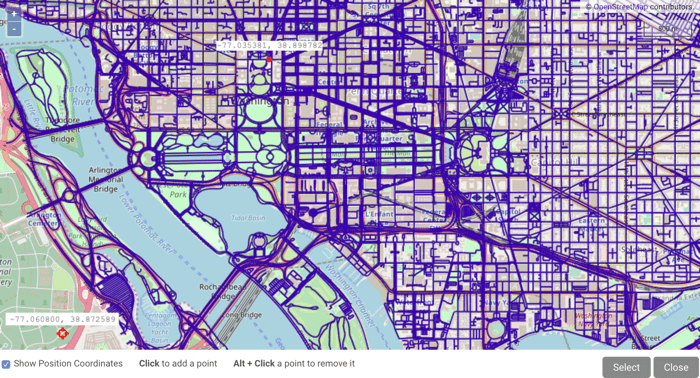
If you select `QUERY_NODE_WKTPOINT`, you can click  to
open the graph in the WMS viewer and manually select point(s) on the
map.
to
open the graph in the WMS viewer and manually select point(s) on the
map.
 3. Optionally, select a desired *restriction* [configuration](/content/graph_solver/network_graph_solver#id-combos)
from the **Restrictions** drop-down menu and click **Add +**.
For each [identifier](/content/graph_solver/network_graph_solver#identifiers) that appears after adding the
configuration, provide a column name, expression, or raw value
(as outlined in [Components and Identifiers](/content/graph_solver/network_graph_solver#identifiers)) to use with the identifier. Repeat as
necessary.
4. Provide an adjacency table name into which the results will be output.
5. Provide the number of rings (or hops) for the query.
6. Adjust the options as desired.
7. Click **Query Graph**.
3. Optionally, select a desired *restriction* [configuration](/content/graph_solver/network_graph_solver#id-combos)
from the **Restrictions** drop-down menu and click **Add +**.
For each [identifier](/content/graph_solver/network_graph_solver#identifiers) that appears after adding the
configuration, provide a column name, expression, or raw value
(as outlined in [Components and Identifiers](/content/graph_solver/network_graph_solver#identifiers)) to use with the identifier. Repeat as
necessary.
4. Provide an adjacency table name into which the results will be output.
5. Provide the number of rings (or hops) for the query.
6. Adjust the options as desired.
7. Click **Query Graph**.
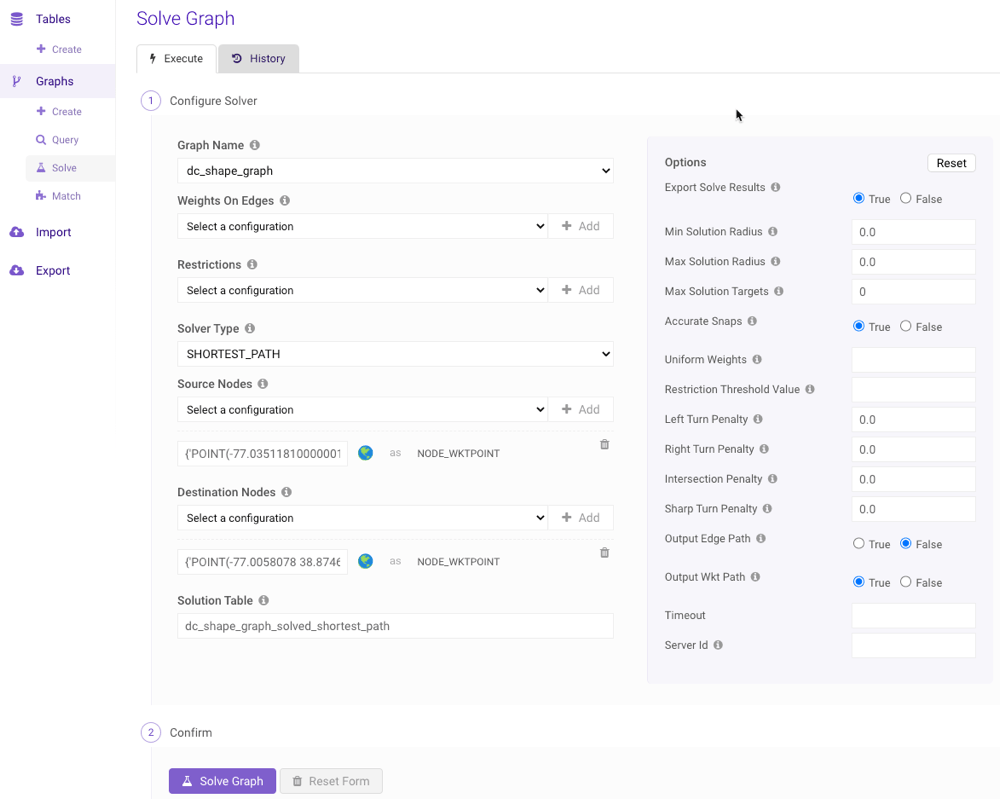 ### Solve
An existing graph can be solved using a variety of methods by clicking
**Solve** (underneath **Graphs**) on the left menu to navigate
to the **Solve Graph** page. Follow the steps below to solve a graph
using the interface:
It's highly recommended you consult
[Graphs & Solvers Concepts](/content/graph_solver/network_graph_solver),
[/solve/graph](/content/api/rest/solve_graph_rest), and the
[Solve Graph examples](/content/guides/tags/graph-solve) for
information on identifiers, valid configurations, combinations,
and options before solving a graph with *GAdmin*. If multiple
graph servers are available, it's also recommended you consult the
[Distributed Graph Servers](/content/graph_solver/distributed_graph_server) documentation.
1. Select an existing graph from the **Graph Name** drop-down menu.
2. Optionally, select a desired *weight* [configuration](/content/graph_solver/network_graph_solver#id-combos) from
the **Weights on Edges** drop-down menu and click **Add +**.
For each [identifier](/content/graph_solver/network_graph_solver#identifiers) that appears after adding the
configuration, provide a column name, expression, or raw value
(as outlined in [Components and Identifiers](/content/graph_solver/network_graph_solver#identifiers)) to use with the identifier. Repeat as
necessary.
3. Optionally, select a desired *restriction* [configuration](/content/graph_solver/network_graph_solver#id-combos)
from the **Restrictions** drop-down menu and click **Add +**.
For each [identifier](/content/graph_solver/network_graph_solver#identifiers) that appears after adding the
configuration, provide a column name, expression, or raw value
(as outlined in [Components and Identifiers](/content/graph_solver/network_graph_solver#identifiers)) to use with the identifier. Repeat as
necessary.
4. Select a [solver](/content/graph_solver/network_graph_solver#solvers) from the **Solver Type** drop-down
menu.
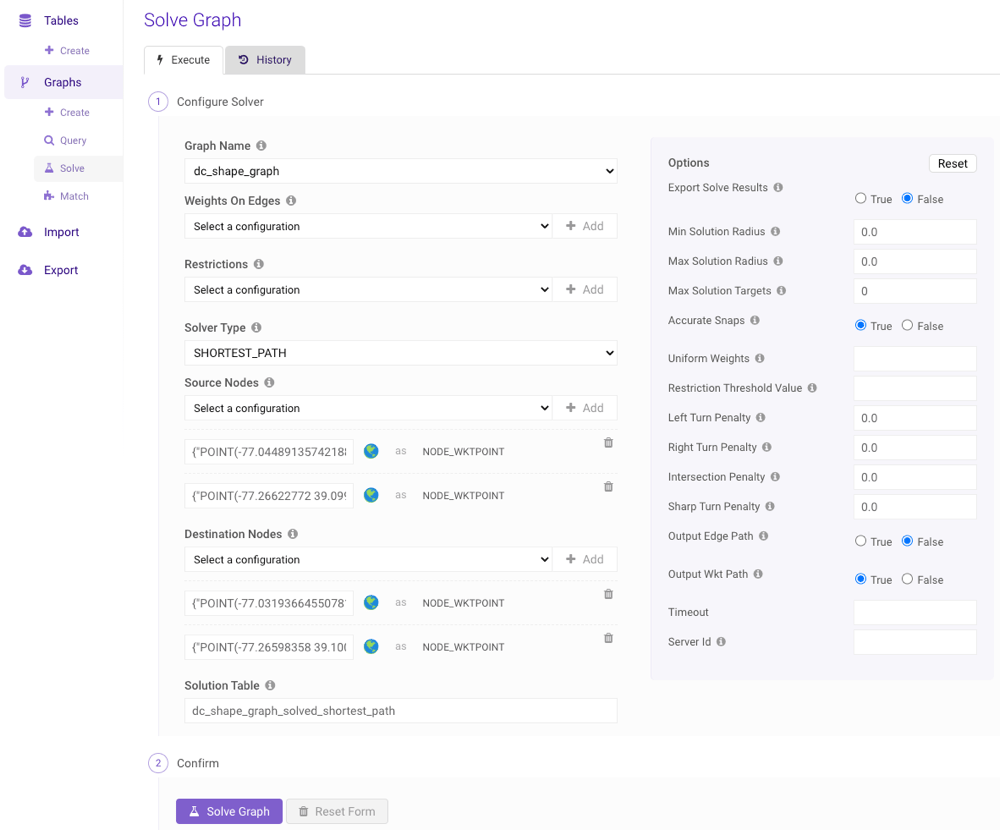
5. Select a node type from the **Source Nodes** drop-down menu and click
**Add +**. For each field that appears after adding the node type,
provide a column name, expression, or raw value (as outlined in
[Components and Identifiers](/content/graph_solver/network_graph_solver#identifiers)) to use with the identifier. Repeat as necessary. If
adding multiple source nodes, they should all be of the same type.
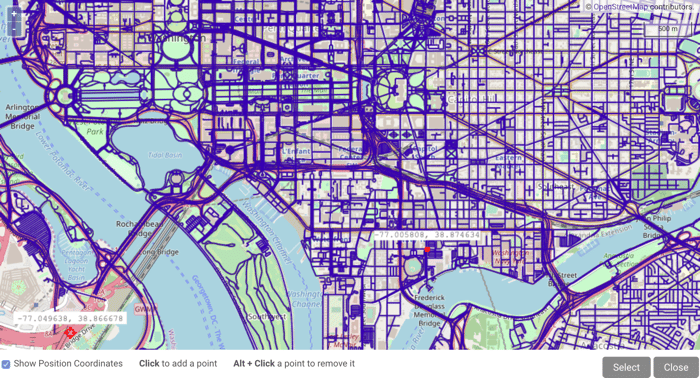
If you select `NODE_WKTPOINT`, you can click to open
the graph in the WMS viewer and manually select point(s) on the map.
6. Select a node type from the **Destination Nodes** drop-down menu and
click **Add +**. For each field that appears after adding the node
type, provide a column name, expression, or raw value (as outlined in
[Components and Identifiers](/content/graph_solver/network_graph_solver#identifiers)) to use with the identifier. Repeat as necessary. If
adding multiple source nodes, they should all be of the same type.
If you select `NODE_WKTPOINT`, you can click to open
the graph in the WMS viewer and manually select point(s) on the map.
### Solve
An existing graph can be solved using a variety of methods by clicking
**Solve** (underneath **Graphs**) on the left menu to navigate
to the **Solve Graph** page. Follow the steps below to solve a graph
using the interface:
It's highly recommended you consult
[Graphs & Solvers Concepts](/content/graph_solver/network_graph_solver),
[/solve/graph](/content/api/rest/solve_graph_rest), and the
[Solve Graph examples](/content/guides/tags/graph-solve) for
information on identifiers, valid configurations, combinations,
and options before solving a graph with *GAdmin*. If multiple
graph servers are available, it's also recommended you consult the
[Distributed Graph Servers](/content/graph_solver/distributed_graph_server) documentation.
1. Select an existing graph from the **Graph Name** drop-down menu.
2. Optionally, select a desired *weight* [configuration](/content/graph_solver/network_graph_solver#id-combos) from
the **Weights on Edges** drop-down menu and click **Add +**.
For each [identifier](/content/graph_solver/network_graph_solver#identifiers) that appears after adding the
configuration, provide a column name, expression, or raw value
(as outlined in [Components and Identifiers](/content/graph_solver/network_graph_solver#identifiers)) to use with the identifier. Repeat as
necessary.
3. Optionally, select a desired *restriction* [configuration](/content/graph_solver/network_graph_solver#id-combos)
from the **Restrictions** drop-down menu and click **Add +**.
For each [identifier](/content/graph_solver/network_graph_solver#identifiers) that appears after adding the
configuration, provide a column name, expression, or raw value
(as outlined in [Components and Identifiers](/content/graph_solver/network_graph_solver#identifiers)) to use with the identifier. Repeat as
necessary.
4. Select a [solver](/content/graph_solver/network_graph_solver#solvers) from the **Solver Type** drop-down
menu.
5. Select a node type from the **Source Nodes** drop-down menu and click
**Add +**. For each field that appears after adding the node type,
provide a column name, expression, or raw value (as outlined in
[Components and Identifiers](/content/graph_solver/network_graph_solver#identifiers)) to use with the identifier. Repeat as necessary. If
adding multiple source nodes, they should all be of the same type.
If you select `NODE_WKTPOINT`, you can click to open
the graph in the WMS viewer and manually select point(s) on the map.
6. Select a node type from the **Destination Nodes** drop-down menu and
click **Add +**. For each field that appears after adding the node
type, provide a column name, expression, or raw value (as outlined in
[Components and Identifiers](/content/graph_solver/network_graph_solver#identifiers)) to use with the identifier. Repeat as necessary. If
adding multiple source nodes, they should all be of the same type.
If you select `NODE_WKTPOINT`, you can click to open
the graph in the WMS viewer and manually select point(s) on the map.
 7. Provide a solution table name into which the results will be output.
8. Adjust the options as desired.
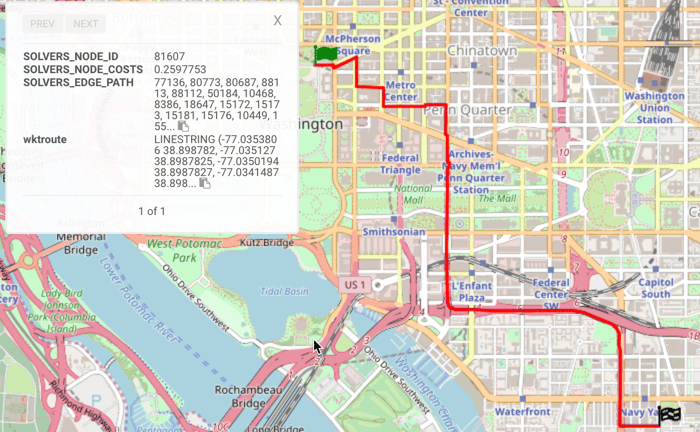
9. Click **Solve Graph**. A WMS request of the solution(s) will open.
Click a solution route to see the start (
7. Provide a solution table name into which the results will be output.
8. Adjust the options as desired.
9. Click **Solve Graph**. A WMS request of the solution(s) will open.
Click a solution route to see the start ( ) and end (
 ) points:
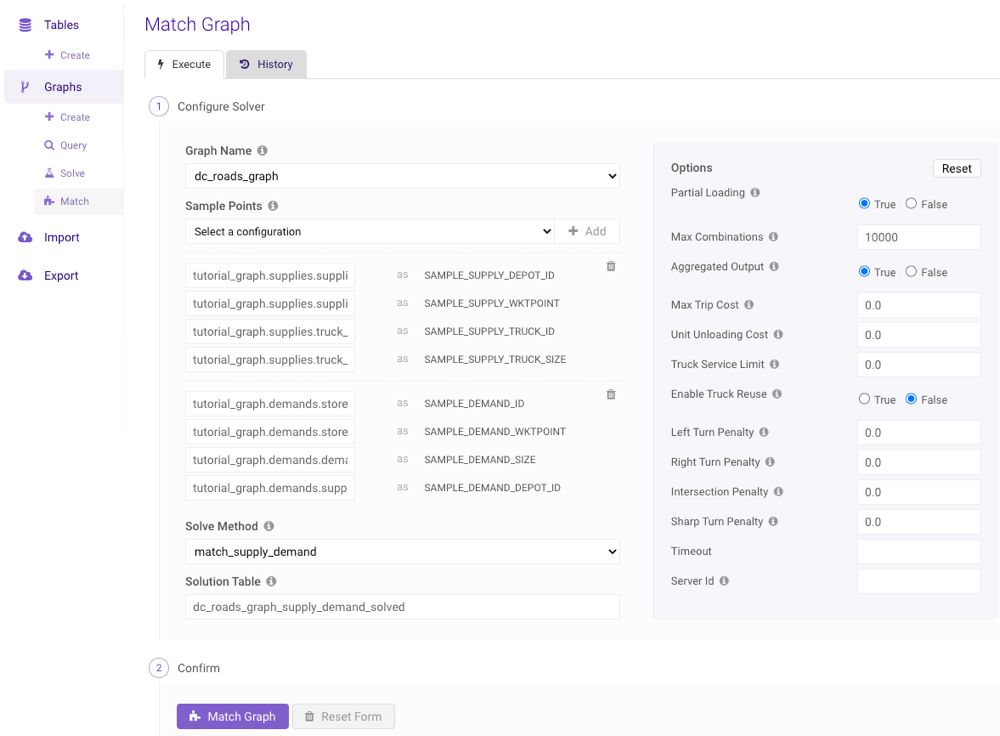
 ### Match
An existing graph can be matched using a variety of methods by clicking
**Match** (underneath **Graphs**) on the left menu to navigate
to the **Match Graph** page. Follow the steps below to match a graph
using the interface:
It's highly recommended you consult
[Matching a Graph](/content/graph_solver/network_graph_solver#match-graph), [/match/graph](/content/api/rest/match_graph_rest),
and the [Match Graph examples](/content/guides/tags/graph-match)
for information on identifiers, valid configurations, combinations,
and options before matching a graph with *GAdmin*. If multiple
graph servers are available, it's also recommended you consult the
[Distributed Graph Servers](/content/graph_solver/distributed_graph_server) documentation.
1. Select an existing graph from the **Graph Name** drop-down menu.
2. Select a sample points [configuration](/content/graph_solver/network_graph_solver#match-combinations) from the
**Sample Points** drop-down menu and click **Add +**. For
each field that appears after adding the configuration, provide a column
name, expression, or raw value (as outlined in [Components and Identifiers](/content/graph_solver/network_graph_solver#identifiers)) to use
with the identifier. Repeat as necessary.
3. Select a [solver](/content/graph_solver/network_graph_solver#solvers) from the **Solve Method** drop-down
menu.
4. Provide a solution table name into which the results will be output.
5. Adjust the options as desired.
6. Click **Match Graph**.
### Match
An existing graph can be matched using a variety of methods by clicking
**Match** (underneath **Graphs**) on the left menu to navigate
to the **Match Graph** page. Follow the steps below to match a graph
using the interface:
It's highly recommended you consult
[Matching a Graph](/content/graph_solver/network_graph_solver#match-graph), [/match/graph](/content/api/rest/match_graph_rest),
and the [Match Graph examples](/content/guides/tags/graph-match)
for information on identifiers, valid configurations, combinations,
and options before matching a graph with *GAdmin*. If multiple
graph servers are available, it's also recommended you consult the
[Distributed Graph Servers](/content/graph_solver/distributed_graph_server) documentation.
1. Select an existing graph from the **Graph Name** drop-down menu.
2. Select a sample points [configuration](/content/graph_solver/network_graph_solver#match-combinations) from the
**Sample Points** drop-down menu and click **Add +**. For
each field that appears after adding the configuration, provide a column
name, expression, or raw value (as outlined in [Components and Identifiers](/content/graph_solver/network_graph_solver#identifiers)) to use
with the identifier. Repeat as necessary.
3. Select a [solver](/content/graph_solver/network_graph_solver#solvers) from the **Solve Method** drop-down
menu.
4. Provide a solution table name into which the results will be output.
5. Adjust the options as desired.
6. Click **Match Graph**.
 ## Import
The **Import Data** page outlines several methods of importing
data, from CLIs to GUIs to SQL. It also includes an example of importing data
using *KiFS*.
## Import
The **Import Data** page outlines several methods of importing
data, from CLIs to GUIs to SQL. It also includes an example of importing data
using *KiFS*.