> ## Documentation Index
> Fetch the complete documentation index at: https://docs.kinetica.com/llms.txt
> Use this file to discover all available pages before exploring further.
# Security (User/Role Management)
All of your user and role management can be completed using *GAdmin*.
The **Security** section is only available to users
with the `system_admin` or `system_user_admin` permission.
## Users
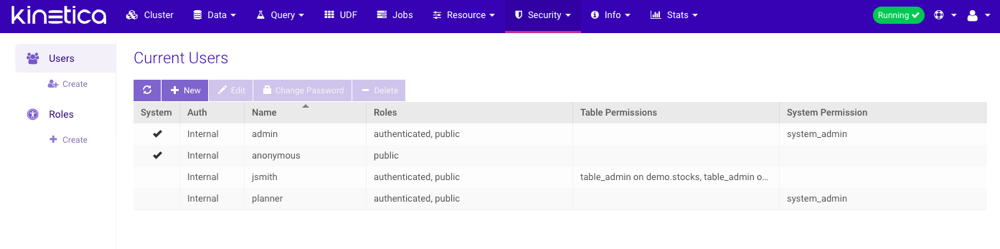
The **Users** page lists the users in the system, whether they're
internal or externally authenticated, and a brief window into their access
rights.
 ### Creating Users
When *Kinetica* has been configured to authenticate and/or authorize users,
user accounts can be created to allow access based on specific needs. See
[Security Configuration](/content/security/sec_configuration) for details on different use cases.
### Creating Users
When *Kinetica* has been configured to authenticate and/or authorize users,
user accounts can be created to allow access based on specific needs. See
[Security Configuration](/content/security/sec_configuration) for details on different use cases.
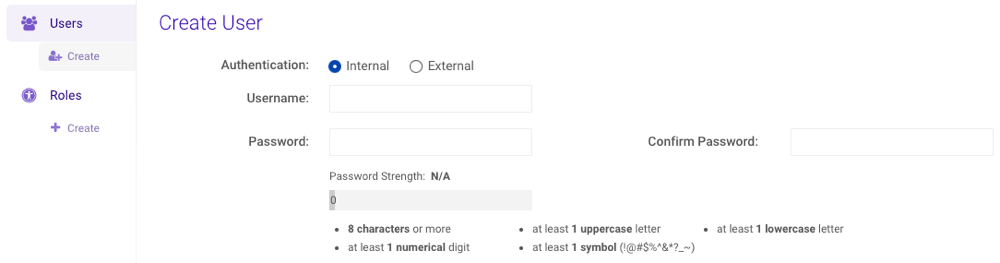 1. Create a New User Account
* From **Security --> Users**, click **Create** under
**Users** on the left-hand menu or **New** above the user
list.
* Select the type of **Authentication**. More information on
the authentication types can be found under [Security Concepts](/content/security/sec_concepts).
* Type a username into the **User** field and a password into the
**Password** field, meeting the password strength requirements
listed. Additional requirement details can be found under
[Security Concepts](/content/security/sec_concepts)
Passwords are required for Internal users only
* Type the password again in the **Confirm Password** field.
2. Select Roles
1. Create a New User Account
* From **Security --> Users**, click **Create** under
**Users** on the left-hand menu or **New** above the user
list.
* Select the type of **Authentication**. More information on
the authentication types can be found under [Security Concepts](/content/security/sec_concepts).
* Type a username into the **User** field and a password into the
**Password** field, meeting the password strength requirements
listed. Additional requirement details can be found under
[Security Concepts](/content/security/sec_concepts)
Passwords are required for Internal users only
* Type the password again in the **Confirm Password** field.
2. Select Roles
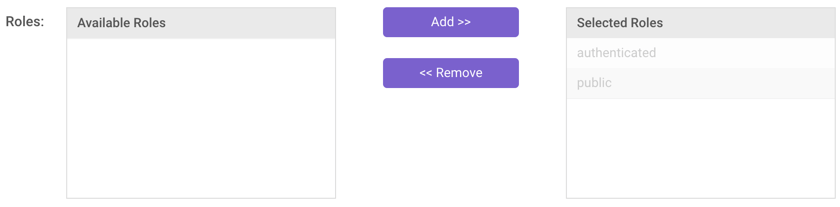 * Add or remove roles as necessary in the **Member of Roles**
section:
* *Add*: Click a role in the **Available Roles** list and then
click **Add >>**.
* *Remove*: Click a role in the **Selected Roles** list and then
click **\<\< Remove**.
3. Select Permissions
* Add or remove roles as necessary in the **Member of Roles**
section:
* *Add*: Click a role in the **Available Roles** list and then
click **Add >>**.
* *Remove*: Click a role in the **Selected Roles** list and then
click **\<\< Remove**.
3. Select Permissions
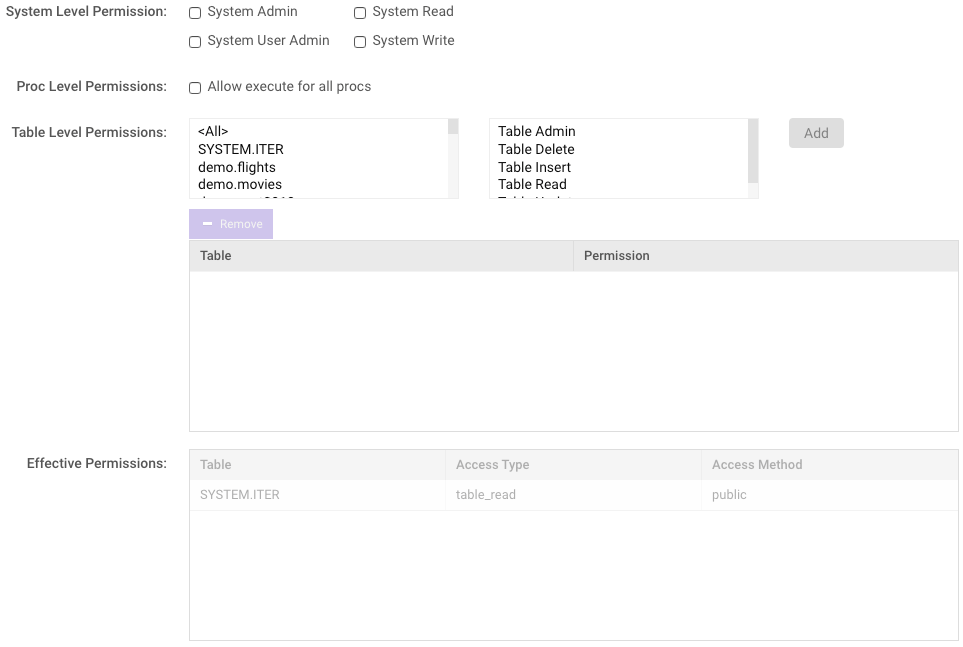 * Check one or more
[system-level permissions](/content/security/sec_concepts#security-concepts-permissions-system), as
necessary.
* Select the **Proc Level Permissions** box as necessary if allowing
the user to execute all procs in the system (`proc_execute` permission).
Review [User-Defined Functions Overview](/content/udf_overview) for more information on procs and UDFs.
* In the next section,
[table-level permissions](/content/security/sec_concepts#security-concepts-permissions-table) can be
managed, controlling access to individual database schemas, tables, &
views. The permission-to-object association will be displayed below the
selection boxes, and the **Effective Permissions** table will be
updated accordingly. Note that the *Table Admin* permission allows a user
full access on a table.
* *Add*: Select a schema, table, or view in the left list and a permission
in the right list, and then click **Add**.
* *Remove*: Select an existing object-permission association in the list
of active permissions and click **Remove**.
4. Resource Group
* Select a [Resource Group](/content/rm/concepts#rm-concepts-resource-groups) from the
drop-down menu. Consult [Resource](/content/admin/gadmin/resource) for more information on
configuring resource groups in GAdmin.
5. Default Schema
* Select a [Default Schema](/content/concepts/schemas#schema-default) from the
drop-down menu. Consult [Schemas](/content/concepts/schemas) for more information on
*schemas*.
6. Click **Create**.
### Editing Users
Existing users can have their roles, permissions, resource group, and
default schema updated.
1. Edit a User Account
* From **Security --> Users**, select a user to edit and click
**Edit**.
2. Update Roles
* Add or remove selected roles as necessary in the
**Member of Roles** section:
* *Add*: Click a role in the **Available Roles** list and
then click **Add >>**.
* *Remove*: Click a role in the **Selected Roles** list and then
click **\<\< Remove**.
3. Update Permissions
* Check/uncheck one or more
[system-level permissions](/content/security/sec_concepts#security-concepts-permissions-system), as
necessary.
* Check/uncheck the **Proc Level Permissions** box as necessary if
allowing/disallowing the user to execute all procs in the system
(`proc_execute` permission). Review [User-Defined Functions Overview](/content/udf_overview) for more
information on procs and UDFs.
* In the next section,
[table-level permissions](/content/security/sec_concepts#security-concepts-permissions-table) can be
managed, controlling access to individual database schemas, tables, &
views. The permission-to-object association will be displayed below the
selection boxes, and the **Effective Permissions** table will be
updated accordingly. Note that the *Table Admin* permission allows a user
full access on a table.
* *Add*: Select a schema, table, or view in the left list and a permission
in the right list, and then click **Add**.
* *Remove*: Select an existing object-permission association in the list
of active permissions and click **Remove**.
4. Update Resource Group
* Update the [Resource Group](/content/rm/concepts#rm-concepts-resource-groups) from the
drop-down menu. Consult [Resource](/content/admin/gadmin/resource) for more information on
configuring resource groups in GAdmin.
5. Update Default Schema
* Update the [Default Schema](/content/concepts/schemas#schema-default) from the
drop-down menu. Consult [Schemas](/content/concepts/schemas) for more information on
*schemas*.
6. Click **Save**.
### Changing Passwords
Existing users can have their passwords changed by administrators with either
the `system_admin` or `system_user_admin` permission. To change a user's
password:
1. From **Security --> Users**, select a user whose password will
be changed and click **Change Password**
2. Type the password into the **New Password** field, meeting the
password strength requirements listed. Additional requirement details can be
found on [Security Concepts](/content/security/sec_concepts)
3. Type the password again in the **Confirm Password** field
4. Click **Save**.
* Check one or more
[system-level permissions](/content/security/sec_concepts#security-concepts-permissions-system), as
necessary.
* Select the **Proc Level Permissions** box as necessary if allowing
the user to execute all procs in the system (`proc_execute` permission).
Review [User-Defined Functions Overview](/content/udf_overview) for more information on procs and UDFs.
* In the next section,
[table-level permissions](/content/security/sec_concepts#security-concepts-permissions-table) can be
managed, controlling access to individual database schemas, tables, &
views. The permission-to-object association will be displayed below the
selection boxes, and the **Effective Permissions** table will be
updated accordingly. Note that the *Table Admin* permission allows a user
full access on a table.
* *Add*: Select a schema, table, or view in the left list and a permission
in the right list, and then click **Add**.
* *Remove*: Select an existing object-permission association in the list
of active permissions and click **Remove**.
4. Resource Group
* Select a [Resource Group](/content/rm/concepts#rm-concepts-resource-groups) from the
drop-down menu. Consult [Resource](/content/admin/gadmin/resource) for more information on
configuring resource groups in GAdmin.
5. Default Schema
* Select a [Default Schema](/content/concepts/schemas#schema-default) from the
drop-down menu. Consult [Schemas](/content/concepts/schemas) for more information on
*schemas*.
6. Click **Create**.
### Editing Users
Existing users can have their roles, permissions, resource group, and
default schema updated.
1. Edit a User Account
* From **Security --> Users**, select a user to edit and click
**Edit**.
2. Update Roles
* Add or remove selected roles as necessary in the
**Member of Roles** section:
* *Add*: Click a role in the **Available Roles** list and
then click **Add >>**.
* *Remove*: Click a role in the **Selected Roles** list and then
click **\<\< Remove**.
3. Update Permissions
* Check/uncheck one or more
[system-level permissions](/content/security/sec_concepts#security-concepts-permissions-system), as
necessary.
* Check/uncheck the **Proc Level Permissions** box as necessary if
allowing/disallowing the user to execute all procs in the system
(`proc_execute` permission). Review [User-Defined Functions Overview](/content/udf_overview) for more
information on procs and UDFs.
* In the next section,
[table-level permissions](/content/security/sec_concepts#security-concepts-permissions-table) can be
managed, controlling access to individual database schemas, tables, &
views. The permission-to-object association will be displayed below the
selection boxes, and the **Effective Permissions** table will be
updated accordingly. Note that the *Table Admin* permission allows a user
full access on a table.
* *Add*: Select a schema, table, or view in the left list and a permission
in the right list, and then click **Add**.
* *Remove*: Select an existing object-permission association in the list
of active permissions and click **Remove**.
4. Update Resource Group
* Update the [Resource Group](/content/rm/concepts#rm-concepts-resource-groups) from the
drop-down menu. Consult [Resource](/content/admin/gadmin/resource) for more information on
configuring resource groups in GAdmin.
5. Update Default Schema
* Update the [Default Schema](/content/concepts/schemas#schema-default) from the
drop-down menu. Consult [Schemas](/content/concepts/schemas) for more information on
*schemas*.
6. Click **Save**.
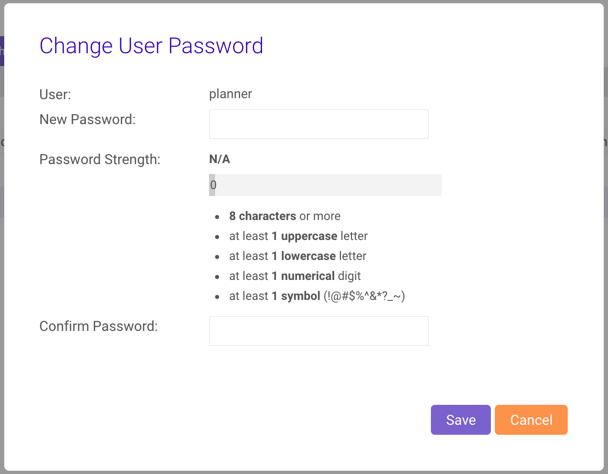
### Changing Passwords
Existing users can have their passwords changed by administrators with either
the `system_admin` or `system_user_admin` permission. To change a user's
password:
1. From **Security --> Users**, select a user whose password will
be changed and click **Change Password**
2. Type the password into the **New Password** field, meeting the
password strength requirements listed. Additional requirement details can be
found on [Security Concepts](/content/security/sec_concepts)
3. Type the password again in the **Confirm Password** field
4. Click **Save**.
 ### Deleting Users
An administrator can also delete a user from the database. This will not remove
any database objects created by the user (schemas, tables, groups, etc.),
nor will it remove the user from any external user store (LDAP, etc.).
To delete a user:
1. From **Security --> Users**, select a user to delete and click
**Delete**.
2. At the **Delete User** prompt, click **Remove**.
## Roles
The **Roles** page lists the roles in the system, the role memberships
(both containing & contained), and a brief window into their permissions.
### Deleting Users
An administrator can also delete a user from the database. This will not remove
any database objects created by the user (schemas, tables, groups, etc.),
nor will it remove the user from any external user store (LDAP, etc.).
To delete a user:
1. From **Security --> Users**, select a user to delete and click
**Delete**.
2. At the **Delete User** prompt, click **Remove**.
## Roles
The **Roles** page lists the roles in the system, the role memberships
(both containing & contained), and a brief window into their permissions.
 ### Creating Roles
When *Kinetica* has been configured to authenticate and/or authorize users,
user accounts can be created to allow access based on specific needs. See
[Security Configuration](/content/security/sec_configuration) for details on different use cases.
### Creating Roles
When *Kinetica* has been configured to authenticate and/or authorize users,
user accounts can be created to allow access based on specific needs. See
[Security Configuration](/content/security/sec_configuration) for details on different use cases.
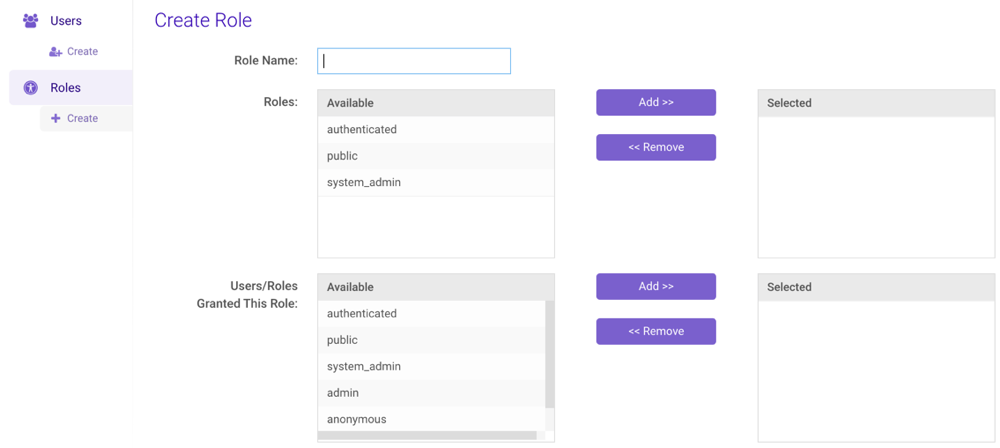 1. Create a New Role
* From **Security --> Roles**, click **Create** under
**Roles** on the left-hand menu or **New** above the role
list.
* Type a name for the role into the **Role** field. Additional
requirement details can be found on [Security Concepts](/content/security/sec_concepts)
2. Apply and Grant Roles
* In the **Roles** section, apply existing roles to the new role:
* *Add*: Click a role in the **Available** list and
then click **Add >>**.
* *Remove*: Click a role in the **Selected** list and then
click **\<\< Remove**.
* In the **Users/Roles Granted This Role** section, apply the new
role to existing user(s) and/or role(s):
* *Add*: Click a role in the **Available** list and
then click **Add >>**.
* *Remove*: Click a role in the **Selected** list and then
click **\<\< Remove**.
3. Select Permissions
* Check one or more
[system-level permissions](/content/security/sec_concepts#security-concepts-permissions-system), as
necessary.
* Select the **Proc Level Permissions** box as necessary if allowing
the role to execute all procs in the system (`proc_execute` permission).
Review [User-Defined Functions Overview](/content/udf_overview) for more information on procs and UDFs.
* In the next section,
[table-level permissions](/content/security/sec_concepts#security-concepts-permissions-table) can be
managed, controlling access to individual database schemas, tables, &
views. The permission-to-object association will be displayed below the
selection boxes, and the **Effective Permissions** table will be
updated accordingly. Note that the *Table Admin* permission allows a user
full access on a table.
* *Add*: Select a schema, table, or view in the left list and a permission
in the right list, and then click **Add**.
* *Remove*: Select an existing object-permission association in the list
of active permissions and click **Remove**.
4. Resource Group
* Select a [Resource Group](/content/rm/concepts#rm-concepts-resource-groups) from the
drop-down menu. Consult [Resource](/content/admin/gadmin/resource) for more information on
configuring resource groups in GAdmin.
5. Click **Create**.
### Editing Roles
Existing roles can have their permissions, users & roles assigned to, and
resource group.
1. Edit a Role
* From **Security --> Roles**, select a role to edit and
click **Edit**.
2. Apply and Grant Roles
* In the **Roles** section, apply other existing roles to the role:
* *Add*: Click a role in the **Available** list and
then click **Add >>**.
* *Remove*: Click a role in the **Selected** list and then
click **\<\< Remove**.
* In the **Users/Roles Granted This Role** section, apply the
role to other existing user(s) and/or role(s):
* *Add*: Click a role in the **Available** list and
then click **Add >>**.
* *Remove*: Click a role in the **Selected** list and then
click **\<\< Remove**.
3. Update Permissions
* Check/uncheck one or more
[system-level permissions](/content/security/sec_concepts#security-concepts-permissions-system), as
necessary.
* Check/uncheck the **Proc Level Permissions** box as necessary if
allowing/disallowing the role to execute all procs in the system
(`proc_execute` permission). Review [User-Defined Functions Overview](/content/udf_overview) for more
information on procs and UDFs.
* In the next section,
[table-level permissions](/content/security/sec_concepts#security-concepts-permissions-table) can be
managed, controlling access to individual database schemas, tables, &
views. The permission-to-object association will be displayed below the
selection boxes, and the **Effective Permissions** table will be
updated accordingly. Note that the *Table Admin* permission allows a user
full access on a table.
* *Add*: Select a schema, table, or view in the left list and a permission
in the right list, and then click **Add**.
* *Remove*: Select an existing object-permission association in the list
of active permissions and click **Remove**.
4. Update Resource Group
* Update the [Resource Group](/content/rm/concepts#rm-concepts-resource-groups) from the
drop-down menu. Consult [Resource](/content/admin/gadmin/resource) for more information on
configuring resource groups in GAdmin.
5. Click **Save**.
### Deleting Roles
An administrator can also delete a role from the database. This disassociates
the role from any users or other roles that are currently associated with it.
Roles in any associated external user stores (LDAP, etc.) will be unaffected.
To delete a role:
1. From **Security --> Roles**, select a role to delete and click
**Delete**.
2. At the **Delete Role** prompt, click **Remove**.
1. Create a New Role
* From **Security --> Roles**, click **Create** under
**Roles** on the left-hand menu or **New** above the role
list.
* Type a name for the role into the **Role** field. Additional
requirement details can be found on [Security Concepts](/content/security/sec_concepts)
2. Apply and Grant Roles
* In the **Roles** section, apply existing roles to the new role:
* *Add*: Click a role in the **Available** list and
then click **Add >>**.
* *Remove*: Click a role in the **Selected** list and then
click **\<\< Remove**.
* In the **Users/Roles Granted This Role** section, apply the new
role to existing user(s) and/or role(s):
* *Add*: Click a role in the **Available** list and
then click **Add >>**.
* *Remove*: Click a role in the **Selected** list and then
click **\<\< Remove**.
3. Select Permissions
* Check one or more
[system-level permissions](/content/security/sec_concepts#security-concepts-permissions-system), as
necessary.
* Select the **Proc Level Permissions** box as necessary if allowing
the role to execute all procs in the system (`proc_execute` permission).
Review [User-Defined Functions Overview](/content/udf_overview) for more information on procs and UDFs.
* In the next section,
[table-level permissions](/content/security/sec_concepts#security-concepts-permissions-table) can be
managed, controlling access to individual database schemas, tables, &
views. The permission-to-object association will be displayed below the
selection boxes, and the **Effective Permissions** table will be
updated accordingly. Note that the *Table Admin* permission allows a user
full access on a table.
* *Add*: Select a schema, table, or view in the left list and a permission
in the right list, and then click **Add**.
* *Remove*: Select an existing object-permission association in the list
of active permissions and click **Remove**.
4. Resource Group
* Select a [Resource Group](/content/rm/concepts#rm-concepts-resource-groups) from the
drop-down menu. Consult [Resource](/content/admin/gadmin/resource) for more information on
configuring resource groups in GAdmin.
5. Click **Create**.
### Editing Roles
Existing roles can have their permissions, users & roles assigned to, and
resource group.
1. Edit a Role
* From **Security --> Roles**, select a role to edit and
click **Edit**.
2. Apply and Grant Roles
* In the **Roles** section, apply other existing roles to the role:
* *Add*: Click a role in the **Available** list and
then click **Add >>**.
* *Remove*: Click a role in the **Selected** list and then
click **\<\< Remove**.
* In the **Users/Roles Granted This Role** section, apply the
role to other existing user(s) and/or role(s):
* *Add*: Click a role in the **Available** list and
then click **Add >>**.
* *Remove*: Click a role in the **Selected** list and then
click **\<\< Remove**.
3. Update Permissions
* Check/uncheck one or more
[system-level permissions](/content/security/sec_concepts#security-concepts-permissions-system), as
necessary.
* Check/uncheck the **Proc Level Permissions** box as necessary if
allowing/disallowing the role to execute all procs in the system
(`proc_execute` permission). Review [User-Defined Functions Overview](/content/udf_overview) for more
information on procs and UDFs.
* In the next section,
[table-level permissions](/content/security/sec_concepts#security-concepts-permissions-table) can be
managed, controlling access to individual database schemas, tables, &
views. The permission-to-object association will be displayed below the
selection boxes, and the **Effective Permissions** table will be
updated accordingly. Note that the *Table Admin* permission allows a user
full access on a table.
* *Add*: Select a schema, table, or view in the left list and a permission
in the right list, and then click **Add**.
* *Remove*: Select an existing object-permission association in the list
of active permissions and click **Remove**.
4. Update Resource Group
* Update the [Resource Group](/content/rm/concepts#rm-concepts-resource-groups) from the
drop-down menu. Consult [Resource](/content/admin/gadmin/resource) for more information on
configuring resource groups in GAdmin.
5. Click **Save**.
### Deleting Roles
An administrator can also delete a role from the database. This disassociates
the role from any users or other roles that are currently associated with it.
Roles in any associated external user stores (LDAP, etc.) will be unaffected.
To delete a role:
1. From **Security --> Roles**, select a role to delete and click
**Delete**.
2. At the **Delete Role** prompt, click **Remove**.