> ## Documentation Index
> Fetch the complete documentation index at: https://docs.kinetica.com/llms.txt
> Use this file to discover all available pages before exploring further.
# UDF
The **UDF** menu allows you to manage your
*User-Defined Functions (UDFs)*. The **UDF** menu is only
available if *UDFs* have been enabled. See [User-Defined Function Implementation](/content/udf) for *UDF*
configuration requirements and [User-Defined Functions Overview](/content/udf_overview) for detail on *UDFs*
themselves.
The **UDF** section is only available to users
with the `system_admin` role or the `proc_execute` permission.
## UDF
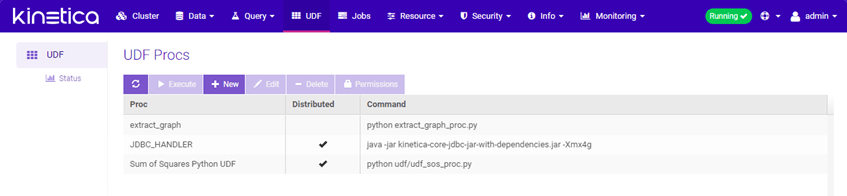
**UDF** is the *UDF* homepage and allows executing, creating,
editing, and deleting *UDFs*. For more detail on Running UDFs, see the
[Running Python](/content/udf/python/running) or
[Running C++](/content/udf/cpp/running) UDF pages
(depending on your preference).
 ### Creating Procs
Click **New** to create a new proc.
### Creating Procs
Click **New** to create a new proc.
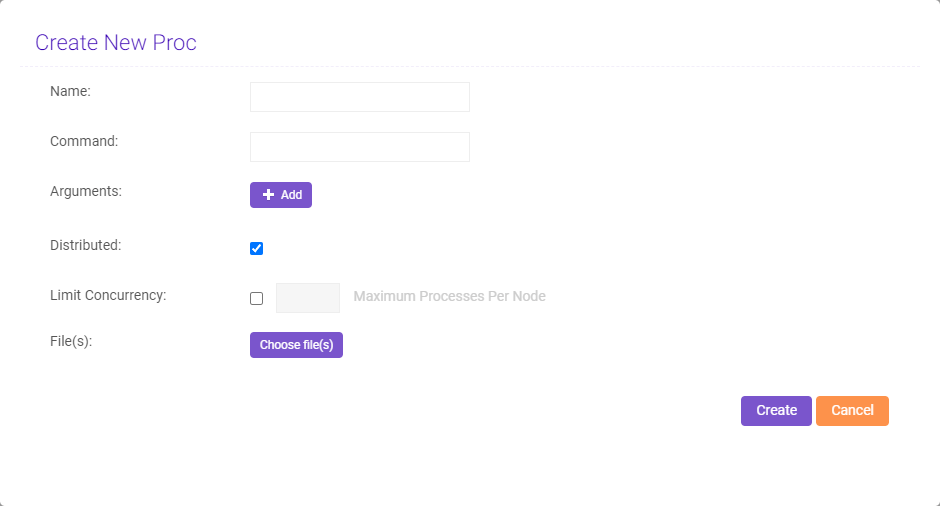 Provide the name of the proc, command necessary to run the proc file (e.g.,
`python`), and any command-line arguments (e.g., custom *Python* or *C++*
arguments; click **Add** to add additional arguments), then fill
the **Distributed** checkbox if the *UDF* should be in
distributed mode and fill the
[Limit Concurrency](/content/udf/concurrency_limits#concurrency-limits) checkbox and type a number
to set a concurrency limit. Finally, upload a proc file(s) by clicking
**Choose file(s)** and selecting the proc file(s) from your
computer.
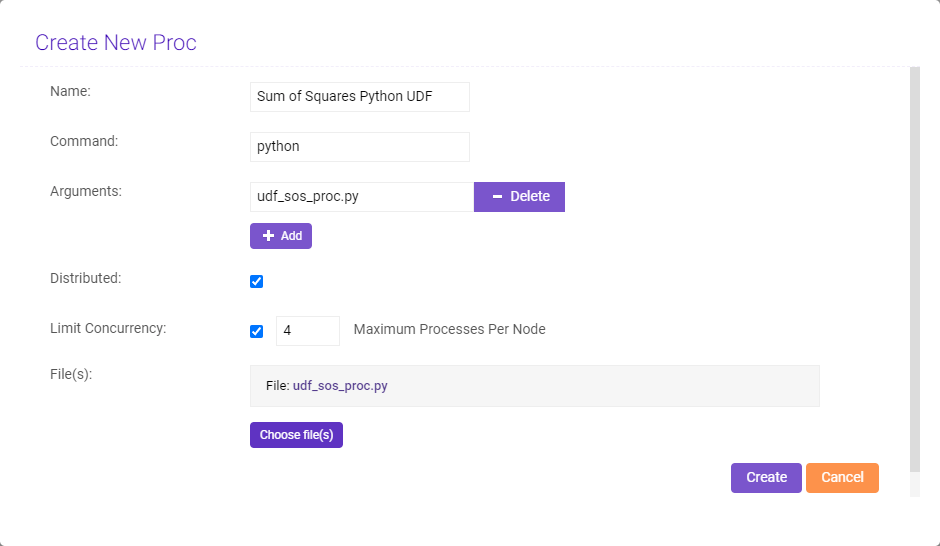
Here's an example of a proc being created in GAdmin:
Provide the name of the proc, command necessary to run the proc file (e.g.,
`python`), and any command-line arguments (e.g., custom *Python* or *C++*
arguments; click **Add** to add additional arguments), then fill
the **Distributed** checkbox if the *UDF* should be in
distributed mode and fill the
[Limit Concurrency](/content/udf/concurrency_limits#concurrency-limits) checkbox and type a number
to set a concurrency limit. Finally, upload a proc file(s) by clicking
**Choose file(s)** and selecting the proc file(s) from your
computer.
Here's an example of a proc being created in GAdmin:
 ### Executing UDFs
To execute a UDF, click a *UDF* then click **Execute**.
### Executing UDFs
To execute a UDF, click a *UDF* then click **Execute**.
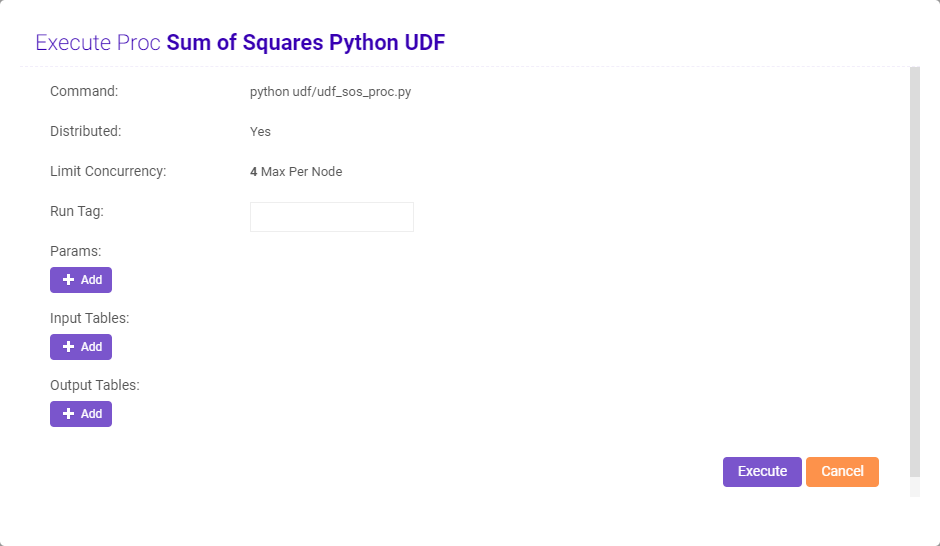 Provide a run tag if desired (see [/execute/proc](/content/api/rest/execute_proc_rest) for
more information on run tags), click **Add** to add additional
parameter names and values, input tables and columns, and/or output tables, then
click **Execute**.
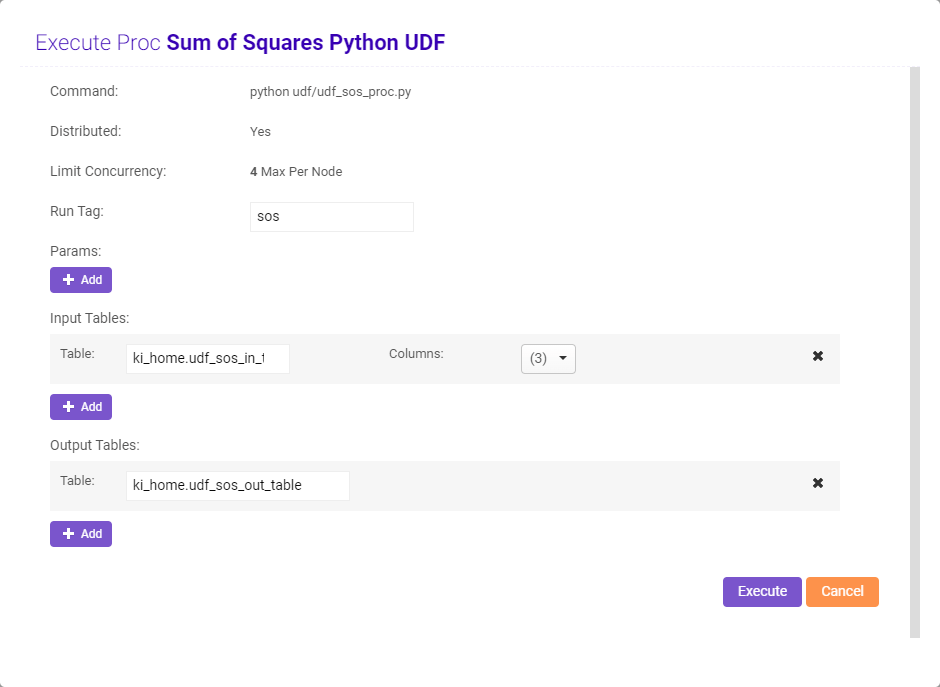
Here's an example of the same proc being set up for execution in GAdmin:
Provide a run tag if desired (see [/execute/proc](/content/api/rest/execute_proc_rest) for
more information on run tags), click **Add** to add additional
parameter names and values, input tables and columns, and/or output tables, then
click **Execute**.
Here's an example of the same proc being set up for execution in GAdmin:
 ### Editing UDFs
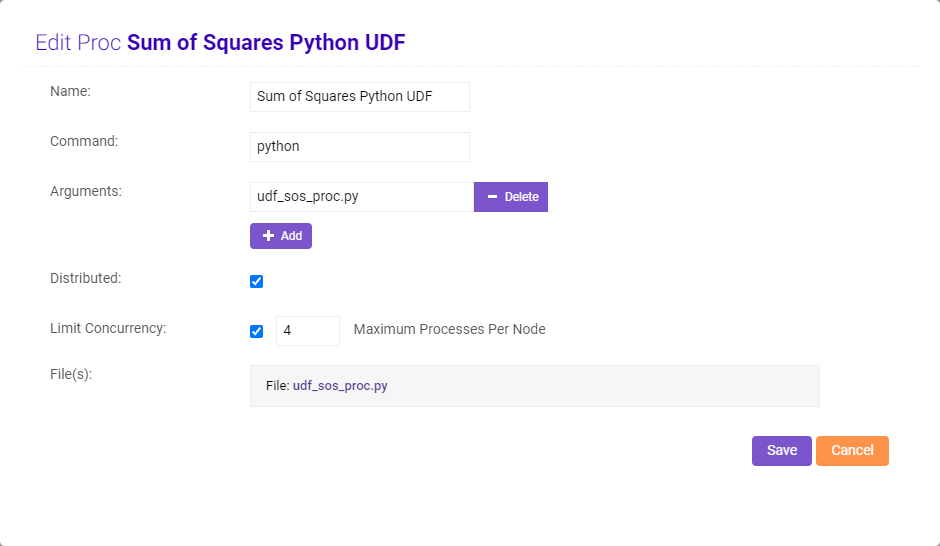
To edit a *UDF*, select a *UDF* then click **Edit**. Edit the
name or command as necessary, then add or edit arguments. Select the
**Distributed** checkbox if the *UDF* should run in distributed
mode, or clear the checkbox if the *UDF* should run in non-distributed mode.
Select the **Limit Concurrency** checkbox and adjust the setting
to set a concurrency limit, or clear the checkbox to remove the limit. Once
editing is finished, click **Save**.
You cannot change the file for the proc once it has been
uploaded.
### Editing UDFs
To edit a *UDF*, select a *UDF* then click **Edit**. Edit the
name or command as necessary, then add or edit arguments. Select the
**Distributed** checkbox if the *UDF* should run in distributed
mode, or clear the checkbox if the *UDF* should run in non-distributed mode.
Select the **Limit Concurrency** checkbox and adjust the setting
to set a concurrency limit, or clear the checkbox to remove the limit. Once
editing is finished, click **Save**.
You cannot change the file for the proc once it has been
uploaded.
 ### Deleting UDFs
To delete a *UDF*, select a *UDF* then click **Delete** and
confirm the deletion of the selected *UDF*.
### Permissions
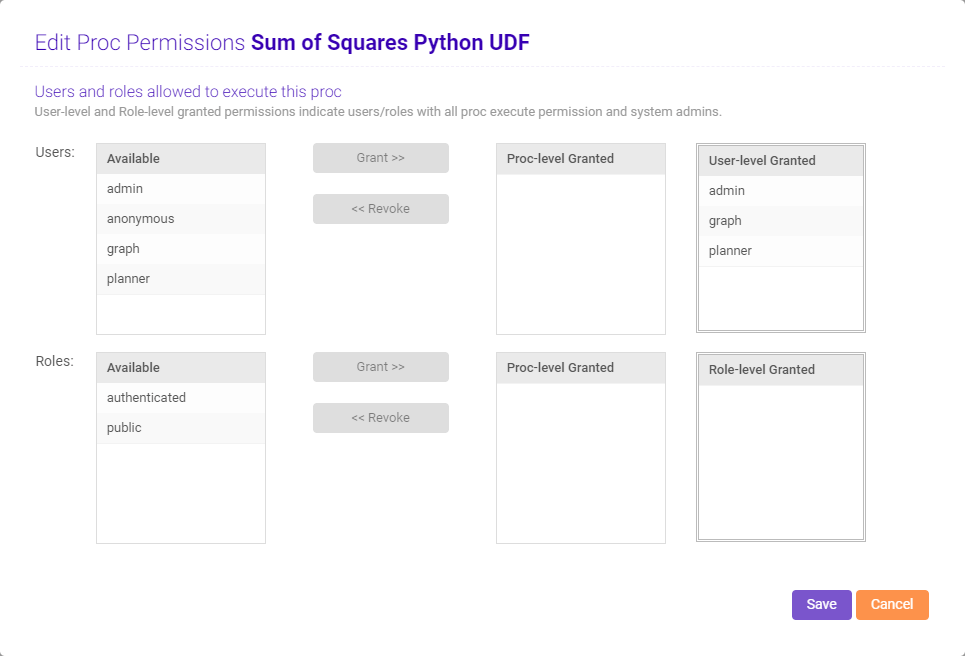
To adjust the permissions of a particular *UDF*, select a *UDF* then click
**Permissions**. A list of available users and roles will display
alongside lists of users and roles that have the `proc_execute` permission for
the selected *UDF* as well as `proc_execute` permission for all *UDFs*.
### Deleting UDFs
To delete a *UDF*, select a *UDF* then click **Delete** and
confirm the deletion of the selected *UDF*.
### Permissions
To adjust the permissions of a particular *UDF*, select a *UDF* then click
**Permissions**. A list of available users and roles will display
alongside lists of users and roles that have the `proc_execute` permission for
the selected *UDF* as well as `proc_execute` permission for all *UDFs*.
 To grant a user or role execute permission to all procs, the
`proc_execute` will need to be applied via the
[Security](/content/admin/gadmin/security) page.
* Edit execute permissions for users:
* *Add*: Click a user in the **Available** list and then click
**Grant >>** to grant the user `proc_execute` permission on
the selected UDF.
* *Remove*: Click a user in the **Proc-level Granted** list and
then click **\<\< Revoke** to revoke the user's
`proc_execute` permission on the selected UDF.
* Edit execute permissions for roles:
* *Add*: Click a role in the **Available** list and then click
**Grant >>** to grant the role `proc_execute` permission on
the selected UDF.
* *Remove*: Click a role in the **Proc-level Granted** list and
then click **\<\< Revoke** to revoke the role's
`proc_execute` permission on the selected UDF.
## Status
**Status** displays active, idle, and completed procs. Like
[Job Manager](/content/admin/job_manager), this page is automatically refreshed based on
the selected interval, so you can see procs' statuses and total run time update
at each interval. This page can be manually refreshed by clicking
To grant a user or role execute permission to all procs, the
`proc_execute` will need to be applied via the
[Security](/content/admin/gadmin/security) page.
* Edit execute permissions for users:
* *Add*: Click a user in the **Available** list and then click
**Grant >>** to grant the user `proc_execute` permission on
the selected UDF.
* *Remove*: Click a user in the **Proc-level Granted** list and
then click **\<\< Revoke** to revoke the user's
`proc_execute` permission on the selected UDF.
* Edit execute permissions for roles:
* *Add*: Click a role in the **Available** list and then click
**Grant >>** to grant the role `proc_execute` permission on
the selected UDF.
* *Remove*: Click a role in the **Proc-level Granted** list and
then click **\<\< Revoke** to revoke the role's
`proc_execute` permission on the selected UDF.
## Status
**Status** displays active, idle, and completed procs. Like
[Job Manager](/content/admin/job_manager), this page is automatically refreshed based on
the selected interval, so you can see procs' statuses and total run time update
at each interval. This page can be manually refreshed by clicking  .
.
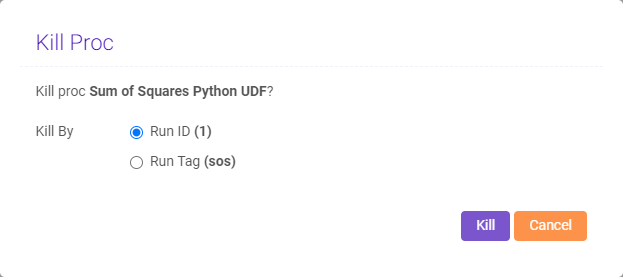
 To kill a stalled proc/tag, select the proc then click **Kill**.
Select **Run ID** or **Run Tag** to kill this proc
instance or all proc instances with the listed tag respectively. See
[/kill/proc](/content/api/rest/kill_proc_rest) for more information on run tags.
To kill a stalled proc/tag, select the proc then click **Kill**.
Select **Run ID** or **Run Tag** to kill this proc
instance or all proc instances with the listed tag respectively. See
[/kill/proc](/content/api/rest/kill_proc_rest) for more information on run tags.
 Once a proc has been completed or killed, you can clear out the status list
by clicking **Clear Completed**.
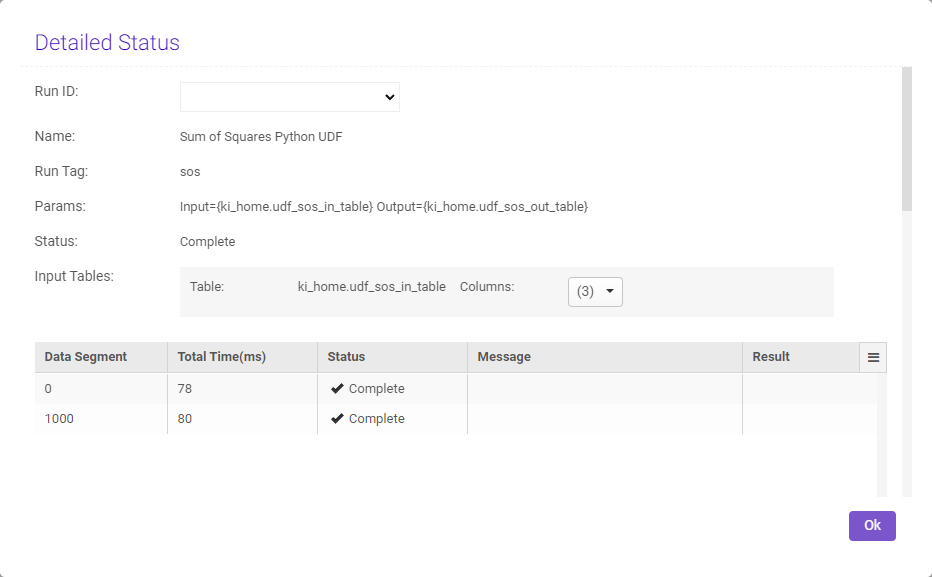
Click the **Run ID** to see a detailed status of the UDF execution
process.
Once a proc has been completed or killed, you can clear out the status list
by clicking **Clear Completed**.
Click the **Run ID** to see a detailed status of the UDF execution
process.