> ## Documentation Index
> Fetch the complete documentation index at: https://docs.kinetica.com/llms.txt
> Use this file to discover all available pages before exploring further.
# Manage
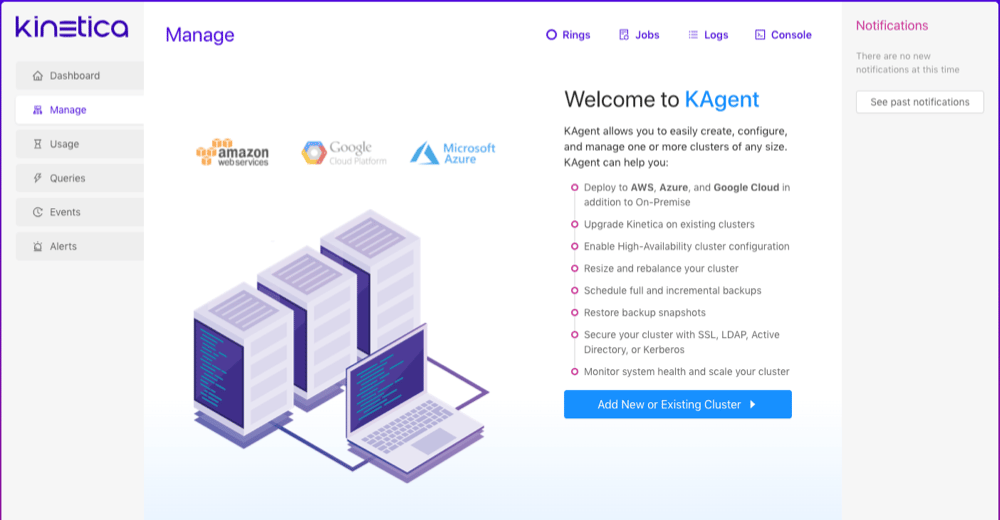
The **Manage** page allows users to install new clusters, add existing
clusters, review *KAgent* logs and jobs, manage cluster
[high availability](/content/ha/ha_architecture) rings, and more. The
**Manage** page has two main views depending on whether there is a
cluster in *KAgent* or not. If no clusters have been added to *KAgent* yet,
the **Welcome** page will appear by default allowing you to quickly
jump into [adding a cluster](/content/admin/kagent/manage#manage-add-cluster). If there are clusters in
*KAgent*, the [Clusters](#clusters) page will appear by default.
* Click **Rings** to view *KAgent* rings
* Click **Jobs** to view *KAgent* [jobs](/content/admin/kagent/manage#kagent-ui-jobs).
* Click **Logs** to view *KAgent* [logs](/content/admin/kagent/manage#kagent-ui-logs).
* Click **Console** to open the *KAgent*
[console log](/content/admin/kagent/manage#kagent-ui-console).
## Add Cluster
The **Add Cluster** interface allows users to install a new
cluster or add an existing cluster; this page will only appear if this instance
of *KAgent* is not currently managing any *Kinetica* clusters. For full details
on installing a cluster using *KAgent*, visit
[Kinetica Installation with KAgent](/content/install/kagent_install). For more information about adding an
existing cluster, see [Adding a Cluster to KAgent](/content/admin/adding_cluster_kagent).
 ## Clusters
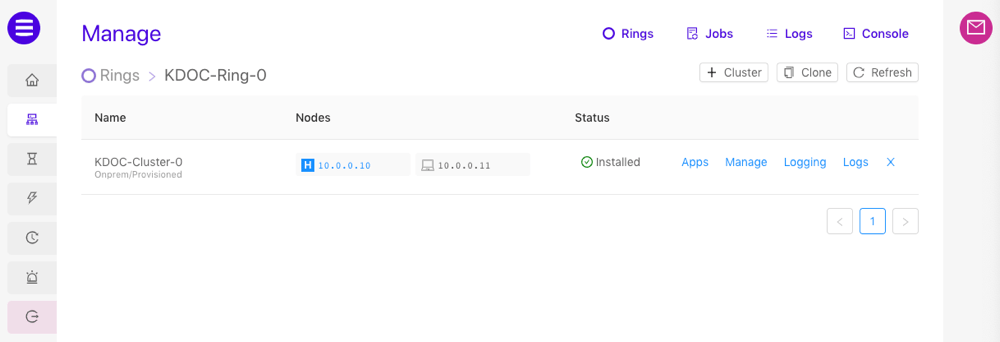
The **Clusters** page is the home page for the *KAgent* management UI
and displays all existing clusters. This page is only accessible if a cluster
has been previously added to or installed with *KAgent*.
* Click **+ Cluster** to begin adding a cluster. See
[Add Cluster](/content/admin/kagent/manage#manage-add-cluster) for more information.
* Click **Clone** to begin cloning an existing cluster. See
[Clone](/content/admin/kagent/manage#kagent-ui-clone) for more information.
* Click **Refresh** to refresh the cluster list.
* Click the
## Clusters
The **Clusters** page is the home page for the *KAgent* management UI
and displays all existing clusters. This page is only accessible if a cluster
has been previously added to or installed with *KAgent*.
* Click **+ Cluster** to begin adding a cluster. See
[Add Cluster](/content/admin/kagent/manage#manage-add-cluster) for more information.
* Click **Clone** to begin cloning an existing cluster. See
[Clone](/content/admin/kagent/manage#kagent-ui-clone) for more information.
* Click **Refresh** to refresh the cluster list.
* Click the  icon in the **Nodes** column to open a browser
tab to the head node's *Admin Application*
([GAdmin](/content/admin/gadmin) -- `http://:8080`)
* Click **Apps** to open a small menu containing links to the
Kinetica-related applications available on this cluster; e.g., *GAdmin* or
[Reveal](/content/bi/reveal)
* Click **Manage** next to a cluster to open the
[management](/content/admin/kagent/manage#kagent-manage) options for the cluster.
* Click **Logging** to open a window where you can enable additional
SQL Analyzer logging for the cluster.
* Click **Logs** to open the **Gather Logs** modal, which will
assist in *KAgent* log gathering, *KAgent* package verification, and a
process backtracing for the `gpudb` service of the selected cluster. Select
the desired options and click **Gather Logs** to initiate the process;
a download link will be presented once processing is complete.
* Click **X** to remove the cluster from *KAgent*. This will
**not** uninstall *Kinetica* or any other services.
icon in the **Nodes** column to open a browser
tab to the head node's *Admin Application*
([GAdmin](/content/admin/gadmin) -- `http://:8080`)
* Click **Apps** to open a small menu containing links to the
Kinetica-related applications available on this cluster; e.g., *GAdmin* or
[Reveal](/content/bi/reveal)
* Click **Manage** next to a cluster to open the
[management](/content/admin/kagent/manage#kagent-manage) options for the cluster.
* Click **Logging** to open a window where you can enable additional
SQL Analyzer logging for the cluster.
* Click **Logs** to open the **Gather Logs** modal, which will
assist in *KAgent* log gathering, *KAgent* package verification, and a
process backtracing for the `gpudb` service of the selected cluster. Select
the desired options and click **Gather Logs** to initiate the process;
a download link will be presented once processing is complete.
* Click **X** to remove the cluster from *KAgent*. This will
**not** uninstall *Kinetica* or any other services.
 ### Clone
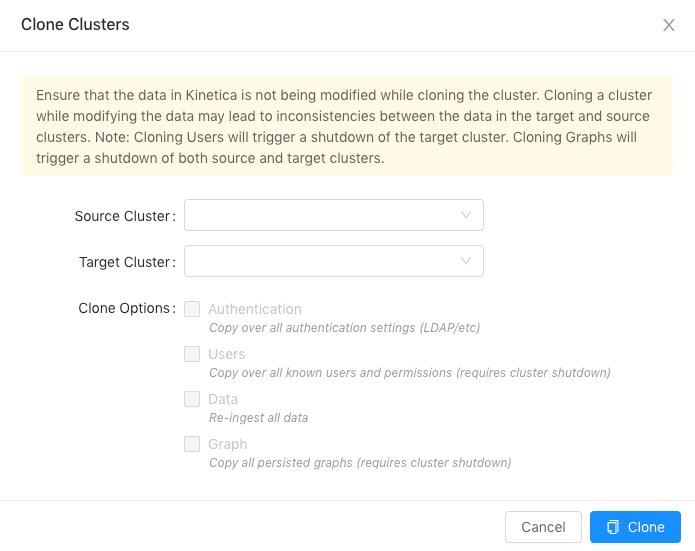
**Clone** provides the ability to clone a cluster's authentication
settings, users, and/or data to another cluster. To clone a cluster:
1. From the **Clusters** page, click **Clone**.
2. Select a **Source Cluster** from the drop-down menu.
3. Select a **Target Cluster** from the drop-down menu.
4. Select the **Clone Options**:
* **Authentication**: the source cluster's authentication settings
(LDAP, Kerberos, etc.) will be cloned to the target cluster
* **Users**: the source cluster's users and permissions setup will
be cloned to the target cluster
* **Data**: the source cluster's data will be cloned to the target
cluster
* **Graph**: the source cluster's persisted
[graphs](/content/graph_solver) will be cloned to the target cluster
5. Click **Clone**.
Cloning a cluster should be performed during downtime as
cloning a cluster while modifying any of the related data
can lead to inconsistencies between the two clusters.
### Clone
**Clone** provides the ability to clone a cluster's authentication
settings, users, and/or data to another cluster. To clone a cluster:
1. From the **Clusters** page, click **Clone**.
2. Select a **Source Cluster** from the drop-down menu.
3. Select a **Target Cluster** from the drop-down menu.
4. Select the **Clone Options**:
* **Authentication**: the source cluster's authentication settings
(LDAP, Kerberos, etc.) will be cloned to the target cluster
* **Users**: the source cluster's users and permissions setup will
be cloned to the target cluster
* **Data**: the source cluster's data will be cloned to the target
cluster
* **Graph**: the source cluster's persisted
[graphs](/content/graph_solver) will be cloned to the target cluster
5. Click **Clone**.
Cloning a cluster should be performed during downtime as
cloning a cluster while modifying any of the related data
can lead to inconsistencies between the two clusters.
 ### Manage
Users can manage cluster nodes, security, backups, and more from a particular
cluster's management interface. Click **Refresh** to refresh the
management page.
#### Nodes
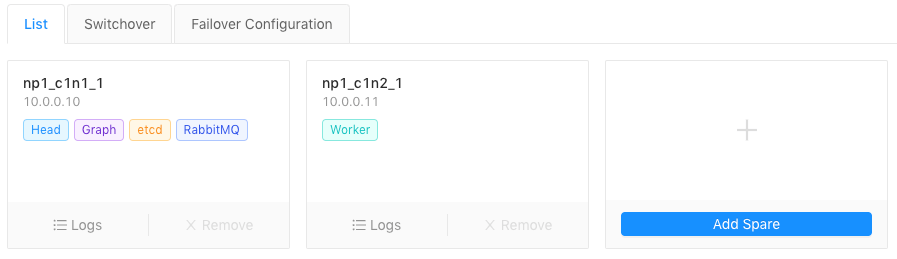
**Nodes** is divided into three tabs: **List**,
**Switchover**, **Failover Configuration**.
* *List* -- Provides a summary of the nodes and services enabled in the
cluster. Click **Remove Node** to remove a node from the cluster.
Click **Add Spare** to bring additional nodes into the
cluster.
* *Switchover* -- No longer used
* *Failover Configuration* -- No longer used
### Manage
Users can manage cluster nodes, security, backups, and more from a particular
cluster's management interface. Click **Refresh** to refresh the
management page.
#### Nodes
**Nodes** is divided into three tabs: **List**,
**Switchover**, **Failover Configuration**.
* *List* -- Provides a summary of the nodes and services enabled in the
cluster. Click **Remove Node** to remove a node from the cluster.
Click **Add Spare** to bring additional nodes into the
cluster.
* *Switchover* -- No longer used
* *Failover Configuration* -- No longer used
 #### Detail
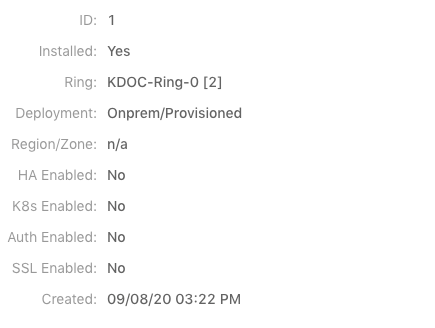
**Detail** provides basic information about the cluster, including
ring (HA), SSL, license, and more.
#### Detail
**Detail** provides basic information about the cluster, including
ring (HA), SSL, license, and more.
 #### Security
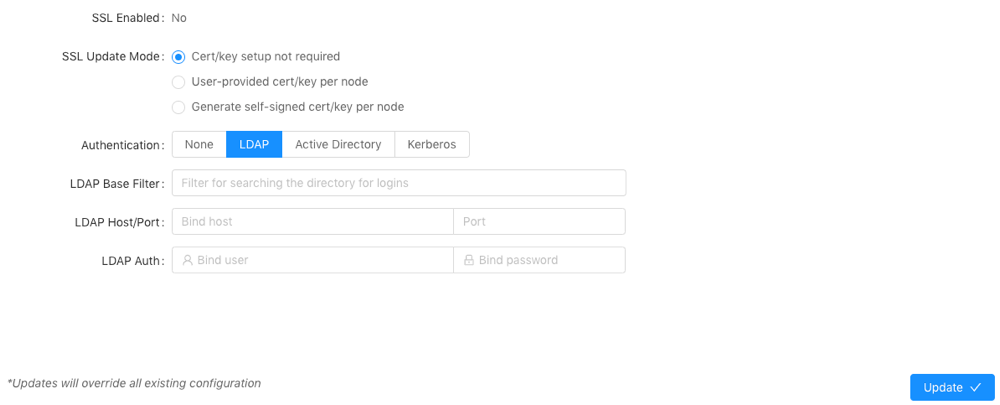
**Security** provides the ability to adjust the existing security
configuration for the cluster.
To update the security configuration:
1. Select an **SSL Update Mode**:
* **Cert/key setup not required** -- no SSL certificate/key
creation/upload required and no updates to security configuration settings
* **User-provided cert/key per node** -- user must upload an SSL
certificate and key and optionally a public hostname for each node;
*Kinetica* copies the cert/key pair to /opt/gpudb/certs, enables
HTTPD, and configures HTTPD to use HTTPS
* **Generate self-signed cert/key per node** -- *KAgent* generates
a self-signed certificate and key for each node and places it in
/opt/gpudb/certs, enables HTTPD, and configures HTTPD to use HTTPS
2. Click **Update SSL**. This will override any existing configuration.
3. Select an **Authentication** type and fill the fields as necessary:
* **None** -- no authentication or authorization
* **LDAP** -- configures *Kinetica* to authenticate via *LDAP*;
requires authentication to connect to the database, enables authorization,
enables external authentication, automatically creates users in the
database for *LDAP* users, and automatically grants roles in the database
to *LDAP* users
* **Active Directory** -- configures *Kinetica* to authenticate via
*Microsoft Active Directory*; requires authentication to connect to the
database, enables authorization, enables external authentication,
automatically creates users in the database for *Active Directory* users,
and automatically grants roles in the database to *Active Directory* users
* **Kerberos** -- configures *Kinetica* to authenticate via
*Kerberos*; requires authentication to connect to the database, enables
authorization, enables external authentication, automatically creates users
in the database for *Kerberos* users, and automatically grants roles in the
database to *Kerberos* users
For more information on security configurations and settings as well as
how to manually configure *Kinetica* for a secure setup, see
[Security Configuration](/content/security/sec_configuration)
4. Click **Update**. This will override any existing configuration.
#### Security
**Security** provides the ability to adjust the existing security
configuration for the cluster.
To update the security configuration:
1. Select an **SSL Update Mode**:
* **Cert/key setup not required** -- no SSL certificate/key
creation/upload required and no updates to security configuration settings
* **User-provided cert/key per node** -- user must upload an SSL
certificate and key and optionally a public hostname for each node;
*Kinetica* copies the cert/key pair to /opt/gpudb/certs, enables
HTTPD, and configures HTTPD to use HTTPS
* **Generate self-signed cert/key per node** -- *KAgent* generates
a self-signed certificate and key for each node and places it in
/opt/gpudb/certs, enables HTTPD, and configures HTTPD to use HTTPS
2. Click **Update SSL**. This will override any existing configuration.
3. Select an **Authentication** type and fill the fields as necessary:
* **None** -- no authentication or authorization
* **LDAP** -- configures *Kinetica* to authenticate via *LDAP*;
requires authentication to connect to the database, enables authorization,
enables external authentication, automatically creates users in the
database for *LDAP* users, and automatically grants roles in the database
to *LDAP* users
* **Active Directory** -- configures *Kinetica* to authenticate via
*Microsoft Active Directory*; requires authentication to connect to the
database, enables authorization, enables external authentication,
automatically creates users in the database for *Active Directory* users,
and automatically grants roles in the database to *Active Directory* users
* **Kerberos** -- configures *Kinetica* to authenticate via
*Kerberos*; requires authentication to connect to the database, enables
authorization, enables external authentication, automatically creates users
in the database for *Kerberos* users, and automatically grants roles in the
database to *Kerberos* users
For more information on security configurations and settings as well as
how to manually configure *Kinetica* for a secure setup, see
[Security Configuration](/content/security/sec_configuration)
4. Click **Update**. This will override any existing configuration.
 #### Backups
**Backups** provides the ability to schedule backups of your entire
database. In this section, the system can also be restored from a previous
snapshot. Consult [Backing Up/Restoring Kinetica](/content/admin/backup_restore) for information on
backing up Kinetica using KAgent from the command line.
#### Backups
**Backups** provides the ability to schedule backups of your entire
database. In this section, the system can also be restored from a previous
snapshot. Consult [Backing Up/Restoring Kinetica](/content/admin/backup_restore) for information on
backing up Kinetica using KAgent from the command line.
Schedule
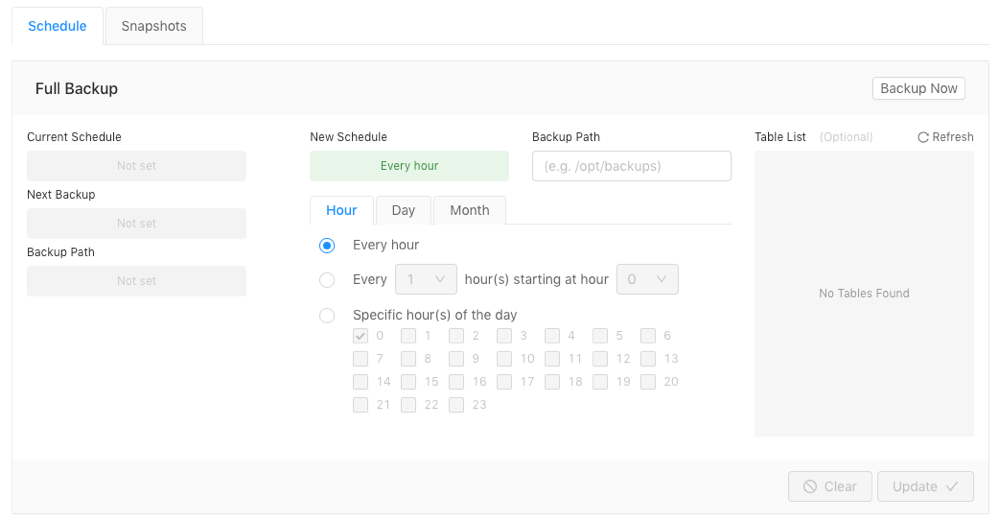
To schedule a backup in the future:
1. Provide a **Backup Path**. This directory should be accessible on
all nodes and to the `gpudb` user.
2. Select the **Hour**, **Day**, or **Month** tab.
3. Select one of the options:
* For backups every *hour | day | month*
* For backups every `` *hour(s) | day(s) | month(s)* starting with
*hour | day | month* ``
* For backups during specific *hour(s) of the day | day(s) of the week | month(s) of the year*
4. Optionally, select as many tables to backup as desired in the
**Table List**.
Only the records in the tables selected will be available upon
restoring from backup. All other tables that existed at the time
of backup will be restored but they will have no records.
5. Click **Update**.
To clear an existing scheduled backup:
1. Click **Clear**.
To backup immediately:
1. Click **Backup Now**.
2. Optionally, provide a **Backup Path**. This directory should be
accessible on all nodes and to the `gpudb` user. If no directory is
provided, `/opt/backups` will be used.
If this path provided differs from the path for the scheduled
backups, users will not be able to restore from this backup
via *KAgent*.
3. Optionally, select as many tables to backup as desired in the
**Table List**.
Only the records in the tables selected will be available upon
restoring from backup. All other tables that existed at the time
of backup will be restored but they will have no records.
4. Click **Backup Now**.
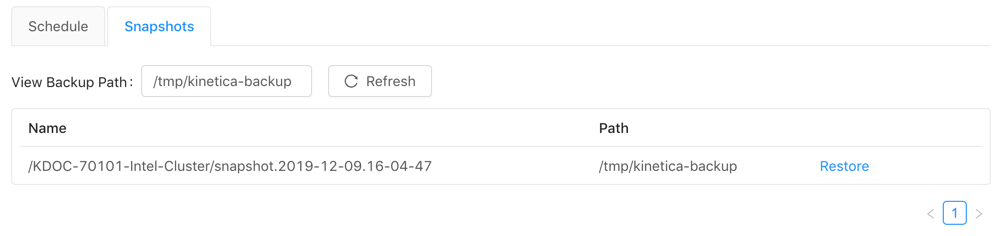
Snapshots
By default, **Snapshots** displays all backups in the set backup path
directory.
* Provide a backup directory path to **View Backup Path** and click
**Refresh** to display any backups located in the given path.
* Click **Restore** and confirm to restore the database from a snapshot.
 #### Config
**Config** allows users to edit the `external_files_directory`
[config parameter](/content/config#config-main-external-files). This parameter is used for
setting the directory that stores the files upon which
[external tables](/content/concepts/external_tables) are based and restricts the
path of files accessed via [/insert/records/fromfiles](/content/api/rest/insert_records_fromfiles_rest) and
the `SQL LOAD INTO` command.
To update the directory:
1. Adjust the directory in the **external\_files\_directory** field as
necessary.
The provided directory must exist prior to the update.
2. Click **Update**.
3. Confirm the cluster restart by clicking **Yes**. The cluster will
restart and the setting will be updated.
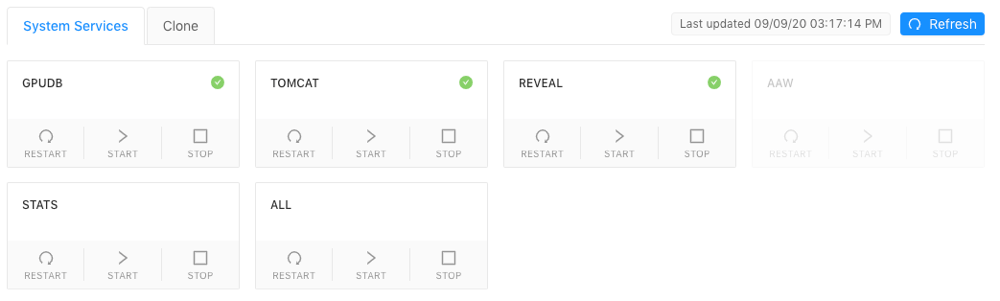
#### Admin
**Admin** provides the ability to start, stop, or restart any of the
Kinetica-managed services. *KAgent* must first check for the installed services
across the cluster, then each service can be managed. Click **Refresh**
to refresh the list of system services. The **Admin** tab also
provides access to the **Clone** utility.
#### Config
**Config** allows users to edit the `external_files_directory`
[config parameter](/content/config#config-main-external-files). This parameter is used for
setting the directory that stores the files upon which
[external tables](/content/concepts/external_tables) are based and restricts the
path of files accessed via [/insert/records/fromfiles](/content/api/rest/insert_records_fromfiles_rest) and
the `SQL LOAD INTO` command.
To update the directory:
1. Adjust the directory in the **external\_files\_directory** field as
necessary.
The provided directory must exist prior to the update.
2. Click **Update**.
3. Confirm the cluster restart by clicking **Yes**. The cluster will
restart and the setting will be updated.
#### Admin
**Admin** provides the ability to start, stop, or restart any of the
Kinetica-managed services. *KAgent* must first check for the installed services
across the cluster, then each service can be managed. Click **Refresh**
to refresh the list of system services. The **Admin** tab also
provides access to the **Clone** utility.
Clone
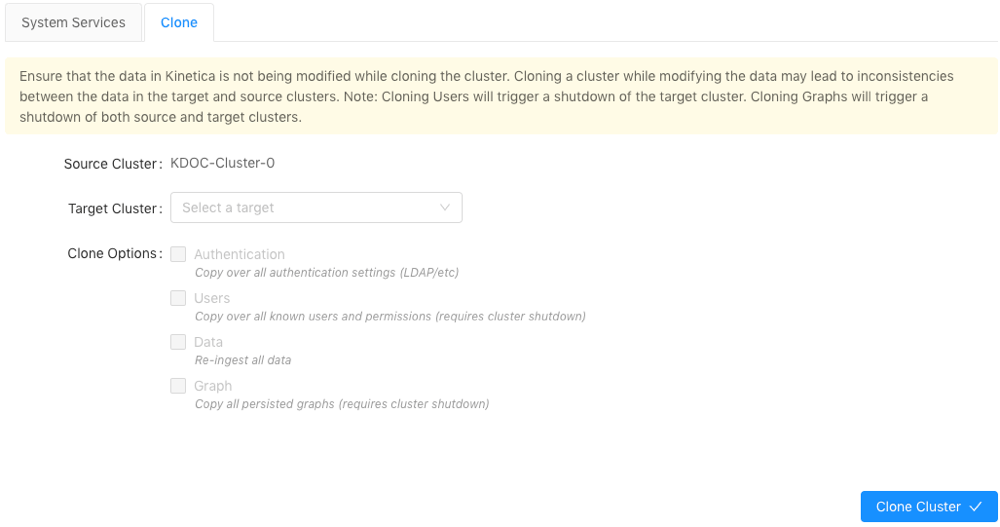
**Clone** provides the ability to clone a cluster's authentication
settings, users, and/or data to another cluster. To clone a cluster:
1. Select a **Target Cluster** from the drop-down menu.
2. Select the **Clone Options**:
* **Authentication**: the source cluster's authentication settings
(LDAP, Kerberos, etc.) will be cloned to the target cluster
* **Users**: the source cluster's users and permissions setup will
be cloned to the target cluster
* **Data**: the source cluster's data will be cloned to the target
cluster
3. Click **Clone Cluster**.
Cloning a cluster should be performed during downtime as
cloning a cluster while modifying any of the related data
can lead to inconsistencies between the two clusters.
 ## Rings
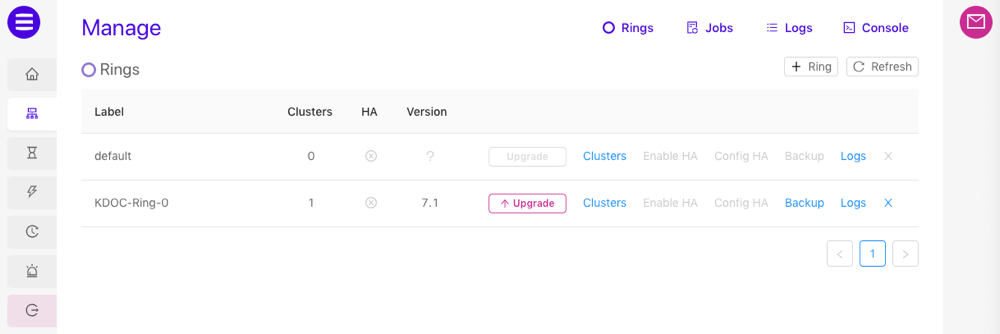
The **Rings** page allows users to add and configure
[high availability](/content/ha/ha_architecture) (*HA*) rings and create immediate
ring backups.
* Click **+ Ring** to create a ring.
* Click **Refresh** to refresh the list of rings.
* Click **Upgrade** to proceed with a
[ring upgrade](/content/admin/upgrade).
* Click **Clusters** to display the [Clusters](#clusters) page.
* Click **Enable HA** to enable [ring resiliency](/content/ha)
for the desired ring.
* Click **Config HA** (once *ring resiliency* is enabled) to configure
the most important *high availability (HA)* settings. See
[High Availability Configuration & Management](/content/ha/ha_configuration) for more information.
* Click **Backup** to initiate a backup operation immediately; similar
to the **Backup Now** functionality in [Backups](#backups).
* Click **Logs** to open the **Gather Logs** modal, which will
assist in *KAgent* log gathering, *KAgent* package verification, and a
process backtracing for the `gpudb` service of the selected cluster. Select
the desired options and click **Gather Logs** to initiate the process;
a download link will be presented once processing is complete.
* Click **X** to delete the ring.
For more information on enabling and configuring *HA* rings, see
[High Availability Configuration & Management](/content/ha/ha_configuration).
## Rings
The **Rings** page allows users to add and configure
[high availability](/content/ha/ha_architecture) (*HA*) rings and create immediate
ring backups.
* Click **+ Ring** to create a ring.
* Click **Refresh** to refresh the list of rings.
* Click **Upgrade** to proceed with a
[ring upgrade](/content/admin/upgrade).
* Click **Clusters** to display the [Clusters](#clusters) page.
* Click **Enable HA** to enable [ring resiliency](/content/ha)
for the desired ring.
* Click **Config HA** (once *ring resiliency* is enabled) to configure
the most important *high availability (HA)* settings. See
[High Availability Configuration & Management](/content/ha/ha_configuration) for more information.
* Click **Backup** to initiate a backup operation immediately; similar
to the **Backup Now** functionality in [Backups](#backups).
* Click **Logs** to open the **Gather Logs** modal, which will
assist in *KAgent* log gathering, *KAgent* package verification, and a
process backtracing for the `gpudb` service of the selected cluster. Select
the desired options and click **Gather Logs** to initiate the process;
a download link will be presented once processing is complete.
* Click **X** to delete the ring.
For more information on enabling and configuring *HA* rings, see
[High Availability Configuration & Management](/content/ha/ha_configuration).
 ## Jobs
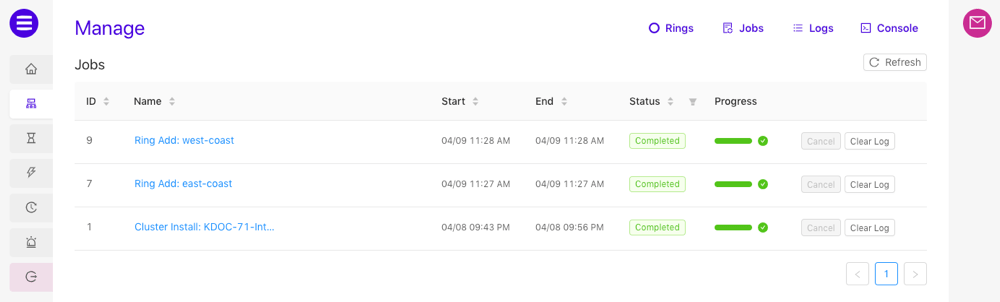
The **Jobs** page displays all historical and currently active *KAgent*
jobs.
* Click **Refresh** to refresh the list of jobs.
* Click a job's **Name** to open a status window for the job.
* Click **Cancel** to cancel a running job.
* Click **Clear Log** to clear the log for this job.
## Jobs
The **Jobs** page displays all historical and currently active *KAgent*
jobs.
* Click **Refresh** to refresh the list of jobs.
* Click a job's **Name** to open a status window for the job.
* Click **Cancel** to cancel a running job.
* Click **Clear Log** to clear the log for this job.
 ## Logs
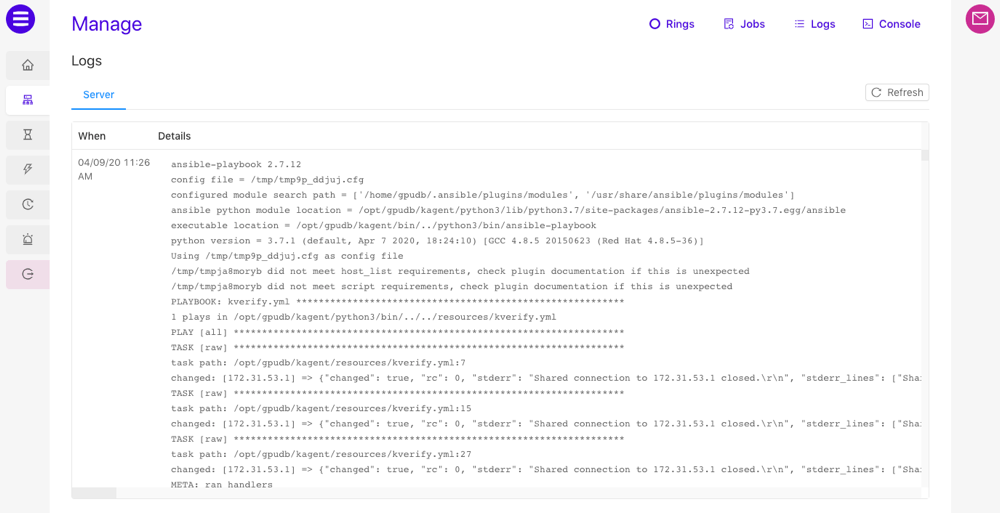
The **Logs** page hosts the logs for each *KAgent* command and result
during the verification and installation processes as well as any later
interactions with *KAgent*. Click **Refresh** to refresh the log.
## Logs
The **Logs** page hosts the logs for each *KAgent* command and result
during the verification and installation processes as well as any later
interactions with *KAgent*. Click **Refresh** to refresh the log.
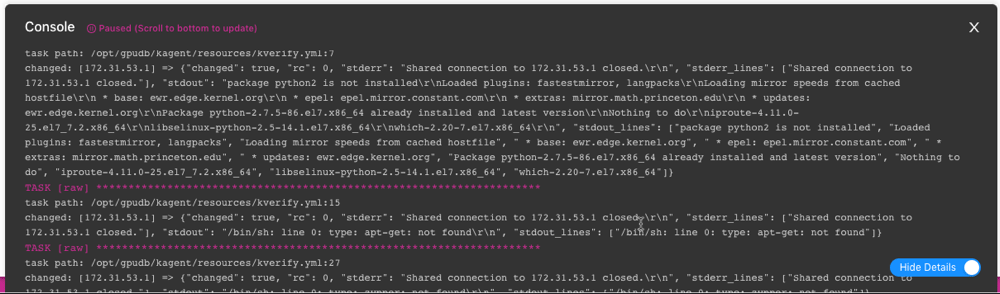
 ## Console
The **Console** window hosts a running log of *KAgent's* activity while
it interacts with the local/provisioned instances to install or upgrade Kinetica
and its components, create backups, and more. Click **Show Details** to
display detailed information about each interaction.
## Console
The **Console** window hosts a running log of *KAgent's* activity while
it interacts with the local/provisioned instances to install or upgrade Kinetica
and its components, create backups, and more. Click **Show Details** to
display detailed information about each interaction.