> ## Documentation Index
> Fetch the complete documentation index at: https://docs.kinetica.com/llms.txt
> Use this file to discover all available pages before exploring further.
# Usage
The **Usage** page in *KAgent* hosts detailed system and
[resource group](/content/rm) usage statistics and metrics.
## System
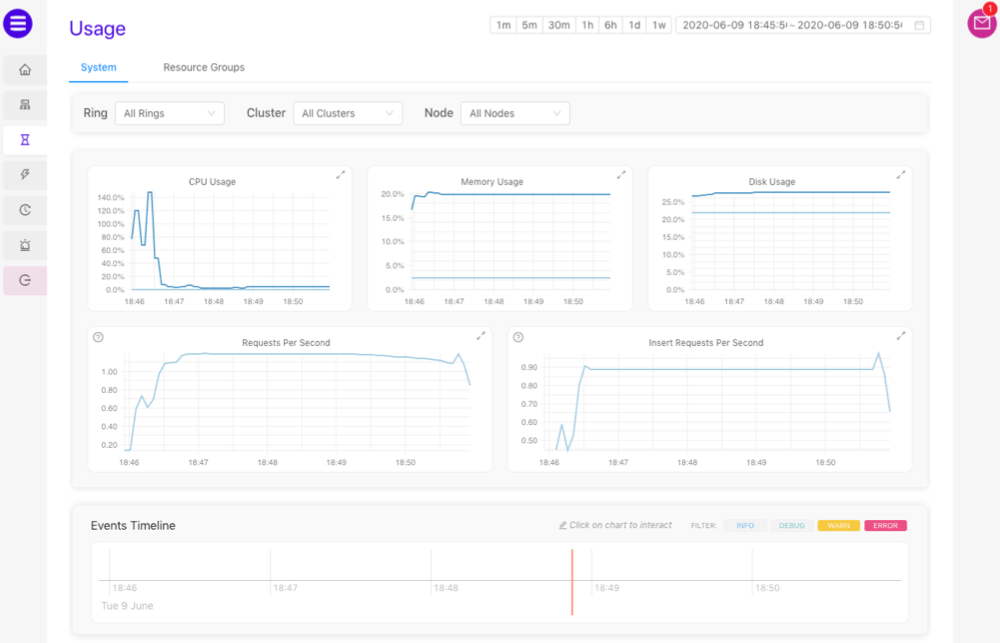
The **System** tab under the **Usage** page displays several
system usage metric and statistics graphs as well as an [Events Timeline](#events-timeline).
* Click one of the timeframe control buttons or select a date-time range to
adjust the event timeline and the metric graphs to the selected duration
* Adjust the **Ring**, **Cluster**, and/or **Node**
drop-down menus to filter the graphs for the selected ring / cluster / node
* Point the cursor to a graph to see the value at that time
 ### Events Timeline
The **Events Timeline** displays events that have occurred within
the selected timeframe. A red cursor continuously moves through the timeline,
denoting seconds as they pass. Events will appear along the timeline in real
time.
### Events Timeline
The **Events Timeline** displays events that have occurred within
the selected timeframe. A red cursor continuously moves through the timeline,
denoting seconds as they pass. Events will appear along the timeline in real
time.
 First, click the **Events Timeline**, then:
* Scroll to zoom in and out on the timeline
* Click and drag left and right to move the timeline backward and forward
respectively
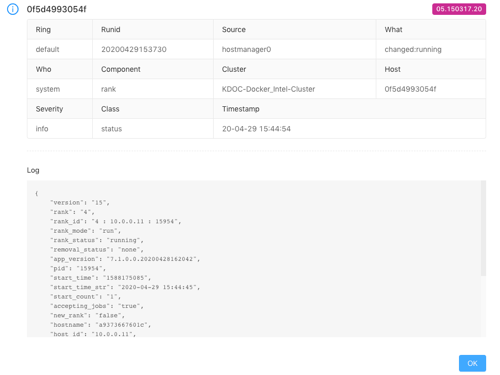
* Click an event dot to open detailed information, including the source of the
event, the [event code](/content/admin/event_codes), the timestamp of the
event, and more:
First, click the **Events Timeline**, then:
* Scroll to zoom in and out on the timeline
* Click and drag left and right to move the timeline backward and forward
respectively
* Click an event dot to open detailed information, including the source of the
event, the [event code](/content/admin/event_codes), the timestamp of the
event, and more:
 ## Resource Groups
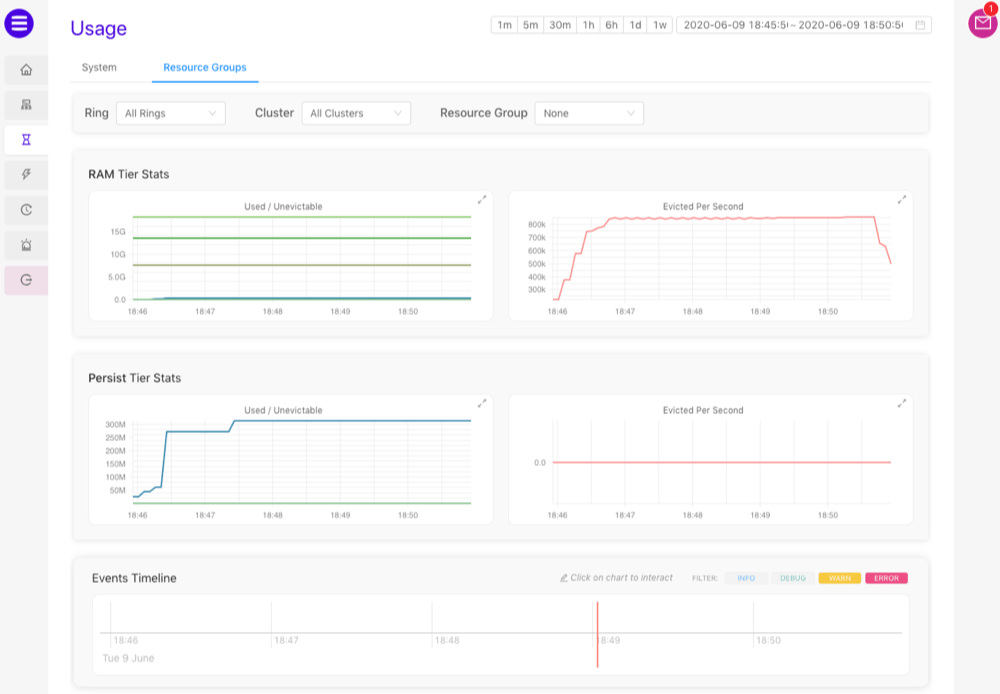
The **Resources Groups** tab under the **Usage** page displays
metrics and statistics graphs for select configured storage tiers as well as
an [Events Timeline](#events-timeline).
* Click one of the timeframe control buttons or select a date-time range to
adjust the event timeline and the metric graphs to the selected duration
* Adjust the **Ring**, **Cluster**, and/or **Node**
drop-down menus to filter the graphs for the selected ring / cluster / node
* Point the cursor to a graph to see the value at that time
## Resource Groups
The **Resources Groups** tab under the **Usage** page displays
metrics and statistics graphs for select configured storage tiers as well as
an [Events Timeline](#events-timeline).
* Click one of the timeframe control buttons or select a date-time range to
adjust the event timeline and the metric graphs to the selected duration
* Adjust the **Ring**, **Cluster**, and/or **Node**
drop-down menus to filter the graphs for the selected ring / cluster / node
* Point the cursor to a graph to see the value at that time