Example
To configure notifications to be sent using your *Gmail* account: 1. [Generate a Custom App Password](https://support.google.com/mail/answer/185833) using the desired *Gmail* account. 2. For the **Host**, input `smtp.gmail.com:587`. 3. For the **From**, input the address from which the email alert will be sent. 4. For the **Authentication**: 1. Provide the **Username** for the *Gmail* account used to generate the *App Password*. 2. Input the *App Password* into the **Password** field. 5. Under **TLS Options**, enable the **Use TLS** slider. 6. Click **Save**.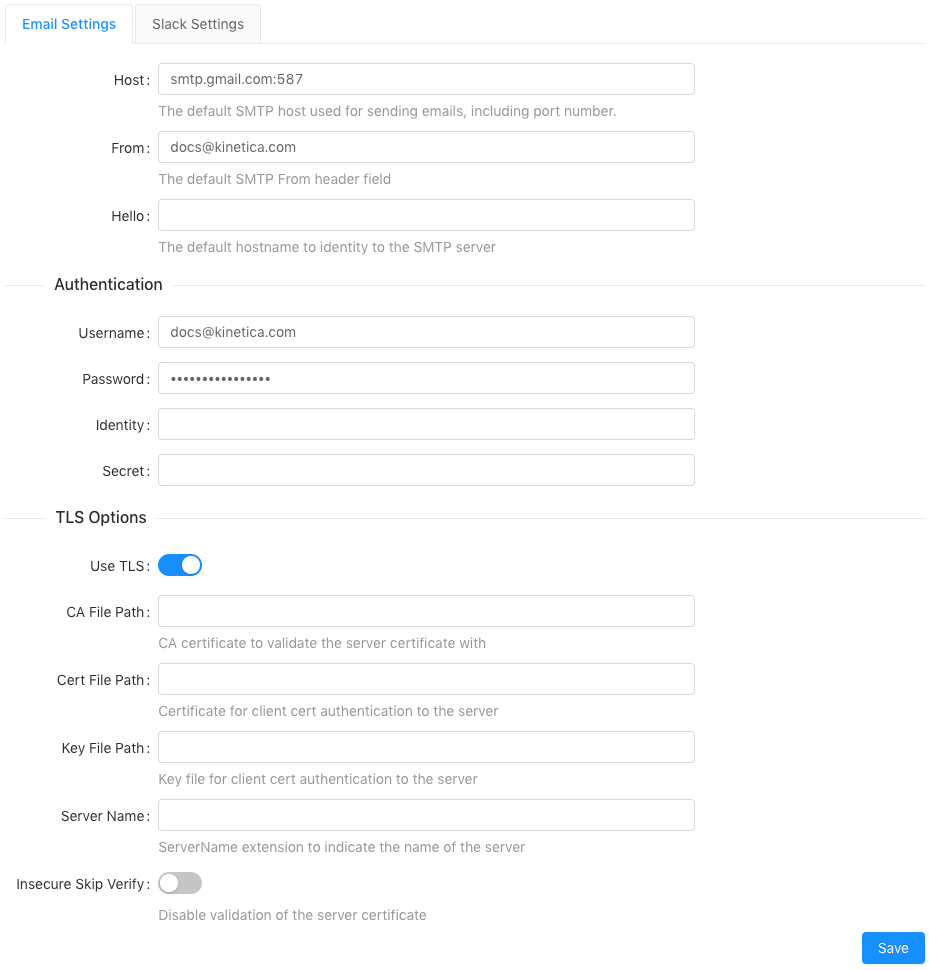 #### Configure Slack
Configuring *Slack* to receive *KAgent* alerts involves creating an app
using the *Slack* API. Follow the
[incoming Webhook creation documentation](https://api.slack.com/messaging/webhooks)
on the *Slack* API website. Once the webhook URL is available, copy it and
provide it when [creating a Slack recipient](/content/admin/monitoring_alerting#create-recipient).
### Recipients
Recipients determine to whom notifications are sent when an alert is triggered.
Review the [Recipients](/content/admin/kagent/alerts#recipients-ui) interface documentation for more information
on accessing the currently configured recipients. The supported types of
recipients are as follows:
* *Web* -- A notification will be displayed in the *KAgent*
[notifications pane](/content/admin/kagent/kagent#kagent-ui-notifications) for the selected
recipient
* *Email* -- A notification will be sent via email using the configured
SMTP server for the selected recipient
* *Slack* -- A notification will be sent to a given *Slack* channel using the
configured *Slack* incoming Webhook URL
#### Create a Recipient
1. From the **Recipients** tab on the **Alerts** page in
*KAgent*, click **+ Add Recipient**.
2. Select a recipient type:
* *Email*: Provide an **Email Address**.
#### Configure Slack
Configuring *Slack* to receive *KAgent* alerts involves creating an app
using the *Slack* API. Follow the
[incoming Webhook creation documentation](https://api.slack.com/messaging/webhooks)
on the *Slack* API website. Once the webhook URL is available, copy it and
provide it when [creating a Slack recipient](/content/admin/monitoring_alerting#create-recipient).
### Recipients
Recipients determine to whom notifications are sent when an alert is triggered.
Review the [Recipients](/content/admin/kagent/alerts#recipients-ui) interface documentation for more information
on accessing the currently configured recipients. The supported types of
recipients are as follows:
* *Web* -- A notification will be displayed in the *KAgent*
[notifications pane](/content/admin/kagent/kagent#kagent-ui-notifications) for the selected
recipient
* *Email* -- A notification will be sent via email using the configured
SMTP server for the selected recipient
* *Slack* -- A notification will be sent to a given *Slack* channel using the
configured *Slack* incoming Webhook URL
#### Create a Recipient
1. From the **Recipients** tab on the **Alerts** page in
*KAgent*, click **+ Add Recipient**.
2. Select a recipient type:
* *Email*: Provide an **Email Address**.
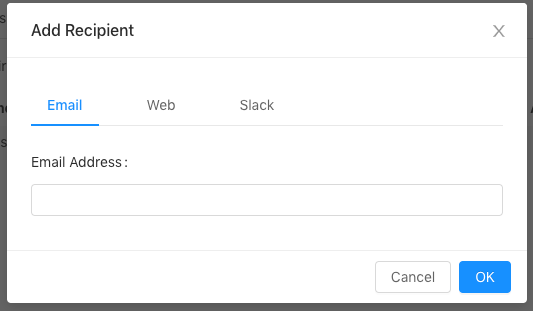
Example
To add `sys_admn`, a user with the `system_admin` role, as a *Web* recipient: 1. Click **+ Add Recipient**. 2. Select the **Web** tab. 3. Input `sys_admn` for the **Username** field. 4. Click **OK**. ### Metric Alerts Metric Alerts are triggered when specific performance metric thresholds are exceeded, such as CPU utilization, memory usage, or rate of API requests. Review the [Metric Alerts](/content/admin/kagent/alerts#metric-alerts-ui) interface documentation for more information on accessing the currently configured metric alerts. #### Create a Metric Alert 1. From the **Metric Alerts** tab on the **Alerts** page in [KAgent](/content/admin/kagent/kagent):, click **+ Add Metric Alert**. 2. Provide a **Name** for the alert.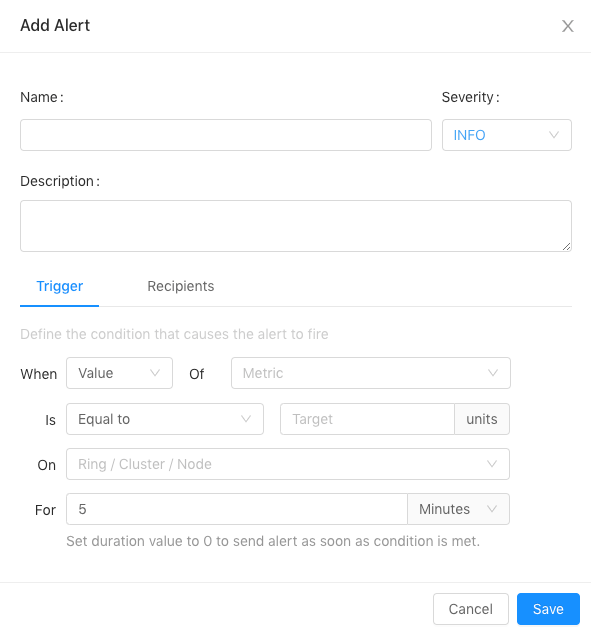
Examples
To create a warning metric alert for high (> 90%) CPU usage on any node within a ring/cluster for 5 minutes (or more): 1. Click **+ Add Metric Alert**. 2. For the **Name**, input `High CPU Usage`. 3. For the **Severity**, select **WARNING** from the drop-down menu. 4. For the **Description**, input `CPU usage has been greater than 90% for 5 minutes (or more)`. 5. For the **Trigger**: 1. Leave **When** as **Value**. 2. For the **Of** *metric*, select **CPU Usage** from the drop-down menu. Notice the **units** will automatically change to **%**. 3. Update the **Is** comparative condition to **Greater than** and set the associated value to `90`. 4. For **On**, select **Any Ring, Cluster, or Node** from the drop-down menu. 5. Leave the default values for **For**. 6. Click **Save**.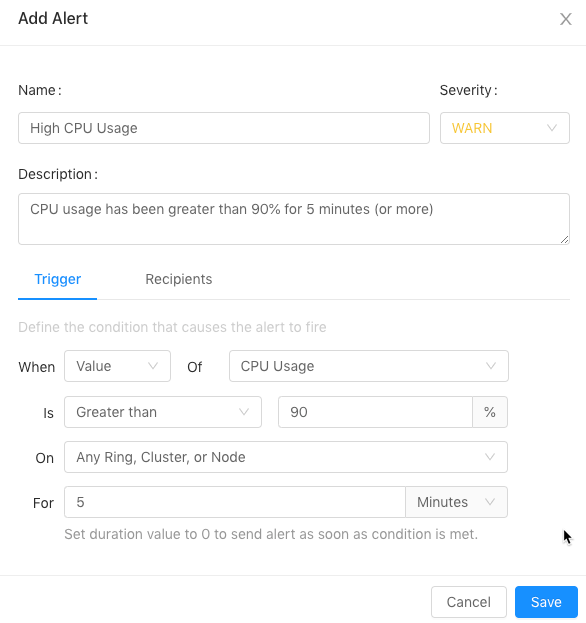 To create a fatal metric alert for average memory usage of 100% across a given
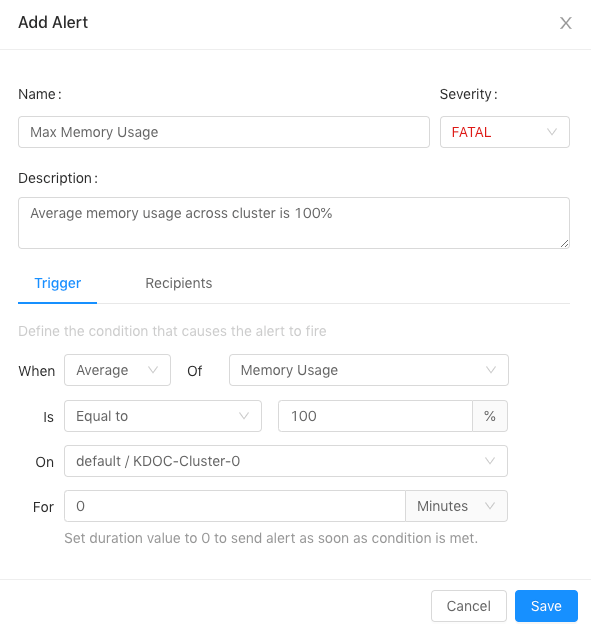
cluster for 0 minutes (triggering an immediate notification upon meeting the
condition):
1. Click **+ Add Metric Alert**.
2. For the **Name**, input `Max Memory Usage`.
3. For the **Severity**, select **FATAL** from the drop-down
menu.
4. For the **Description**, input
`Average memory usage across cluster is 100%`.
5. For the **Trigger**:
1. For the **When**, select **Average** from the drop-down
menu.
2. For the **Of** *metric*, select **Memory Usage** from the
drop-down menu. Notice the **units** will automatically change to
**%**.
3. Leave the **Is** comparative condition as **Equal to**,
but set the associated value to `100`.
4. For **On**, select the desired ring then a desired cluster from
the drop-down menu.
5. Set the **For** value to `0`.
6. Click **Save**.
To create a fatal metric alert for average memory usage of 100% across a given
cluster for 0 minutes (triggering an immediate notification upon meeting the
condition):
1. Click **+ Add Metric Alert**.
2. For the **Name**, input `Max Memory Usage`.
3. For the **Severity**, select **FATAL** from the drop-down
menu.
4. For the **Description**, input
`Average memory usage across cluster is 100%`.
5. For the **Trigger**:
1. For the **When**, select **Average** from the drop-down
menu.
2. For the **Of** *metric*, select **Memory Usage** from the
drop-down menu. Notice the **units** will automatically change to
**%**.
3. Leave the **Is** comparative condition as **Equal to**,
but set the associated value to `100`.
4. For **On**, select the desired ring then a desired cluster from
the drop-down menu.
5. Set the **For** value to `0`.
6. Click **Save**.
 ### Event Alerts
Event Alerts are triggered when specific system events occur, such as nodes
terminating or data ingestion completing. Review the [Event Alerts](/content/admin/kagent/alerts#event-alerts-ui)
interface documentation for more information on accessing the currently
configured event alerts. Review the list of [Event Codes](/content/admin/event_codes) to see the
available events.
#### Create an Event Alert
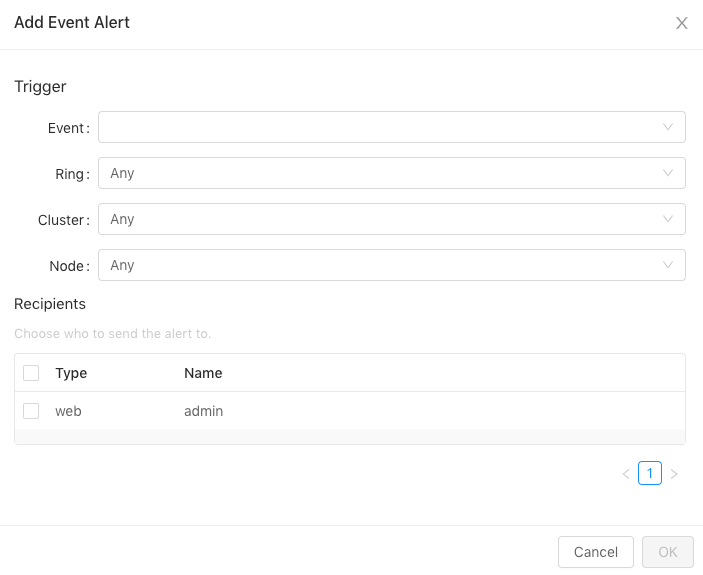
1. From the **Event Alerts** tab on the **Alerts** page in
*KAgent*, click **+ Add Event Alert**.
2. Select a system event from the **Events** drop-down menu.
3. Optionally, select a ring from the **Ring** drop-down menu.
4. Optionally, select a cluster from the **Cluster** drop-down menu.
5. Optionally, select a node from the **Node** drop-down menu.
6. Optionally, select an available recipient to send the notification to when
the alert triggered. A recipient can also be set via the
**Event Alerts** list.
7. Click **OK**.
### Event Alerts
Event Alerts are triggered when specific system events occur, such as nodes
terminating or data ingestion completing. Review the [Event Alerts](/content/admin/kagent/alerts#event-alerts-ui)
interface documentation for more information on accessing the currently
configured event alerts. Review the list of [Event Codes](/content/admin/event_codes) to see the
available events.
#### Create an Event Alert
1. From the **Event Alerts** tab on the **Alerts** page in
*KAgent*, click **+ Add Event Alert**.
2. Select a system event from the **Events** drop-down menu.
3. Optionally, select a ring from the **Ring** drop-down menu.
4. Optionally, select a cluster from the **Cluster** drop-down menu.
5. Optionally, select a node from the **Node** drop-down menu.
6. Optionally, select an available recipient to send the notification to when
the alert triggered. A recipient can also be set via the
**Event Alerts** list.
7. Click **OK**.
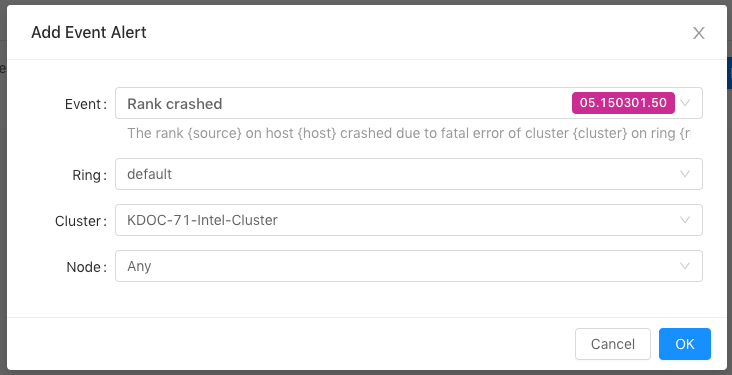
Example
To create an event alert for when a rank crashes in a given cluster: 1. Click **+ Add Event Alert**. 2. For the **Event**, select **Rank crashed** from the drop-down menu. 3. Select the desired **Ring** and **Cluster**. Leave **Node** as the default value. 4. Click **OK**.