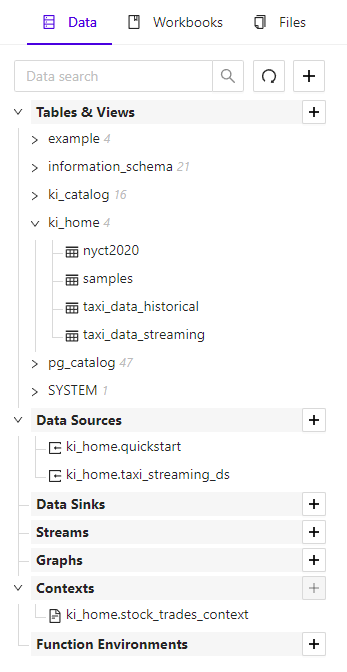
 #### Creating and Modifying Data Objects
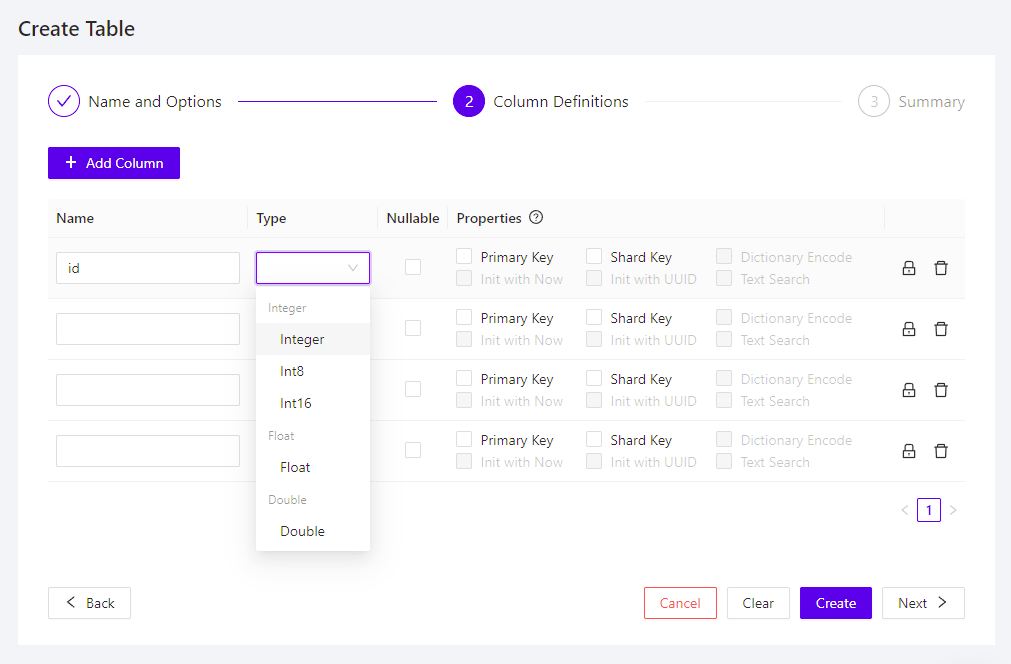
Create new data objects, like tables, data sources, or graphs, by clicking the
plus **+** button at the top of the *Data Explorer*, or next to
any of the data object type headings. You will be walked through options in a
wizard. To modify an existing object, click the object and select
**Configure**.
#### Creating and Modifying Data Objects
Create new data objects, like tables, data sources, or graphs, by clicking the
plus **+** button at the top of the *Data Explorer*, or next to
any of the data object type headings. You will be walked through options in a
wizard. To modify an existing object, click the object and select
**Configure**.
 #### Previewing Objects
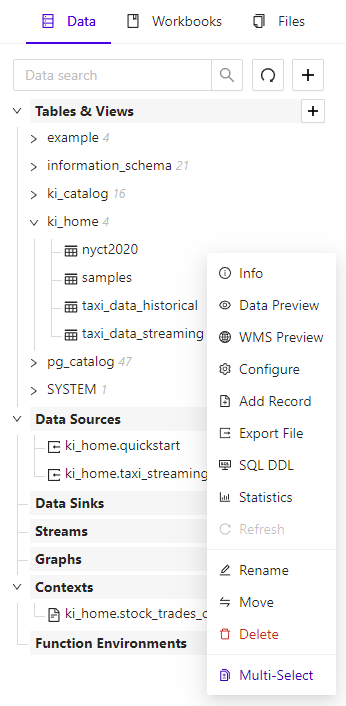
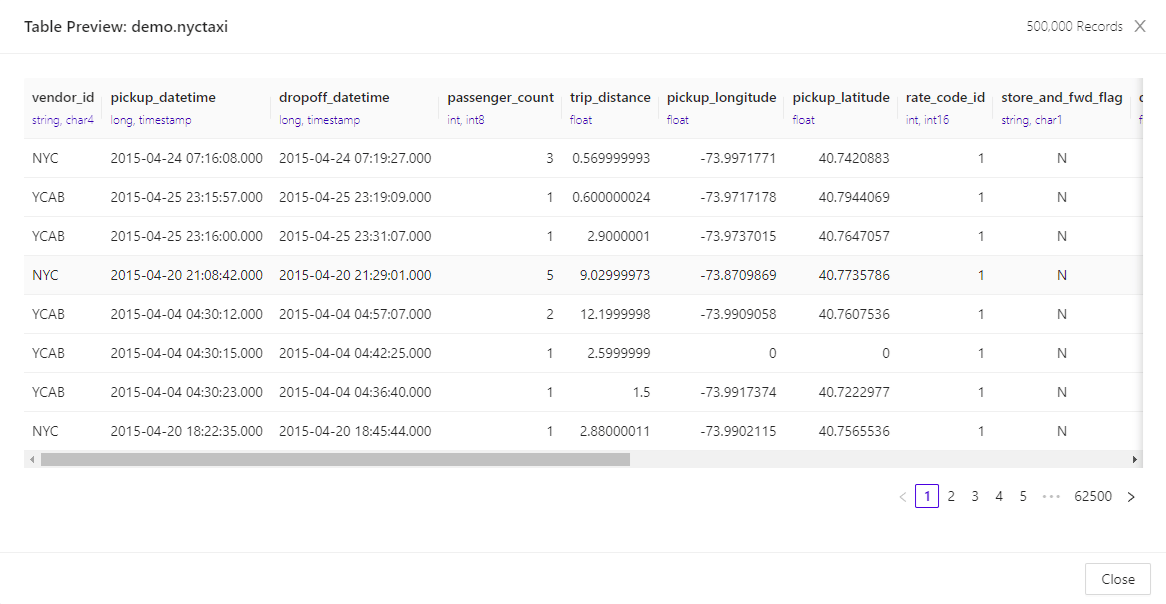
You can preview an object’s data by clicking and selecting
**Data Preview**. For tabular data, you will be shown a table
view of the data.
#### Previewing Objects
You can preview an object’s data by clicking and selecting
**Data Preview**. For tabular data, you will be shown a table
view of the data.
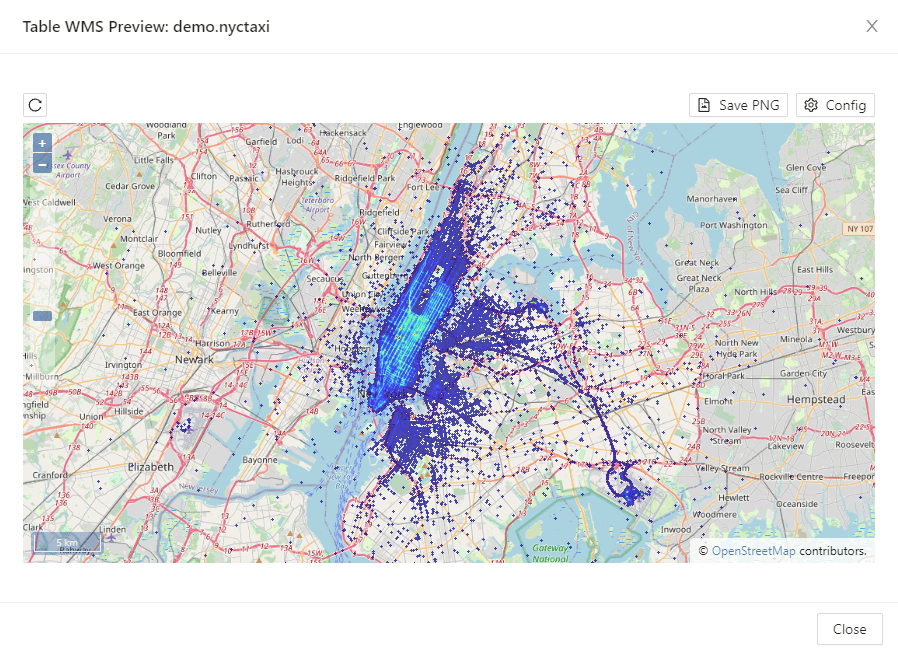
 You can also preview geospatial tabular data on a map by selecting
**WMS Preview**. Abstract graphs, like social graphs cannot be
previewed in the *Workbench*. Previewing a geospatial graph will display a map
of the graph.
You can also preview geospatial tabular data on a map by selecting
**WMS Preview**. Abstract graphs, like social graphs cannot be
previewed in the *Workbench*. Previewing a geospatial graph will display a map
of the graph.
 #### Deleting Objects
To delete an object, click the object and select **Delete**.
### Workbook Explorer
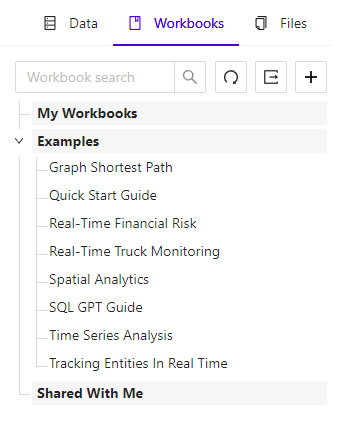
The *Workbook Explorer* contains two lists of *workbooks*:
* **My Workbooks** - a list of *workbooks* you've created,
and the *Quick Start Guide*, which comes with each *Kinetica* deployment
* **Examples** - workbooks that are provided with *Workbench* for
exploring the various features of *Kinetica*
* **Shared With Me** - a list of *workbooks* others have created
and made available to you
#### Deleting Objects
To delete an object, click the object and select **Delete**.
### Workbook Explorer
The *Workbook Explorer* contains two lists of *workbooks*:
* **My Workbooks** - a list of *workbooks* you've created,
and the *Quick Start Guide*, which comes with each *Kinetica* deployment
* **Examples** - workbooks that are provided with *Workbench* for
exploring the various features of *Kinetica*
* **Shared With Me** - a list of *workbooks* others have created
and made available to you
 #### Creating a New Workbook
To create a new *workbook*, select the **Workbook** tab in the
*Explorer*, then click the plus **+** button. Alternatively,
you can create a new *workbook* using the large button on the
**Explore** landing page.
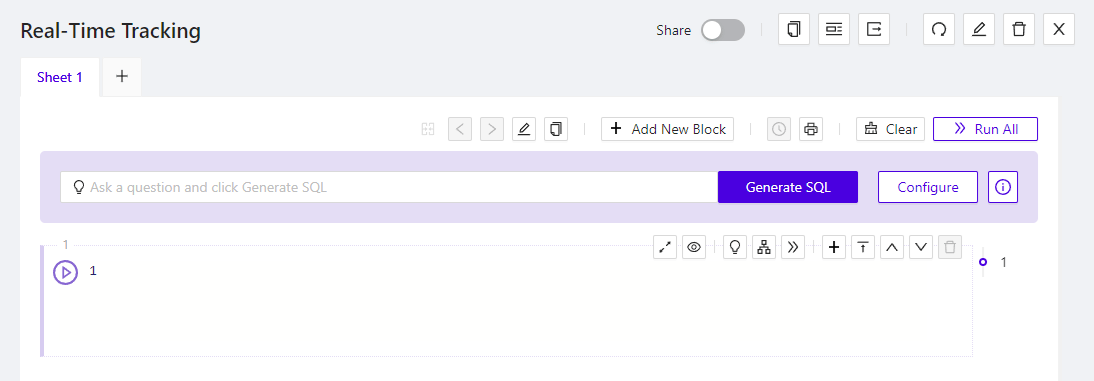
After giving it a name, the new *workbook* will be displayed in the right-hand
pane with a single empty *SQL Block* to start.
#### Creating a New Workbook
To create a new *workbook*, select the **Workbook** tab in the
*Explorer*, then click the plus **+** button. Alternatively,
you can create a new *workbook* using the large button on the
**Explore** landing page.
After giving it a name, the new *workbook* will be displayed in the right-hand
pane with a single empty *SQL Block* to start.
 #### Example Workbook
*Kinetica* ships with a *workbook* that showcases an end-to-end analytics
example through SQL. In this *workbook*, you will ingest data from S3, perform
several analytic queries, and finally visualize the output on a map. To open the
example *workbook*, click the **Workbooks** tab in the *Explorer*
and select **Quick Start Guide**.
#### Exporting/Importing Workbooks
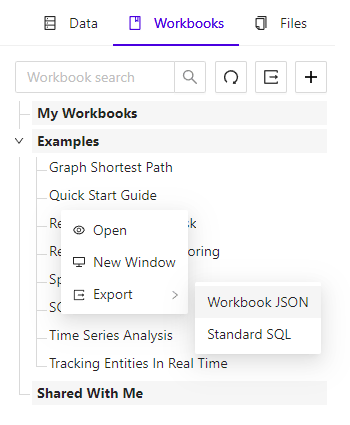
You can export and import *workbooks* to share your SQL. Right-click on a
*workbook* in the *Workbook Explorer* and select the **Export**
menu option. Choose **Workbook JSON** to initiate the download
in JSON format.
#### Example Workbook
*Kinetica* ships with a *workbook* that showcases an end-to-end analytics
example through SQL. In this *workbook*, you will ingest data from S3, perform
several analytic queries, and finally visualize the output on a map. To open the
example *workbook*, click the **Workbooks** tab in the *Explorer*
and select **Quick Start Guide**.
#### Exporting/Importing Workbooks
You can export and import *workbooks* to share your SQL. Right-click on a
*workbook* in the *Workbook Explorer* and select the **Export**
menu option. Choose **Workbook JSON** to initiate the download
in JSON format.
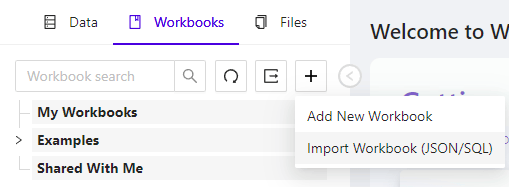
 To import a *workbook*, select the plus **+** button at the top
right of the *Workbook Explorer*. This will open a dialog window that allows you
to drag and drop a previously exported *workbook*.
To import a *workbook*, select the plus **+** button at the top
right of the *Workbook Explorer*. This will open a dialog window that allows you
to drag and drop a previously exported *workbook*.
 ### File Explorer
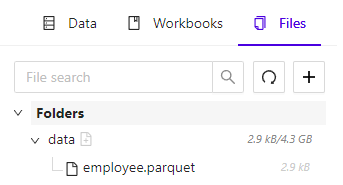
The *File Explorer* can be used to manage
[directories](/content/tools/kifs_api#kifs-directory) & [files](/content/tools/kifs_api#kifs-file)
that reside in [Kinetica File System (KiFS)](/content/tools/kifs). This feature facilitates uploading
local data files to import their data into *Kinetica*.
### File Explorer
The *File Explorer* can be used to manage
[directories](/content/tools/kifs_api#kifs-directory) & [files](/content/tools/kifs_api#kifs-file)
that reside in [Kinetica File System (KiFS)](/content/tools/kifs). This feature facilitates uploading
local data files to import their data into *Kinetica*.
 #### Uploading a File
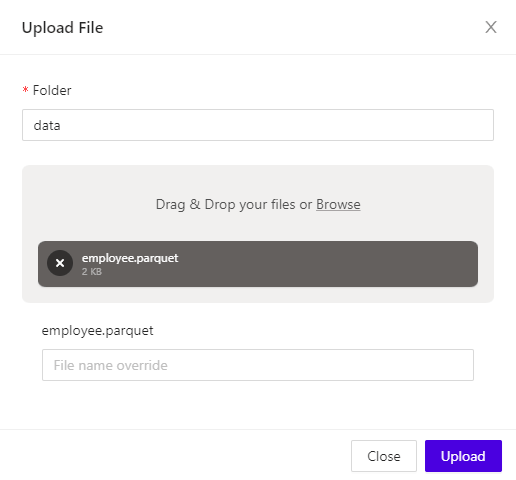
To upload a data file, select the **Files** tab in the
*Explorer* to reach the *File Explorer*. Then, proceed either one of two ways:
* Click the plus **+** button at the top of the *File Explorer*
panel and then click **Upload New File**
* Right-click the *directory* to upload the file into, and then click
**Upload New File**
At this point a modal will open up, prompting the selection of a data file to
upload from the local file system. Choose a file and then click
**Open**. Then enter (or confirm) the name of the *directory* to
upload the file to and, optionally, choose a different name for the uploaded
file in *KiFS*. Click **Upload** to complete the file upload,
and **Close** to close the modal.
#### Uploading a File
To upload a data file, select the **Files** tab in the
*Explorer* to reach the *File Explorer*. Then, proceed either one of two ways:
* Click the plus **+** button at the top of the *File Explorer*
panel and then click **Upload New File**
* Right-click the *directory* to upload the file into, and then click
**Upload New File**
At this point a modal will open up, prompting the selection of a data file to
upload from the local file system. Choose a file and then click
**Open**. Then enter (or confirm) the name of the *directory* to
upload the file to and, optionally, choose a different name for the uploaded
file in *KiFS*. Click **Upload** to complete the file upload,
and **Close** to close the modal.
 #### Importing a File
To import a *file* from *KiFS*, select the **Files** tab in the
*Explorer* to reach the *File Explorer*. Then, right-click the name of the
*file* to upload and click **Import**.
The *Kinetica Filesystem Import* wizard will be displayed with the name of the
*file* to import already populated in the **File** field.
#### Importing a File
To import a *file* from *KiFS*, select the **Files** tab in the
*Explorer* to reach the *File Explorer*. Then, right-click the name of the
*file* to upload and click **Import**.
The *Kinetica Filesystem Import* wizard will be displayed with the name of the
*file* to import already populated in the **File** field.
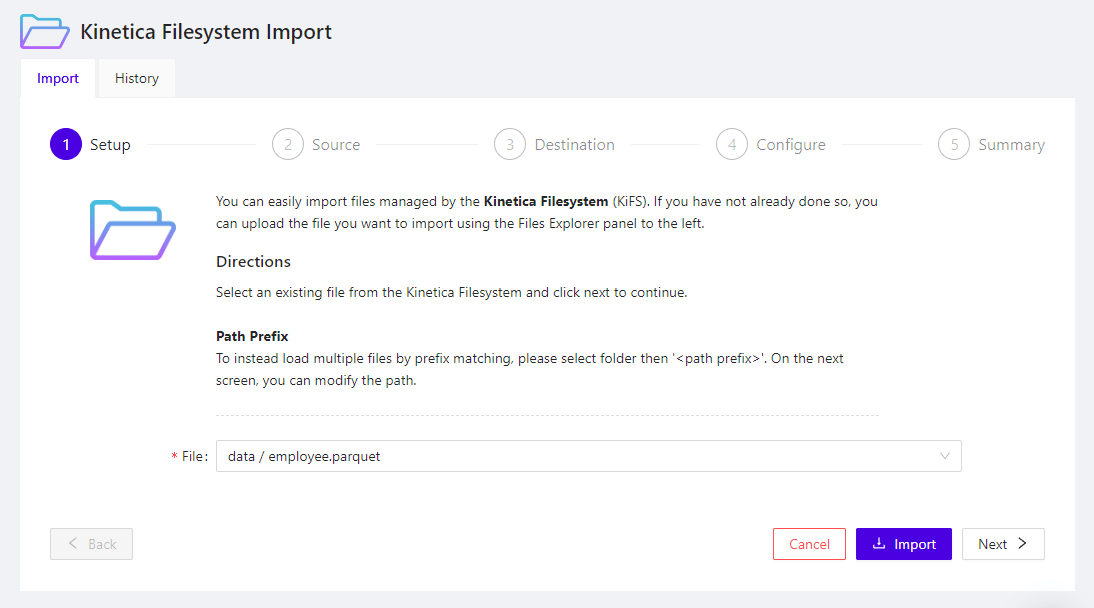 Click **Import** at any step of the wizard to import the *file*
with the default options, along with any that have been configured in previous
steps. See [Import Data Wizard](/content/admin/workbench/workbooks#wb-import-wiz) for the step-by-step walkthrough of the
wizard.
## SQL Workbooks and Worksheets
*Workbooks* can be accessed via the *Explore* page, using the top navigation.
This page will be used in the future to import *workbooks*
from *Kinetica’s Workbook Repository*.
Click **Import** at any step of the wizard to import the *file*
with the default options, along with any that have been configured in previous
steps. See [Import Data Wizard](/content/admin/workbench/workbooks#wb-import-wiz) for the step-by-step walkthrough of the
wizard.
## SQL Workbooks and Worksheets
*Workbooks* can be accessed via the *Explore* page, using the top navigation.
This page will be used in the future to import *workbooks*
from *Kinetica’s Workbook Repository*.
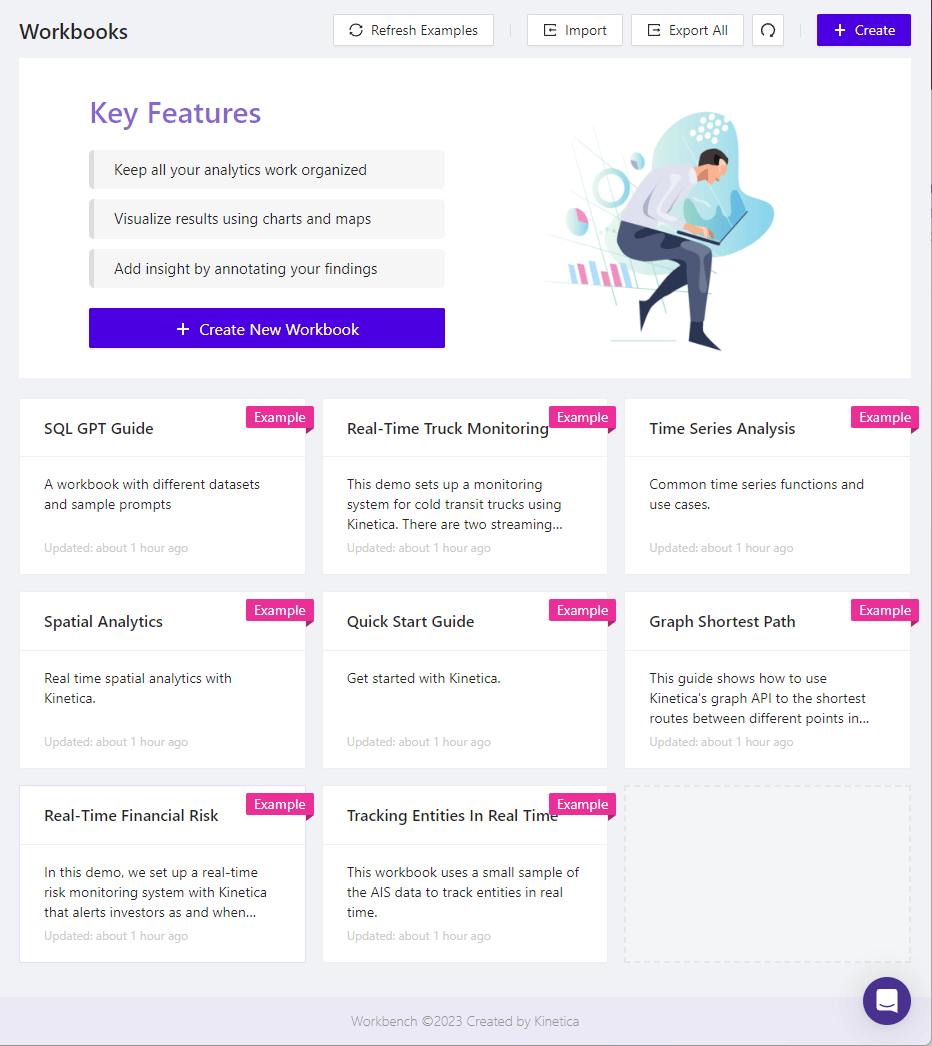 ### Workbooks
A *workbook* is a container for *worksheets*.
Each *worksheet* begins with the [SQL-GPT interface](/content/admin/workbench/workbooks#wb-sql-gpt),
followed by one or more *data blocks* and *presentation blocks*:
* *Data blocks* - blocks that interact with the database and display the results
of queries and/or operations; these include:
* [SQL Blocks](/content/admin/workbench/workbooks#wb-sql-block)
* [Map Blocks](/content/admin/workbench/workbooks#wb-map-block)
* [Graph Blocks](/content/admin/workbench/workbooks#wb-graph-block)
* [Presentation blocks](/content/admin/workbench/workbooks#wb-presentation-block) - blocks that
display static content, usually used when converting a *workbook* to a
presentation medium, where these *block* types can help explain a workflow and
provide insight into the results of surrounding *data blocks* that do query
the database; these include:
* *Text Blocks*
* *Image Blocks*
* *HTML Blocks*
Any type of *block* can be moved up or down in the *block* ordering or removed
using the buttons in the upper right corner of the *block*. You can also add
another *block* directly below an existing one by using the plus
**+** button in the upper right menu.
### Workbooks
A *workbook* is a container for *worksheets*.
Each *worksheet* begins with the [SQL-GPT interface](/content/admin/workbench/workbooks#wb-sql-gpt),
followed by one or more *data blocks* and *presentation blocks*:
* *Data blocks* - blocks that interact with the database and display the results
of queries and/or operations; these include:
* [SQL Blocks](/content/admin/workbench/workbooks#wb-sql-block)
* [Map Blocks](/content/admin/workbench/workbooks#wb-map-block)
* [Graph Blocks](/content/admin/workbench/workbooks#wb-graph-block)
* [Presentation blocks](/content/admin/workbench/workbooks#wb-presentation-block) - blocks that
display static content, usually used when converting a *workbook* to a
presentation medium, where these *block* types can help explain a workflow and
provide insight into the results of surrounding *data blocks* that do query
the database; these include:
* *Text Blocks*
* *Image Blocks*
* *HTML Blocks*
Any type of *block* can be moved up or down in the *block* ordering or removed
using the buttons in the upper right corner of the *block*. You can also add
another *block* directly below an existing one by using the plus
**+** button in the upper right menu.
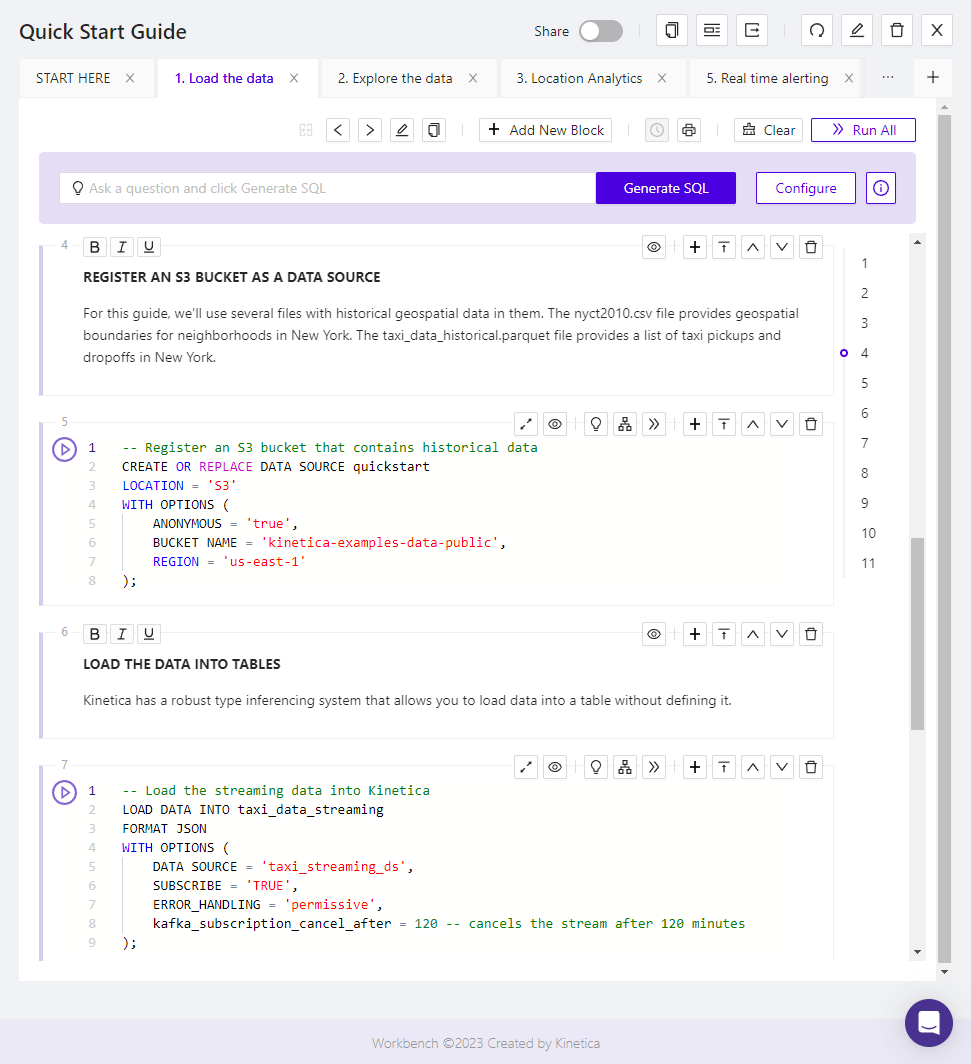 ### SQL-GPT
A [SQL-GPT](/content/sql-gpt/concepts) interface is present at the top of
each *worksheet* within a *workbook* to facilitate natural language queries of
data.
To use *SQL-GPT* to answer a question about your data:
1. Enter a natural-language question into the *SQL-GPT* textbox.
2. Click **Generate SQL**. A new *SQL Block* will be created at
the bottom of the *worksheet*, pre-populated with the query *SQL-GPT*
generated to answer the question posed.
3. Click
### SQL-GPT
A [SQL-GPT](/content/sql-gpt/concepts) interface is present at the top of
each *worksheet* within a *workbook* to facilitate natural language queries of
data.
To use *SQL-GPT* to answer a question about your data:
1. Enter a natural-language question into the *SQL-GPT* textbox.
2. Click **Generate SQL**. A new *SQL Block* will be created at
the bottom of the *worksheet*, pre-populated with the query *SQL-GPT*
generated to answer the question posed.
3. Click  in that new *SQL Block* to run the generated query.
*SQL-GPT* will generate more accurate queries when it is given more context for
the data it is querying. To provide *SQL-GPT* insight into the data and
relationships between the data, see [SQL-GPT Concepts](/content/sql-gpt/concepts) for a
*SQL-GPT* overview and [SQL-GPT Syntax](/content/sql/sqlgpt) for the complete SQL syntax
supporting *SQL-GPT*.
Once a custom *SQL-GPT context* has been created, click
**Configure** to assign the *context* to the current *worksheet*,
and ask the natural-language question again.
### SQL Blocks
A *SQL Block* should contain a single SQL statement, which can be independently
evaluated.
Each *SQL Block* has a play button on the left side that allows you to run the
SQL contained in the block. Alternatively, you can run all the *SQL Blocks* in a
*worksheet* in sequence by clicking the **Run All** button at the
top of the screen.
If you want to create a visualization for a *SQL Block*, you will first need to
create and run a `SELECT` statement. See [Visualizations](/content/admin/workbench/workbooks#wb-vis) for directions
on how to create visualizations in your *workbook*.
in that new *SQL Block* to run the generated query.
*SQL-GPT* will generate more accurate queries when it is given more context for
the data it is querying. To provide *SQL-GPT* insight into the data and
relationships between the data, see [SQL-GPT Concepts](/content/sql-gpt/concepts) for a
*SQL-GPT* overview and [SQL-GPT Syntax](/content/sql/sqlgpt) for the complete SQL syntax
supporting *SQL-GPT*.
Once a custom *SQL-GPT context* has been created, click
**Configure** to assign the *context* to the current *worksheet*,
and ask the natural-language question again.
### SQL Blocks
A *SQL Block* should contain a single SQL statement, which can be independently
evaluated.
Each *SQL Block* has a play button on the left side that allows you to run the
SQL contained in the block. Alternatively, you can run all the *SQL Blocks* in a
*worksheet* in sequence by clicking the **Run All** button at the
top of the screen.
If you want to create a visualization for a *SQL Block*, you will first need to
create and run a `SELECT` statement. See [Visualizations](/content/admin/workbench/workbooks#wb-vis) for directions
on how to create visualizations in your *workbook*.
 #### Type-ahead
*SQL Blocks* feature a type-ahead capability that will suggest SQL syntax and
database object names. When you begin typing, keywords will appear, and you will
be able to select one of the items using the arrow keys. Pressing
**Enter** while one of these keywords is highlighted will add it
to your *SQL Block*.
For database objects, simply type a schema name and a dot (.); you should see
all the tables and views in that schema appear in a dropdown list.
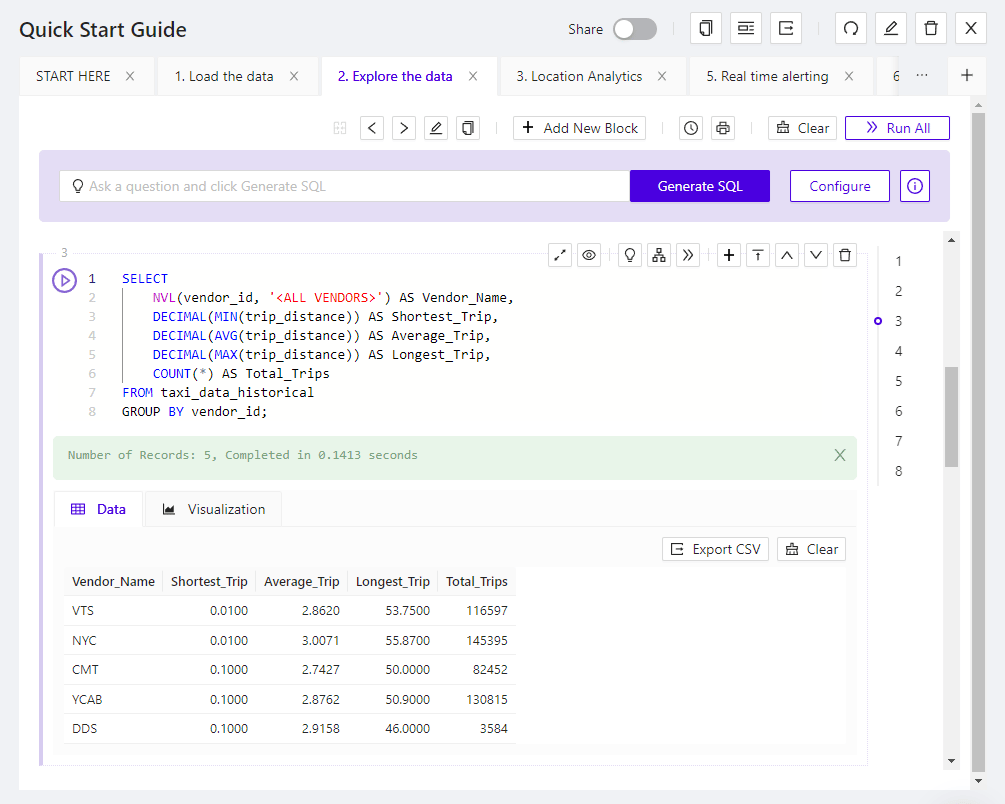
#### Running Individual Blocks
To run a *SQL Block*, click the play button next to it. When the job has
finished, you will see an output notifying you of the success or failure. If you
run a `SELECT` statement, you will see the result data presented in a data
grid format, along with other visualization options. The data grid and
visualizations are directly tied to the corresponding `SELECT` statement in
the *SQL Block*.
#### Running All Blocks
You may also run the entire *workbook* from start to finish, in sequence, by
clicking the **Run All** button in the upper right of the
*worksheet*. As each *SQL Block* completes, the next will run until an error or
the end of the *workbook* is reached.
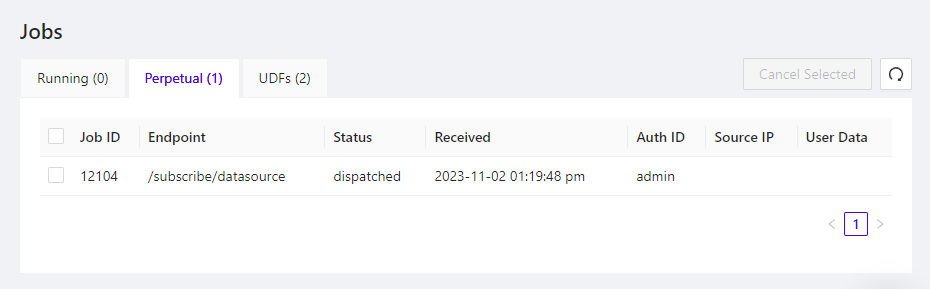
#### Canceling Jobs
If you want to stop a long-running query or a long sequence of *SQL Blocks*, you
can easily cancel the running jobs associated with each query. Use the
**Queries** button at the top of the screen. This will open a
modal with a list of all the running jobs in the system, any of which can be
stopped by checking the box next to the job and pressing the
**Cancel Selected** button.
#### Type-ahead
*SQL Blocks* feature a type-ahead capability that will suggest SQL syntax and
database object names. When you begin typing, keywords will appear, and you will
be able to select one of the items using the arrow keys. Pressing
**Enter** while one of these keywords is highlighted will add it
to your *SQL Block*.
For database objects, simply type a schema name and a dot (.); you should see
all the tables and views in that schema appear in a dropdown list.
#### Running Individual Blocks
To run a *SQL Block*, click the play button next to it. When the job has
finished, you will see an output notifying you of the success or failure. If you
run a `SELECT` statement, you will see the result data presented in a data
grid format, along with other visualization options. The data grid and
visualizations are directly tied to the corresponding `SELECT` statement in
the *SQL Block*.
#### Running All Blocks
You may also run the entire *workbook* from start to finish, in sequence, by
clicking the **Run All** button in the upper right of the
*worksheet*. As each *SQL Block* completes, the next will run until an error or
the end of the *workbook* is reached.
#### Canceling Jobs
If you want to stop a long-running query or a long sequence of *SQL Blocks*, you
can easily cancel the running jobs associated with each query. Use the
**Queries** button at the top of the screen. This will open a
modal with a list of all the running jobs in the system, any of which can be
stopped by checking the box next to the job and pressing the
**Cancel Selected** button.
 #### Visual Explain Plan
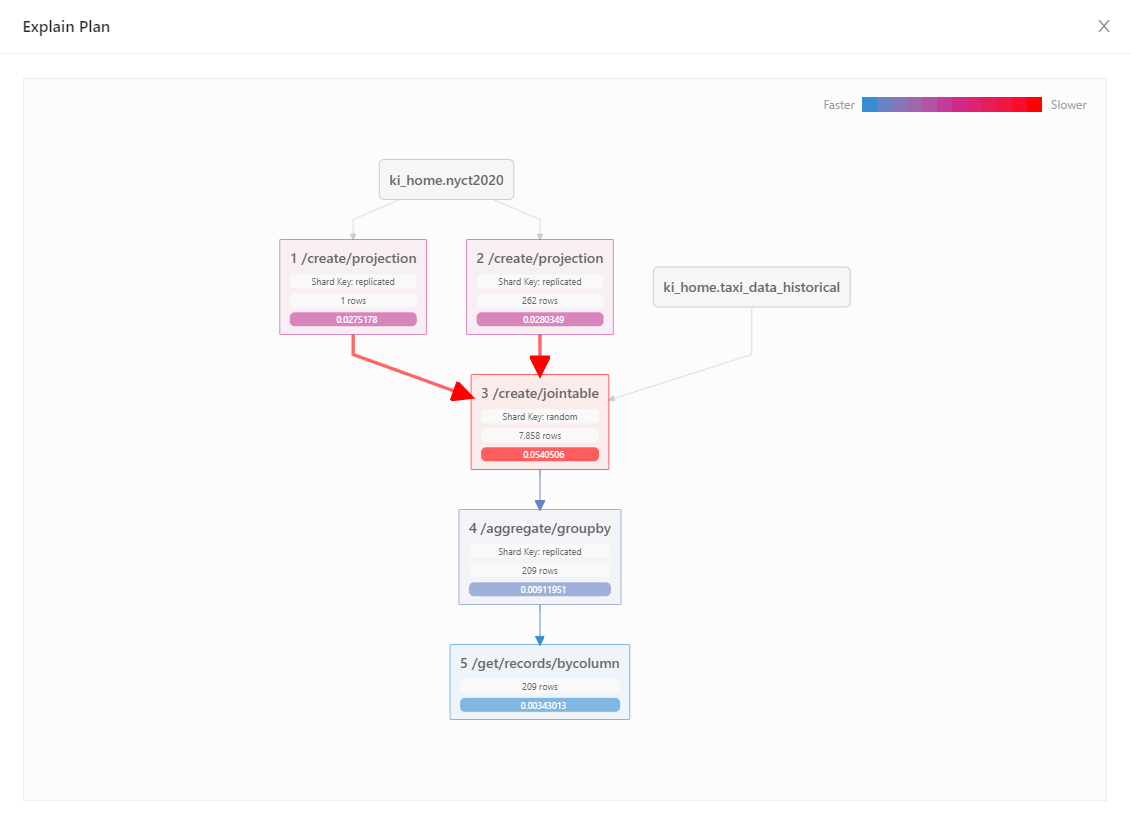
The explain plan visualizer is a graphical complement to using the `EXPLAIN`
keyword in a given query, providing visual detail to the SQL query's execution
plan, execution time, and native API translation(s).
In a given *SQL Block*, use the hierarchy icon to select
**Explain Plan**. This will not execute the query but allow the
database to walk through the native actions necessary to execute the query and
show the plan.
Use the hierarchy icon to select **Run and Analyze** to execute
the query and display the execution time for each step in the plan.
#### Visual Explain Plan
The explain plan visualizer is a graphical complement to using the `EXPLAIN`
keyword in a given query, providing visual detail to the SQL query's execution
plan, execution time, and native API translation(s).
In a given *SQL Block*, use the hierarchy icon to select
**Explain Plan**. This will not execute the query but allow the
database to walk through the native actions necessary to execute the query and
show the plan.
Use the hierarchy icon to select **Run and Analyze** to execute
the query and display the execution time for each step in the plan.
 ### Map Blocks
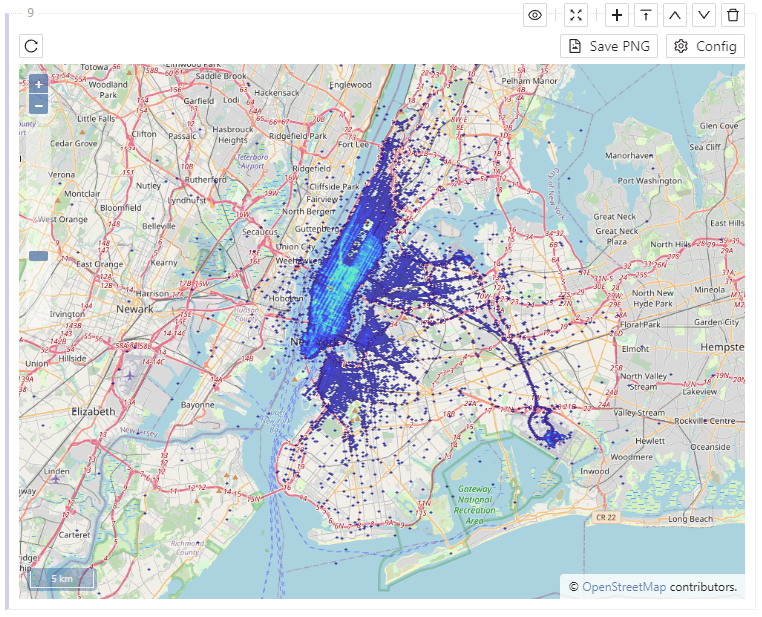
A *Map Block* starts out as an empty map but can be configured to display
geospatial data from a table.
Click on **Configure** to pick a source table and longitude &
latitude columns. Then click **Update** to display the data on
the map.
### Map Blocks
A *Map Block* starts out as an empty map but can be configured to display
geospatial data from a table.
Click on **Configure** to pick a source table and longitude &
latitude columns. Then click **Update** to display the data on
the map.
 ### Graph Blocks
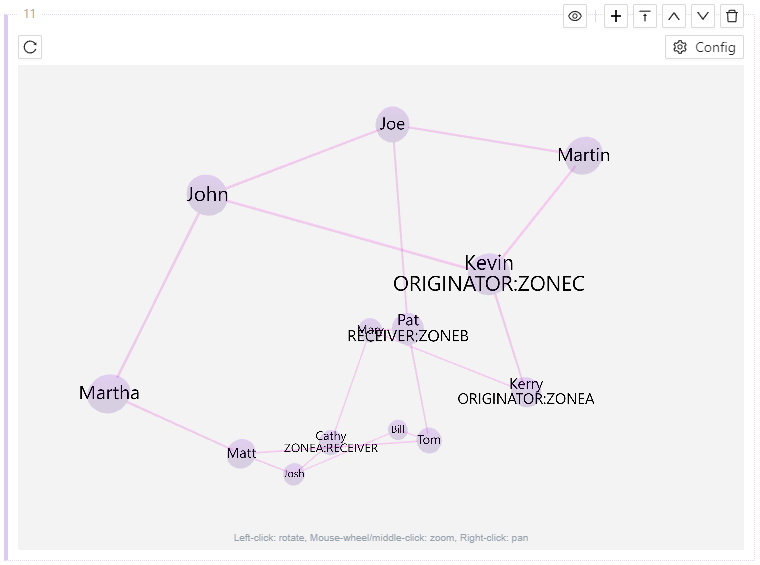
A *Graph Block* starts out as a blank page but can be configured to display
graph data from a graph output table.
Click on **Configure** to pick a source graph table and specify
the relevant node & edge columns. Then, click **Update** to
display the graph within the block.
### Graph Blocks
A *Graph Block* starts out as a blank page but can be configured to display
graph data from a graph output table.
Click on **Configure** to pick a source graph table and specify
the relevant node & edge columns. Then, click **Update** to
display the graph within the block.
 #### Graph Example
Given a `person` table of names & roles of people and a `connection` table
linking those people together, a social graph of those people and their
relations can be created by entering the following SQL into a *SQL Block* and
clicking :
```sql CREATE GRAPH Example theme={null}
CREATE or REPLACE directed GRAPH kgraph
(
NODES => INPUT_TABLE
(
SELECT name AS NAME, CONCAT(CONCAT(role,':'),locale) AS LABEL
FROM person
),
EDGES => INPUT_TABLE
(
SELECT person_a AS NODE1_NAME, person_b AS NODE2_NAME
FROM connection
),
OPTIONS => KV_PAIRS(graph_table = 'kgraph_table')
)
```
This will generate two output tables, which can be used to generate the graph:
* `kgraph_table` - the set of all edges (connections between people) in the
data set
* `kgraph_table_nodes` - the set of all nodes (people) in the data set
#### Graph Example
Given a `person` table of names & roles of people and a `connection` table
linking those people together, a social graph of those people and their
relations can be created by entering the following SQL into a *SQL Block* and
clicking :
```sql CREATE GRAPH Example theme={null}
CREATE or REPLACE directed GRAPH kgraph
(
NODES => INPUT_TABLE
(
SELECT name AS NAME, CONCAT(CONCAT(role,':'),locale) AS LABEL
FROM person
),
EDGES => INPUT_TABLE
(
SELECT person_a AS NODE1_NAME, person_b AS NODE2_NAME
FROM connection
),
OPTIONS => KV_PAIRS(graph_table = 'kgraph_table')
)
```
This will generate two output tables, which can be used to generate the graph:
* `kgraph_table` - the set of all edges (connections between people) in the
data set
* `kgraph_table_nodes` - the set of all nodes (people) in the data set
Graph Example - Edges Only
To create the graph with just the names of people related to each other, define: | Field | Value | Description | | ---------------------- | ----------------- | -------------------------------------------------- | | **Edge Table Name** | `kgraph_table` | Name of the edge table | | **Edge Source Column** | `EDGE_NODE1_NAME` | Name of the person on one side of a relation | | **Edge Target Column** | `EDGE_NODE2_NAME` | Name of the person on the other side of a relation |Graph Example - Edges & Nodes
To create the graph with the names of people related to each other and additional information about the people, both the edge & node table will need to be referenced in the configuration. The data in the two tables will be linked together using their respective `ID` columns: * `kgraph_table.EDGE_NODE1_ID` * `kgraph_table.EDGE_NODE2_ID` * `kgraph_table_nodes.NODE_ID` | Field | Value | Description | | ---------------------- | -------------------- | ------------------------------------------------- | | **Edge Table Name** | `kgraph_table` | name of the edge table | | **Edge Source Column** | `EDGE_NODE1_ID` | ID of the person on one side of a relation | | **Edge Target Column** | `EDGE_NODE2_ID` | ID of the person on the other side of a relation | | **Node Table Name** | `kgraph_table_nodes` | name of the nodes table | | **Node ID Column** | `NODE_ID` | ID of a person | | **Node Name Column** | `NODE_NAME` | Name of a person | | **Node Label Column** | `NODE_LABEL` | Label containing extra information about a person |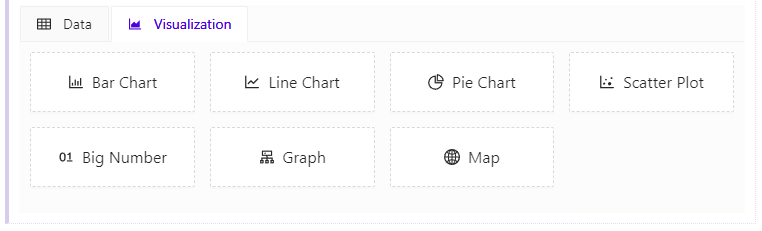 Choose a visualization style, click **Configure** to set up the
graph, and then click **Update** to display the graph.
### Bar Chart
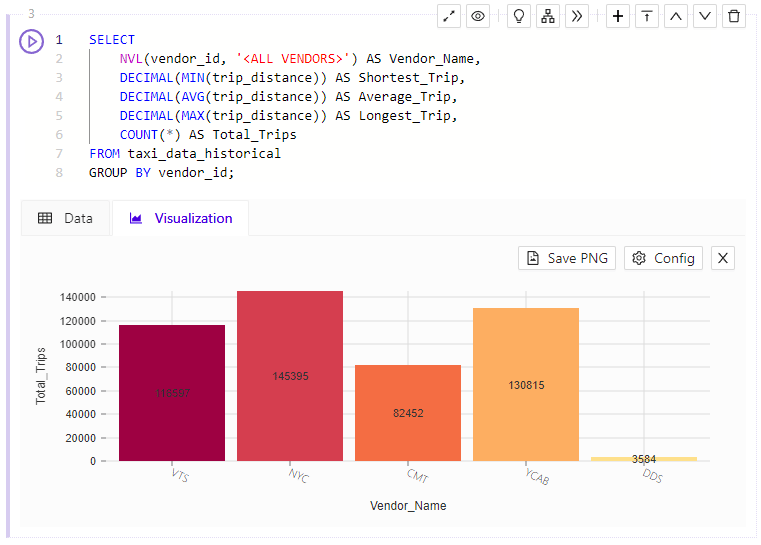
The *Bar Chart Visualization* allows you to view volumes of data by group.
Choose a visualization style, click **Configure** to set up the
graph, and then click **Update** to display the graph.
### Bar Chart
The *Bar Chart Visualization* allows you to view volumes of data by group.
 ### Line Chart
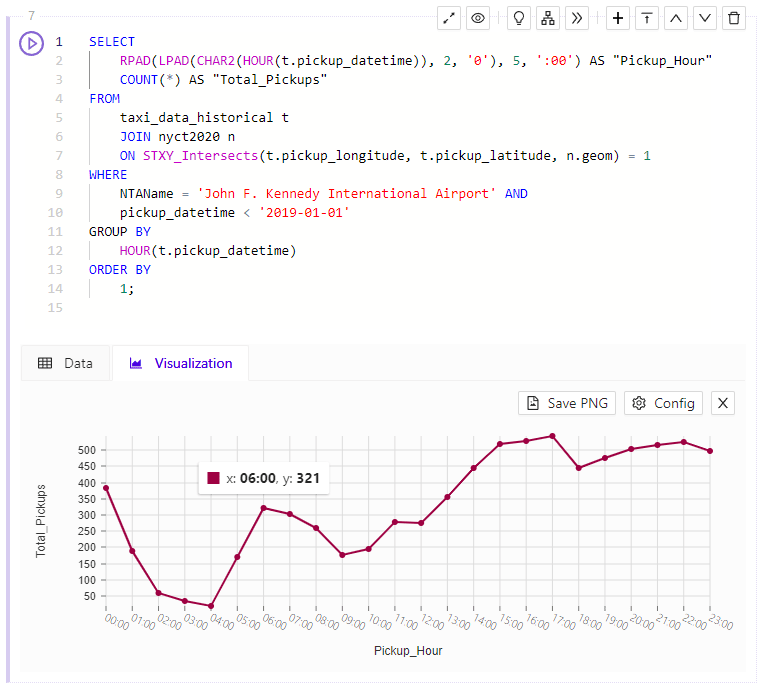
The *Line Chart Visualization* shows you trends across a dimension.
### Line Chart
The *Line Chart Visualization* shows you trends across a dimension.
 ### Pie Chart
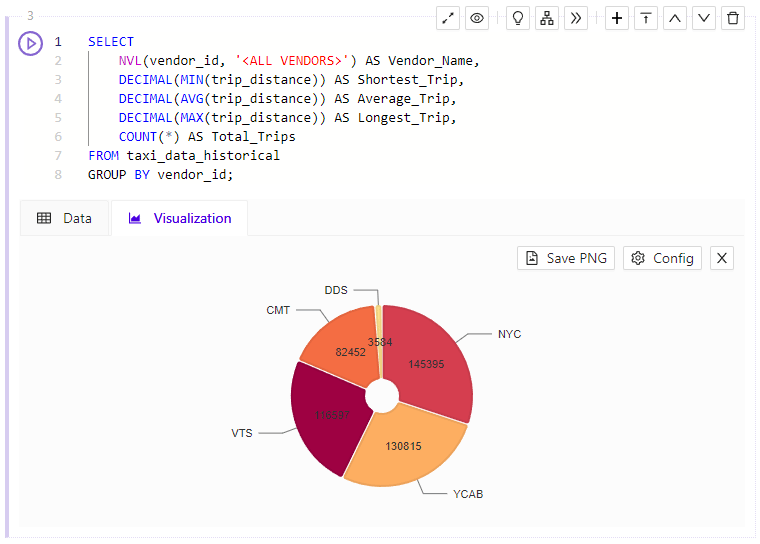
The *Pie Chart Visualization* shows you the numeric proportion of values across
several groups.
### Pie Chart
The *Pie Chart Visualization* shows you the numeric proportion of values across
several groups.
 ### Scatter Plot
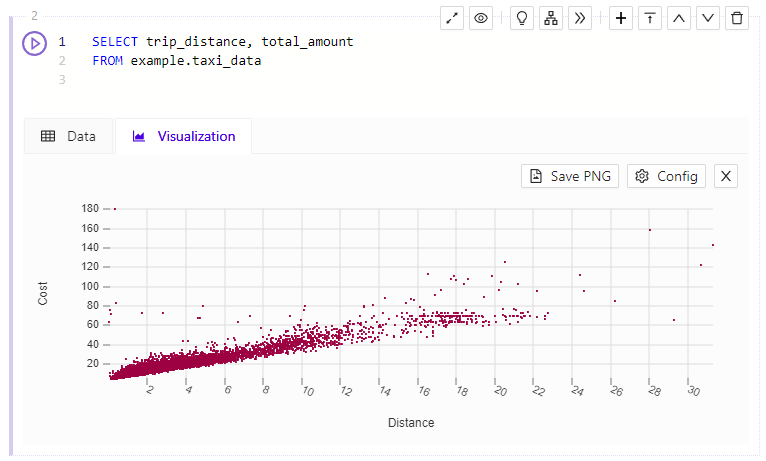
The *Scatter Plot Visualization* shows you two dimensions compared against each
other or two values compared to (or categorized by) a third value, plotted on a
coordinate system.
### Scatter Plot
The *Scatter Plot Visualization* shows you two dimensions compared against each
other or two values compared to (or categorized by) a third value, plotted on a
coordinate system.
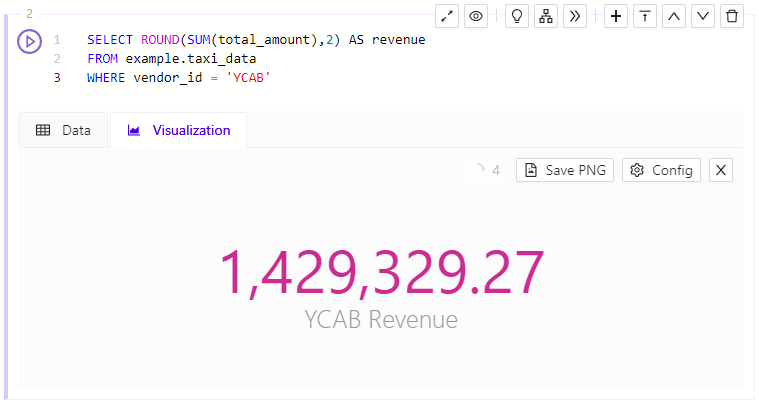
 ### Big Number
The *Big Number Visualization* simply shows the result of a query in a large
font. Multiple records are shown as a comma-delimited list of values.
### Big Number
The *Big Number Visualization* simply shows the result of a query in a large
font. Multiple records are shown as a comma-delimited list of values.
 ### Graph
The *Graph Visualization* is equivalent in interface to the
[graph block](/content/admin/workbench/workbooks#wb-graph-block).
### Map
The *Map Visualization* is equivalent in interface to the
[map block](/content/admin/workbench/workbooks#wb-map-block).
## Importing Data
Whether you’re importing directly via SQL, or using the import wizard, loading
data into *Kinetica* is easy. Several data sources are supported when ingesting
data through either mechanism. See [Data Sources](/content/concepts/data_sources) for more
information on *data sources* or [CREATE DATA SOURCE](/content/sql/ddl#sql-create-data-source) for
managing them in SQL.
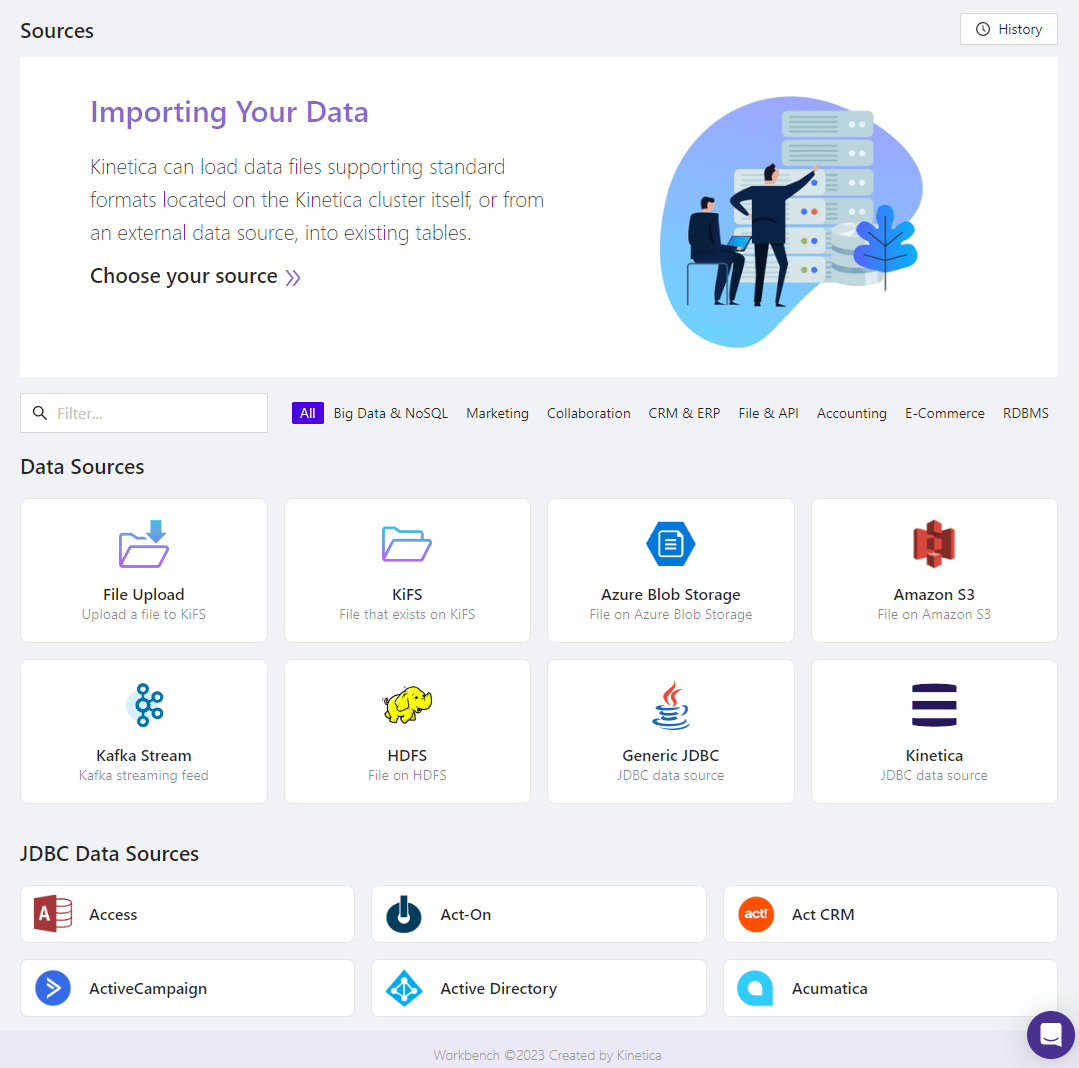
### Import Data Wizard
Importing data via the wizard can be done in several easy steps.
1. Click **Import** on the top menu to reach the
*Importing Your Data* page.
2. Choose the import mechanism to use:
* **File Upload** - Import data from a file on your local file
system
* **Kinetica Filesystem** - Import data from a file that has
already been uploaded to *KiFS*
* **Azure Blob Storage**, **Amazon S3**,
**Kafka Stream**, **HDFS** - Import data from
one of these external providers.
* **Generic JDBC** - Import data from a remote database using
a generic JDBC driver
* **Kinetica** - Import data from another Kinetica cluster
using the Kinetica JDBC driver
* **JDBC Data Sources** - Import data from a remote system
using any of the available data source drivers
3. If ingesting from a external provider like *S3*, you can either select an
existing [data source](/content/sql/ddl#sql-create-data-source) corresponding to
that provider or create a new one.
4. Enter the path to the file, and choose the file format.
5. Next, select the [schema](/content/sql/ddl#sql-create-schema) in which your new
table should be created. Then give your new table a name. By default, records
that fail to be parsed or loaded correctly will be skipped and the import
process will proceed to the subsequent records. To stop the import if an
error occurs on a record, check the appropriate box.
Optionally, define the structure of the target table if that table does not
yet exist. If the table doesn't exist and the structure is not defined here,
it will be intuited by analyzing the source file headers & data.
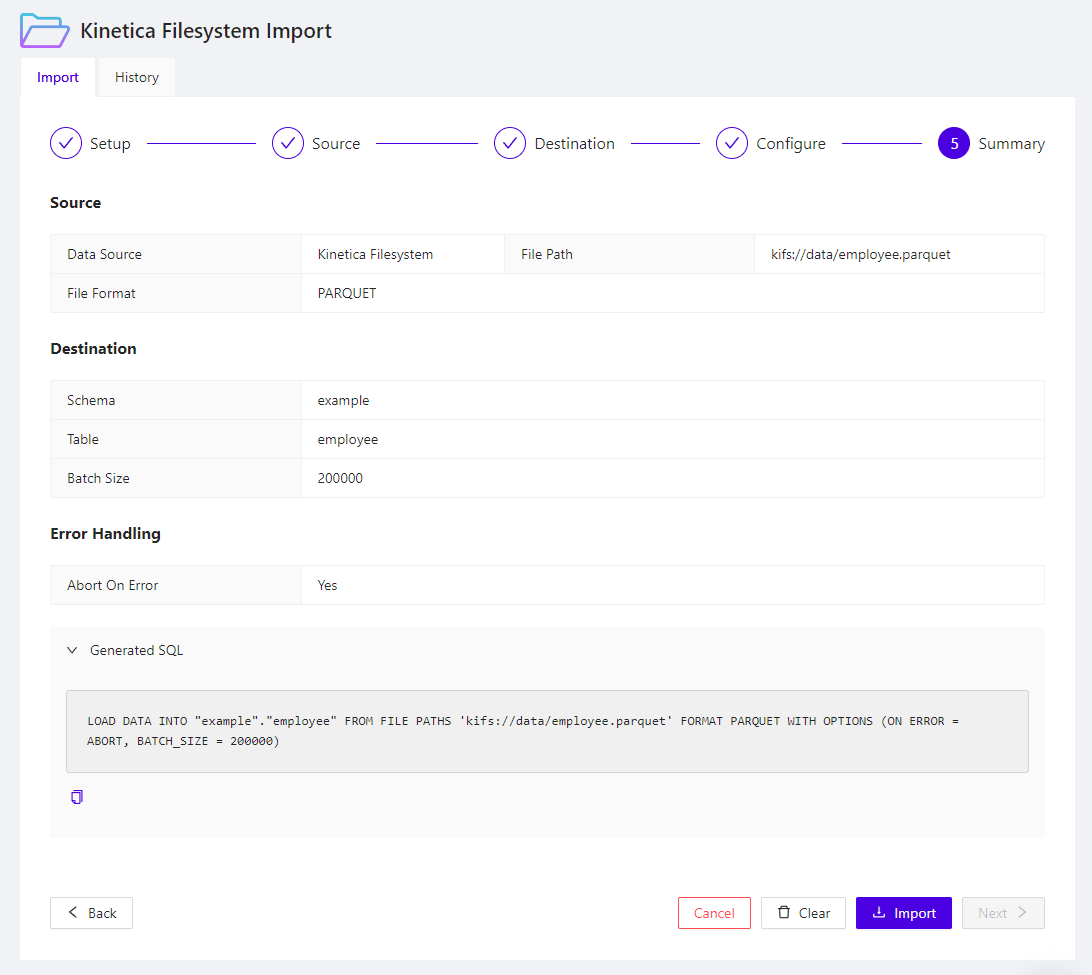
6. Once the ingest has been configured, the corresponding SQL statement for
loading the data will be displayed, which you can copy into a *worksheet* for
use later. Click **Import** to begin the import immediately,
and wait for the job to complete. You can see the status of jobs in the
**History** tab, and you can see error messages to help you
troubleshoot the import there as well.
For a more detailed look at the configuration options available through the
*Import Wizard*, see [Import](/content/admin/workbench/ui/import).
### Graph
The *Graph Visualization* is equivalent in interface to the
[graph block](/content/admin/workbench/workbooks#wb-graph-block).
### Map
The *Map Visualization* is equivalent in interface to the
[map block](/content/admin/workbench/workbooks#wb-map-block).
## Importing Data
Whether you’re importing directly via SQL, or using the import wizard, loading
data into *Kinetica* is easy. Several data sources are supported when ingesting
data through either mechanism. See [Data Sources](/content/concepts/data_sources) for more
information on *data sources* or [CREATE DATA SOURCE](/content/sql/ddl#sql-create-data-source) for
managing them in SQL.
### Import Data Wizard
Importing data via the wizard can be done in several easy steps.
1. Click **Import** on the top menu to reach the
*Importing Your Data* page.
2. Choose the import mechanism to use:
* **File Upload** - Import data from a file on your local file
system
* **Kinetica Filesystem** - Import data from a file that has
already been uploaded to *KiFS*
* **Azure Blob Storage**, **Amazon S3**,
**Kafka Stream**, **HDFS** - Import data from
one of these external providers.
* **Generic JDBC** - Import data from a remote database using
a generic JDBC driver
* **Kinetica** - Import data from another Kinetica cluster
using the Kinetica JDBC driver
* **JDBC Data Sources** - Import data from a remote system
using any of the available data source drivers
3. If ingesting from a external provider like *S3*, you can either select an
existing [data source](/content/sql/ddl#sql-create-data-source) corresponding to
that provider or create a new one.
4. Enter the path to the file, and choose the file format.
5. Next, select the [schema](/content/sql/ddl#sql-create-schema) in which your new
table should be created. Then give your new table a name. By default, records
that fail to be parsed or loaded correctly will be skipped and the import
process will proceed to the subsequent records. To stop the import if an
error occurs on a record, check the appropriate box.
Optionally, define the structure of the target table if that table does not
yet exist. If the table doesn't exist and the structure is not defined here,
it will be intuited by analyzing the source file headers & data.
6. Once the ingest has been configured, the corresponding SQL statement for
loading the data will be displayed, which you can copy into a *worksheet* for
use later. Click **Import** to begin the import immediately,
and wait for the job to complete. You can see the status of jobs in the
**History** tab, and you can see error messages to help you
troubleshoot the import there as well.
For a more detailed look at the configuration options available through the
*Import Wizard*, see [Import](/content/admin/workbench/ui/import).
 ### Import via SQL
You can use the SQL generated by the *Import Data Wizard* in your SQL
*Worksheets*, or you can write your own ingest statements. When importing from a
remote location, like *S3*, you will need to create a *data source* first. See
[CREATE DATA SOURCE](/content/sql/ddl#sql-create-data-source) for the syntax used to create one.
For example, to load taxi data from *S3*:
```sql Create an S3 Data Source theme={null}
CREATE OR REPLACE DATA SOURCE quickstart
LOCATION = 'S3'
WITH OPTIONS (
BUCKET NAME = 'quickstartpublic',
REGION = 'us-west-1'
)
```
Once you’ve created a data source, you can load data using the
[LOAD INTO](/content/sql/load#sql-load-into) statement.
```sql Load Taxi Data from S3 theme={null}
LOAD DATA INTO taxi_data_historical
FROM FILE PATHS 'taxi_data.parquet'
FORMAT PARQUET
WITH OPTIONS (
DATA SOURCE = 'quickstart'
)
```
### Import via SQL
You can use the SQL generated by the *Import Data Wizard* in your SQL
*Worksheets*, or you can write your own ingest statements. When importing from a
remote location, like *S3*, you will need to create a *data source* first. See
[CREATE DATA SOURCE](/content/sql/ddl#sql-create-data-source) for the syntax used to create one.
For example, to load taxi data from *S3*:
```sql Create an S3 Data Source theme={null}
CREATE OR REPLACE DATA SOURCE quickstart
LOCATION = 'S3'
WITH OPTIONS (
BUCKET NAME = 'quickstartpublic',
REGION = 'us-west-1'
)
```
Once you’ve created a data source, you can load data using the
[LOAD INTO](/content/sql/load#sql-load-into) statement.
```sql Load Taxi Data from S3 theme={null}
LOAD DATA INTO taxi_data_historical
FROM FILE PATHS 'taxi_data.parquet'
FORMAT PARQUET
WITH OPTIONS (
DATA SOURCE = 'quickstart'
)
```