> ## Documentation Index
> Fetch the complete documentation index at: https://docs.kinetica.com/llms.txt
> Use this file to discover all available pages before exploring further.
# Reveal User/Role Management
## Overview
*Reveal* manages its own application database. In addition to storing data
about dashboards and slices, it also manages users, roles, and permissions
for accessing those entities specific to *Reveal*.
By default, user accounts created in the database will automatically
be created in *Reveal*. Roles and permissions within *Reveal* need to be
added afterwards.
## Authentication
User accounts will be kept in sync between *Reveal* and the database, so any
user that can log into the database can log into *Reveal* with the same
credentials.
## Users
User accounts allow individual access to users in *Reveal*. Each user is
assigned one or more roles, which determines the areas and features of the
application they can access.
### Creating a New User
Since users are automatically created in *Reveal* when they are created in the
database, users should generally not need to be created within *Reveal* using
the following scheme.
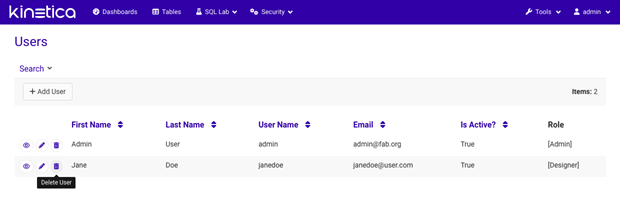
To create a new user, while logged into *Reveal*, click
**Security > List Users** from the top menu bar.

Once on the **List Users** page, click on the **+** button to
access the **Add User** page.
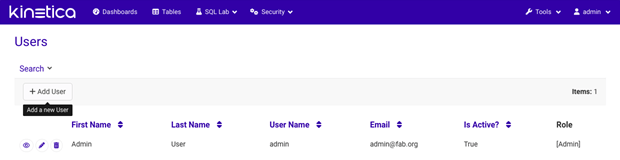
At minimum, fill in the required fields with user information and click the
**Save** button. Make sure the **Is Active** field is checked if
the user is to be activated immediately.
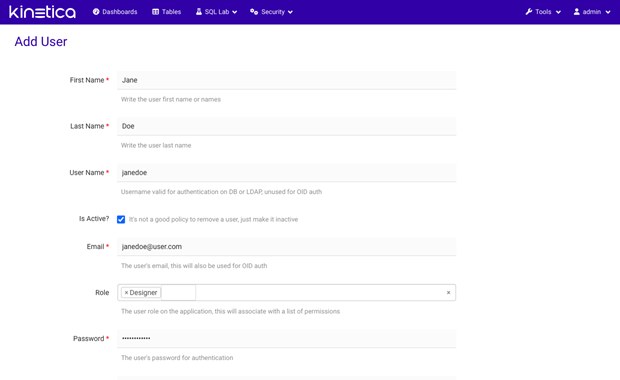 Successful user creation should be confirmed, and the new user will be
displayed in the list.
### Editing a User
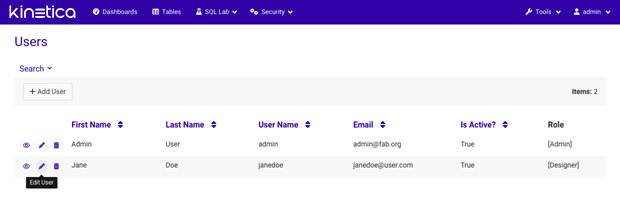
To edit an existing user, while logged into *Reveal*, click
**Security > List Users** from the top menu bar. Click the
**Edit** icon on the left side of the user record to edit. Update the
information and click the **Save** button.
Successful user creation should be confirmed, and the new user will be
displayed in the list.
### Editing a User
To edit an existing user, while logged into *Reveal*, click
**Security > List Users** from the top menu bar. Click the
**Edit** icon on the left side of the user record to edit. Update the
information and click the **Save** button.
 ### Deleting a User
To delete an existing user, while logged into *Reveal*, click
**Security > List Users** from the top menu bar. Click the
**Delete** icon on the left side of the user record to delete.
Confirm the deletion to continue.
### Deleting a User
To delete an existing user, while logged into *Reveal*, click
**Security > List Users** from the top menu bar. Click the
**Delete** icon on the left side of the user record to delete.
Confirm the deletion to continue.
 ## Roles
Roles make it simple to control access and are used to group users with
similar functional requirements. For example, *Reveal* ships with 3 default
roles: `Admin`, `Designer`, and `Dashboard`. *Admins* have full access
to the system. *Designers* are able to create slices and dashboards. *Dashboard*
users have read-only access to view dashboards.
### Creating a New Role
To create a new role, while logged into *Reveal*, click
**Security > List Roles** from the top menu bar.
## Roles
Roles make it simple to control access and are used to group users with
similar functional requirements. For example, *Reveal* ships with 3 default
roles: `Admin`, `Designer`, and `Dashboard`. *Admins* have full access
to the system. *Designers* are able to create slices and dashboards. *Dashboard*
users have read-only access to view dashboards.
### Creating a New Role
To create a new role, while logged into *Reveal*, click
**Security > List Roles** from the top menu bar.
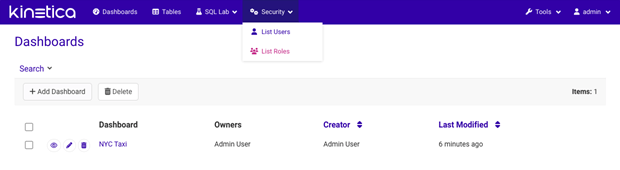
Once on the **List Roles** page, click on the **+** button to
access the **Add Role** page.
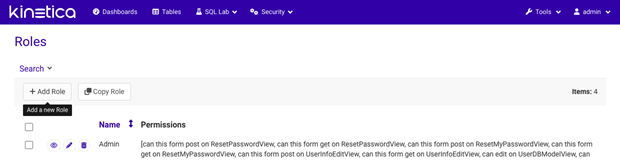
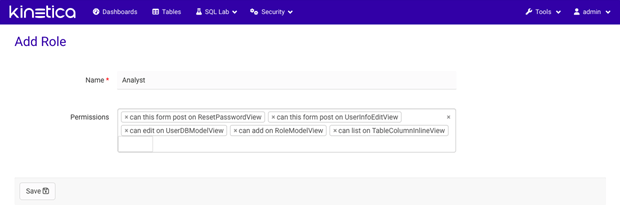
Complete the form by providing a name for the new role and also add all the
desired permissions that should be associated with the role. Then, click the
**Save** button.
 Successful role creation should be confirmed, and the new role will be
displayed in the list.
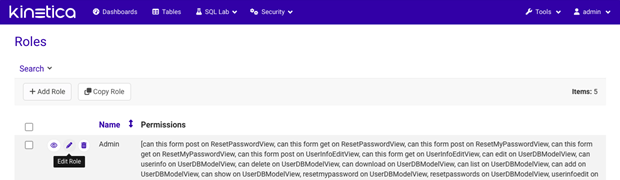
### Editing a Role
To edit an existing role, while logged into *Reveal*, click
**Security > List Roles** from the top menu bar. Click the
**Edit** icon on the left side of the role record to edit. Update the
information and click the **Save** button.
Successful role creation should be confirmed, and the new role will be
displayed in the list.
### Editing a Role
To edit an existing role, while logged into *Reveal*, click
**Security > List Roles** from the top menu bar. Click the
**Edit** icon on the left side of the role record to edit. Update the
information and click the **Save** button.
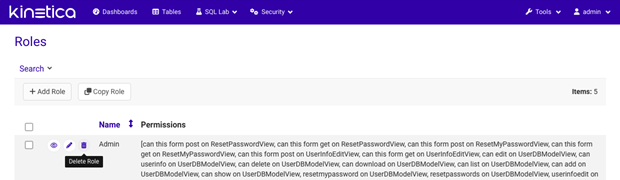
 ### Deleting a Role
To delete an existing role, while logged into *Reveal*, click
**Security > List Roles** from the top menu bar. Click the
**Delete** icon on the left side of the role record to delete. Confirm
the deletion to continue.
### Deleting a Role
To delete an existing role, while logged into *Reveal*, click
**Security > List Roles** from the top menu bar. Click the
**Delete** icon on the left side of the role record to delete. Confirm
the deletion to continue.
 ## Permissions
Permissions in *Reveal* allow for very fine-grained control over user/role
access to certain screens and features. There are many permissions, and it is
easy to get overwhelmed. It's best to review the default roles that ship with
*Reveal* to review what permissions are associated with each role and get an
idea of what each permission does. There is no need or way to add/edit/delete
permissions themselves, as they are tied to specific application code.
## Changing the Administrator Password
To change the administrator account password:
1. Log into [Reveal](/content/bi/reveal)
1. Enter **Username** (default is `admin`)
2. Enter **Password** (default is `admin`)
3. Click **Login**
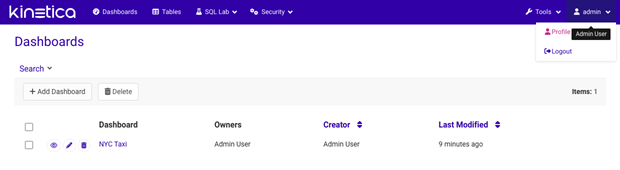
2. Click the down arrow next to the user icon on the right of the
top menu bar, and then click **Profile**.
## Permissions
Permissions in *Reveal* allow for very fine-grained control over user/role
access to certain screens and features. There are many permissions, and it is
easy to get overwhelmed. It's best to review the default roles that ship with
*Reveal* to review what permissions are associated with each role and get an
idea of what each permission does. There is no need or way to add/edit/delete
permissions themselves, as they are tied to specific application code.
## Changing the Administrator Password
To change the administrator account password:
1. Log into [Reveal](/content/bi/reveal)
1. Enter **Username** (default is `admin`)
2. Enter **Password** (default is `admin`)
3. Click **Login**
2. Click the down arrow next to the user icon on the right of the
top menu bar, and then click **Profile**.
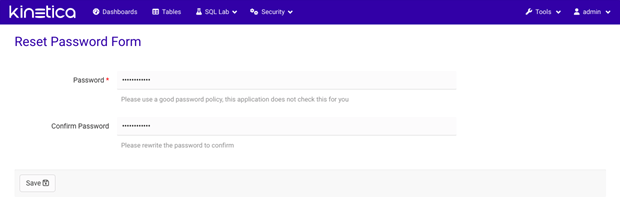
 3. Next, click the **Reset my password** button
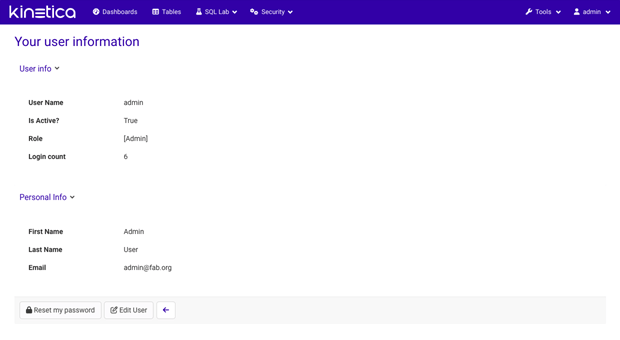 4. Enter and confirm your new password, then click the **Save** button.