

Prerequisites
The prerequisites for running the multiple routing solve graph example are listed below:- Graph server enabled
- Python API
- Solve graph script
- Seattle road network CSV file
Python API Installation
Depending on the target operating system, a Python virtual environment may need to be installed first: The native Kinetica Python API is accessible through the following means:Python Virtual Environment
A Python virtual environment is necessary to install in an operating environment where Python is externally managed.-
Install a Python virtual environment:
-
Activate the Python virtual environment:
PyPI
-
Install the API:
-
Test the installation:
If Import Successful is displayed, the API has been installed as is ready for use.
Git
-
In the desired directory, run the following, but be sure to replace
<kinetica-version>with the name of the installed Kinetica version, e.g.,v7.2: -
Change directory into the newly downloaded repository:
-
In the root directory of the unzipped repository, install the Kinetica API:
-
Test the installation (Python3 is necessary for running the API example):
Data File
The example script references the road_weights.csv data file, mentioned in the Prerequisites, in the current local directory, by default. This directory can specified as a parameter when running the example script.Script Detail
This example is going to demonstrate solving for the shortest possible route between destination points and a source point located in a Seattle road network.Constants
Several constants are defined at the beginning of the script:-
SCHEMA— the name of the schema in which the tables supporting the graph creation and match operations will be createdThe schema is created during the table setup portion of the script because the schema must exist prior to creating the tables that will later support the graph creation and match operations. -
TABLE_SRN— the name of the table into which the Seattle road network dataset is loaded -
GRAPH_S— the Seattle road network graph -
TABLE_GRAPH_S_MRSOLVED— the solved Seattle road network graph using theMULTIPLE_ROUTINGsolver type
Constant Definitions
Graph Creation
One graph is used for the multiple routing solve graph example utilized in the script:seattle_road_network_graph, a graph based on the Seattle road
network dataset (the CSV file mentioned in Prerequisites).
The seattle_road_network_graph graph is created with the following
characteristics:
- It is directed because the roads in the graph have directionality (one-way and two-way roads)
- It has no explicitly defined nodes because the example relies on implicit nodes attached to the defined edges
- The edges are identified by
WKTLINE, using WKT LINESTRINGs from theWKTLINEcolumn of theseattle_road_networktable. The road segments’ directionality (DIRECTION) is derived from theTwoWaycolumn of theseattle_road_networktable. - The weights (
VALUESPECIFIED) are represented using the time taken to travel the segment found in thetimecolumn of theseattle_road_networktable. The weights are matched to the edges using the sameWKTLINEcolumn as edges (EDGE_WKTLINE) and the sameTwoWaycolumn as the edge direction (EDGE_DIRECTION). - It has no inherent
restrictionsfor any of the nodes or edges in the graph - It will be replaced with this instance of the graph if a graph of the same
name exists (
recreate)
Create Seattle Road Network Graph
Multiple Routing
Before theseattle_road_network_graph graph is solved, the source node and
destination nodes are defined.
Define Source & Destination Locations
Solve Graph
Solve Graph Results
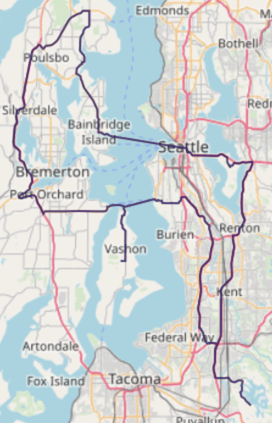
Download & Run
Included below is a complete example containing all the above requests, the data files, and output. To run the complete sample, ensure that:- the solve_graph_seattle_multi_route.py script is in the current directory
- the road_weights.csv file is in the current directory or use
the
data_dirparameter to specify the local directory containing it
Run Example