

Pre-Upgrade Actions
Before upgrading to Kinetica 7.2 perform the following checks & tasks to ensure the system is ready to be upgraded.Checks
- Ensure that the system being upgraded is Kinetica 7.1.
- Ensure that 8GB of disk space is available on the directory mount used for installation on each node.
- If performing an offline upgrade, ensure that all installation packages are available to the machine initiating the upgrade (the one that will log into KAgent and kick off the installation).
Tasks
- Back up data & configuration files.
- If AAW is being used, terminate all ingests and deployed models.
Upgrade Actions
If upgrading an on-premise Kinetica ring or one hosted in the cloud, the ring can be upgraded in place. The upgrade path is dependent upon whether the Kinetica 7.1 cluster is currently being managed by KAgent.Managed Cluster Upgrade
If the cluster to upgrade is already managed by KAgent 7.1, upgrade KAgent to version 7.2, and then upgrade the cluster.-
Upgrade KAgent.
KAgent can be upgraded in place, whether it resides on a server inside or
outside the cluster. After copying the KAgent package to the server hosting
KAgent, upgrade the package using the standard procedures for a local package:
-
Stop the current KAgent process:
-
Upgrade the KAgent application based on host operating system:
-
On RHEL:
-
On Debian/Ubuntu:
-
On RHEL:
kagent_uiservice. -
Stop the current KAgent process:
-
Start KAgent.
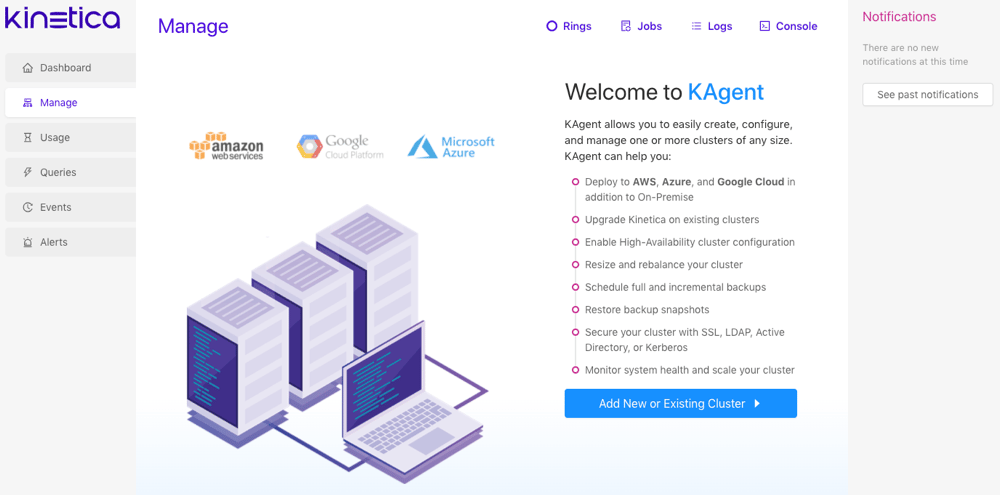
-
Ensure the KAgent service is started:
-
Browse to the KAgent application using IP or host name:
- If KAgent is associated with one or more Kinetica clusters, log in using the credentials for that cluster. If KAgent has not been associated with any clusters yet, the application will load without prompting.
-
Ensure the KAgent service is started:
- Click Upgrade Ring.
-
For each ring to upgrade, click Upgrade on that ring, and follow
these steps to upgrade the ring:
- Confirm that all tasks under Tasks have been performed, then check the checkboxes and click Start.
- If performing an offline upgrade, upload all the Kinetica 7.2 install packages. When done, or if performing an online upgrade, click Next.
- Click Upgrade and then click Yes to begin the Kinetica 7.2 upgrade process.
- Click Close when the upgrade is complete.
Unmanaged Cluster Upgrade
If the cluster to upgrade is not managed by KAgent 7.1, install KAgent 7.2, add the cluster, and upgrade it to 7.2.-
Install KAgent.
KAgent can be deployed as a RHEL, Ubuntu, or SUSE installation package on any
server inside or outside the cluster.
Automatically download & install the latest KAgent version using these
commands:
Alternatively, visit the
KAGENT_REPOlink below to search for a specific version of KAgent, changeKAGENT_PKGto that version on line 2, and then run the modified commands to download & install that version:This installs the package to the directory /opt/gpudb/kagent and registers and starts thekagent_uiservice. KAgent will open port8081on the local firewall (if enabled). -
Start KAgent.
-
Ensure the KAgent service is started:
-
Browse to the KAgent application using IP or host name:
- If KAgent is associated with one or more Kinetica clusters, log in using the credentials for that cluster. If KAgent has not been associated with any clusters yet, the application will load without prompting.
-
Ensure the KAgent service is started:
- Add the cluster to upgrade to KAgent, choosing the on-premise deployment method, regardless of the way in which the cluster is actually provisioned.
-
For each additional cluster to upgrade:
- Click + Cluster
- Add the cluster to upgrade to KAgent, choosing the on-premise deployment method
- Click Rings at the top of the page.
- Click Upgrade on the ring to upgrade to Kinetica 7.2
- If performing an offline upgrade, upload all the Kinetica 7.2 install packages. When done, or if performing an online upgrade, click Upgrade and then click Yes to begin the Kinetica 7.2 upgrade process.
Post-Upgrade Actions
- If AAW was being used in the ring that was upgraded:
- Upgrade database clients, if needed.
Upgrading Database Clients
Any native API clients or ODBC/JDBC drivers can be updated to take advantage of new features in Kinetica 7.2.Native APIs
The instructions for upgrading to the latest APIs can be found in their respective manuals:- C++ Developer Guide
- Java Developer Guide
- JavaScript Developer Guide
- Node.js Developer Guide
- Python Developer Guide
JDBC
See JDBC for the latest JDBC clients and related configuration.ODBC
Be sure to remove older versions of the driver before installing new ones.Remove Previous Windows ODBC Drivers
To remove the old drivers:- Launch ODBC Data Source Administrator (64-bit or 32-bit, as needed).
- Select any entry with a Driver name of
Kinetica ODBC Driver. - Optionally, click the Configure button to open up the driver properties window and record any settings that could be reused with the new driver (username, SSL Certificate path, etc.).
- Click the Remove button.
- Click the Yes button to confirm the removal.
- Repeat this process until all older drivers have been removed.
Install New ODBC/JDBC Drivers
See ODBC for the latest ODBC clients and related configuration.