

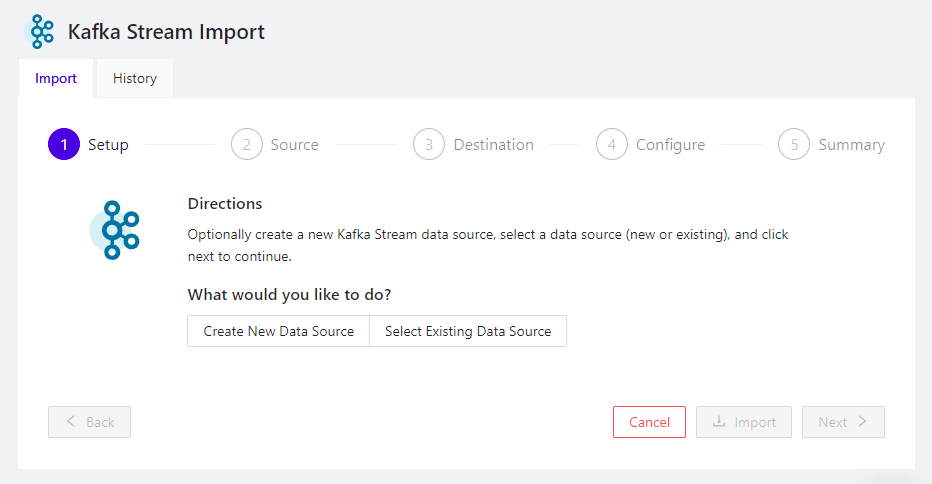
- Import - contains the 5-step process for streaming data from Kafka
- History - lists all of your previous Kafka stream attempts
Import Overview
When importing, the following five steps will need to be completed: At any step, the following actions are available at the bottom of the screen:- Next - proceed to the next step
- Back - return to the previous step
- Cancel - exit the import process
- Import - once enough information has been specified to begin importing data, the Import button will become active
Setup
In this step, the data source used to connect to Kafka is selected.-
Create New Data Source - click to create a new
data source that connects to Kafka, then enter its configuration and click
Create to create the data source and proceed to the
Source selection page:
- Name - enter a unique name for the data source
- URL - enter the host & port of the Kafka service to use
- Topic Name - enter the name of the Kafka topic from which data will be streamed
-
Auth Type - select an authorization scheme; this will
prompt with the appropriate fields for the scheme selected
To authenticate to Kafka services via other authentication schemes, create a Kafka Credential via SQL (in a Workbook, for example) and then create a Kafka Data Source that uses the credential
-
Select Existing Data Source - click to select an existing
data source that connects to Kafka and then click
Next to proceed to the Source selection
page:
- Data Source - click to open a drop-down of available data sources that connect to Kafka and select one
Source
In this step, the source data options are configured, if necessary.- Source - pre-selected as the name of the data source chosen in the previous step
- Format - pre-selected as JSON
- Poll Interval - the time (in seconds) between successive requests to Kafka for more data
- Store Points As X/Y - check the box to store GeoJSON data as separate X, Y, & Z columns, instead of a WKT-based format
Destination
In this step, the target table to import into is selected.- Schema - name of the schema containing the target table; if blank, the user’s default schema will be used
- Table - name of the target table, which must meet table naming criteria; Workbench will suggest a table name here, if possible
- Abort on Error - check, to have the import stop at the first record import failure; any records imported by this point will remain in the target table
-
Bad Records Table - when Abort on Error
is unchecked the errant records will be written to the specified table
- Schema - schema in which the bad records table should reside
- Table - name for the bad records table
Configure
In this step, the target table’s structure can be specified, if the table does not exist. Not specifying any structure will cause the import process to infer the table’s structure from the source data. To specify a table structure, click + Add Column once for each field in the source data, then enter the specification for each column, including:- Name - name of the column, which must meet the standard naming criteria
- Type - type of the column, and sub-type, if applicable
- Nullable - check the box if the column should allow null values
-
Properties - check any properties that should apply to this
column:
- Primary Key - make this column the primary key or part of a composite primary key
- Shard Key - make this column the shard key or part of a composite shard key
- Dict. Encoded - apply dictionary encoding to the column’s values, reducing storage used for columns with more often repeated data
- Init. with Now - replace empty or invalid values inserted into this column with the current date/time
- Init. with UUID - replace empty values inserted into this column with a universally unique identifier (UUID)
- Text Search - make this column full-text searchable, using FILTER_BY_STRING in search mode